Make your own GIFs
Turn a funny moment from a video into a GIF or WebP you can drop into any chat or Nostr post. Pick the moment, frame it, add a caption, and save it right where you keep your files.
For anyone who wants their own reaction GIFs. Making them needs the video editor, which comes with the Professional plan and up.
The pictures show a phone. On a computer the tools sit down the left side with their names, and the rest works the same way.
On this page
GIF, WebP or MP4
The editor saves three kinds of moving picture. Pick the one that suits where it is going:
- GIF plays almost everywhere: every browser and nearly every app and chat. It is also the biggest of the three.
- WebP looks almost the same and is usually several times smaller. Every current browser plays it, and so do most apps.
- MP4 is a short video: usually smaller still, but it can't have see-through parts.

Open your clip
- Open the Editor page and tap Choose a file. Pick a short video, a GIF or an animated WebP from your phone or computer.
- Or open one that is already in your library: tap the round Edit button on the picture in its details, or Edit in the full-screen viewer's menu.
- At the top of the editor, tap GIF or WebP. A video starts on MP4; a GIF or WebP starts on its own kind.
Pick the moment
- In Trim, drag the handle at the left end of the strip to where the moment starts.
- Drag the right handle to where it ends. Tap Play to watch it.
Frame it
- Tap Crop, then Crop shape, and pick Profile picture 1:1 for a square. Squares fit chats and GIF pickers best.
- Drag the picture until the face, or whatever matters, is in the middle.
Add a caption
- Tap Annotate, then Meme text: white letters with a black outline, easy to read on anything.
- Drag a box across the bottom of the picture and type.
- Tap outside the box when you are done. Tap the words again to change or move them.
The letters fit the box you draw: draw it taller for bigger letters. Afterwards, drag its side handles to make them bigger or smaller.
In depth: Draw and writeStickers that move
In Sticker, add an emoji or one of the Markers. Then tap Animation and pick one, such as Bounce. It moves in your GIF too.
In depth: Moving stickers and captions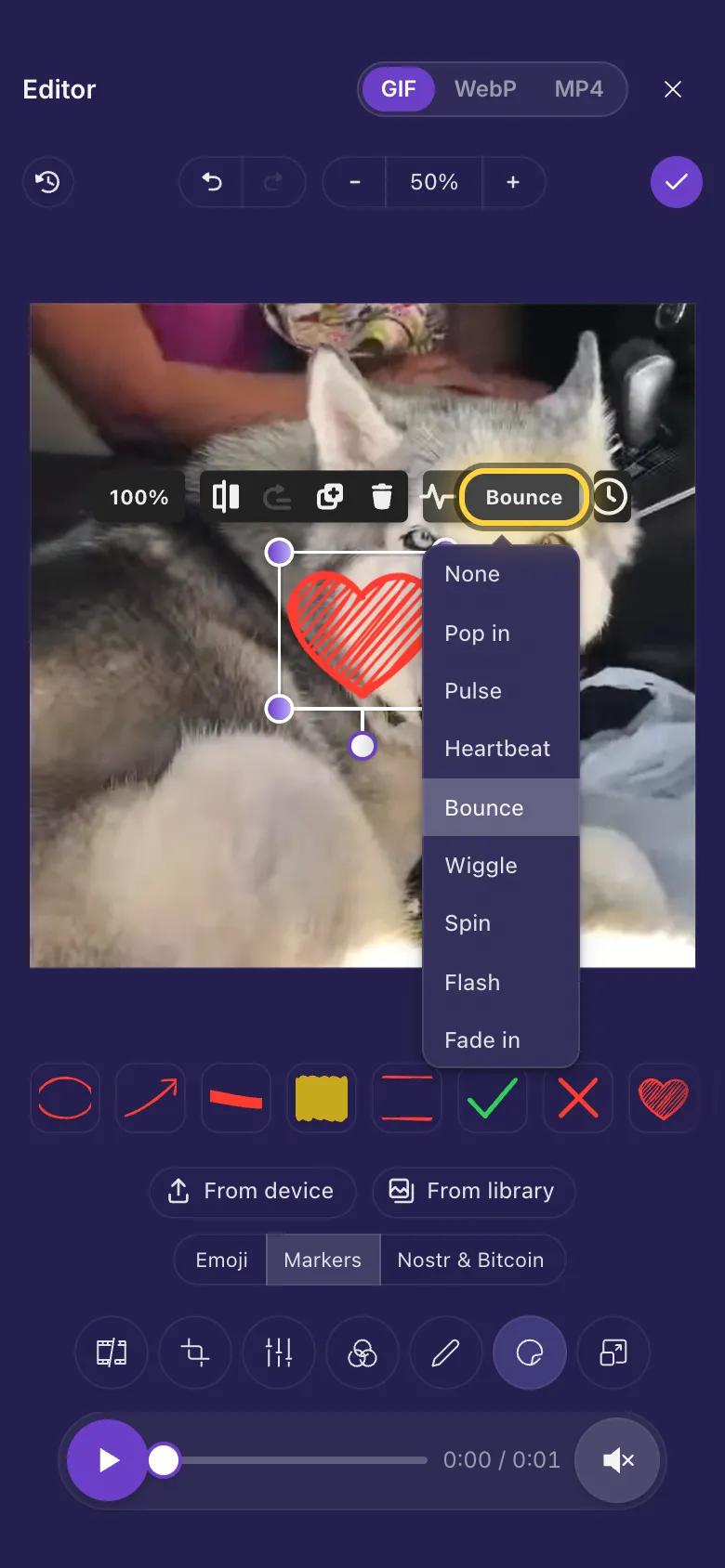
Keep it small
A video becomes a GIF or WebP at the size GIF sites use: the shorter side at most 480 pixels, at most 15 pictures a second. A GIF or WebP you open keeps its own size and speed.
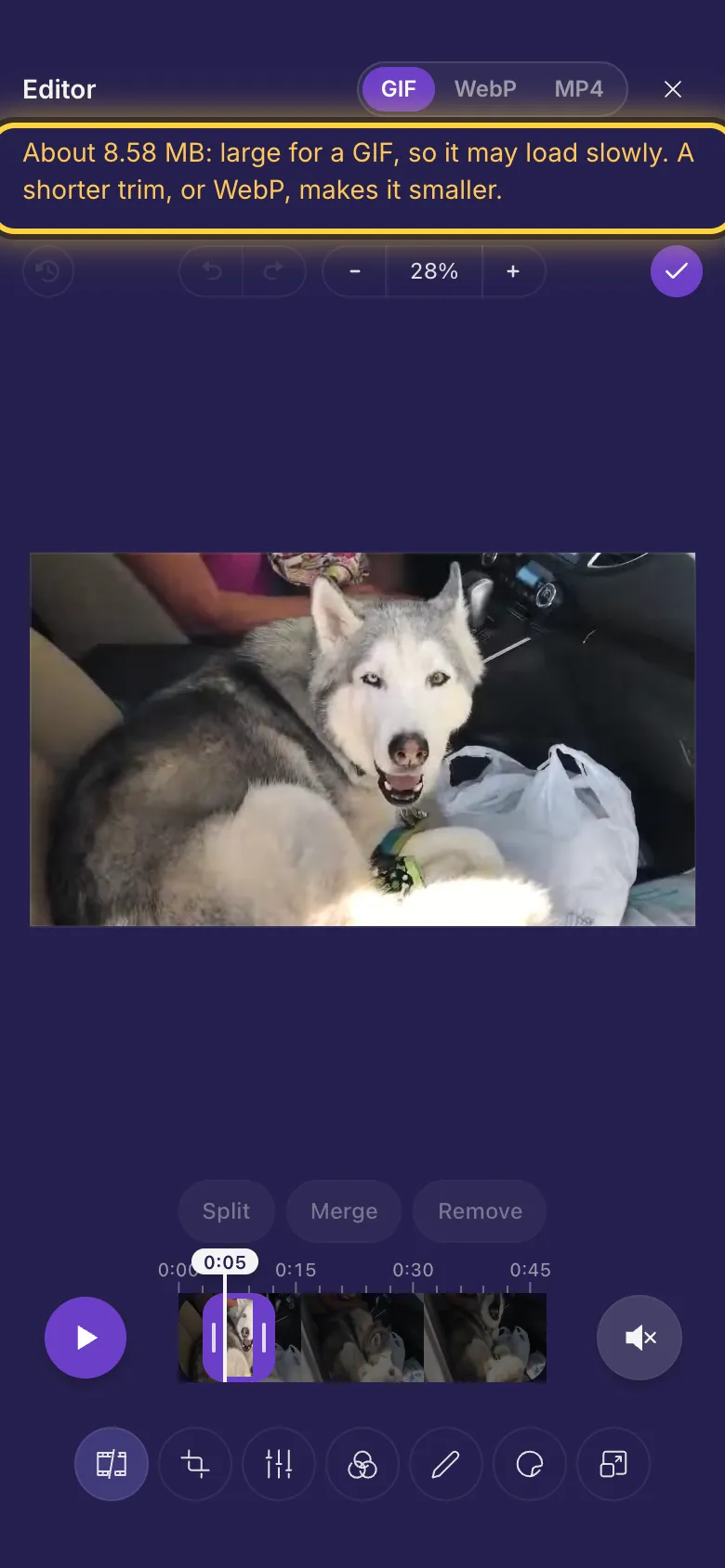
Above about 8 MB, a note at the top says it may load slowly. You can still save it. To make it smaller:
- Trim it shorter.
- Crop it to the part that matters.
- Shrink it in Resize: type a Width such as 320.
- Save it as WebP instead.
See-through parts stay see-through. A WebP keeps soft edges smooth; in a GIF, each spot is either see-through or not. MP4 fills them with black.
Save it
- Tap Done .
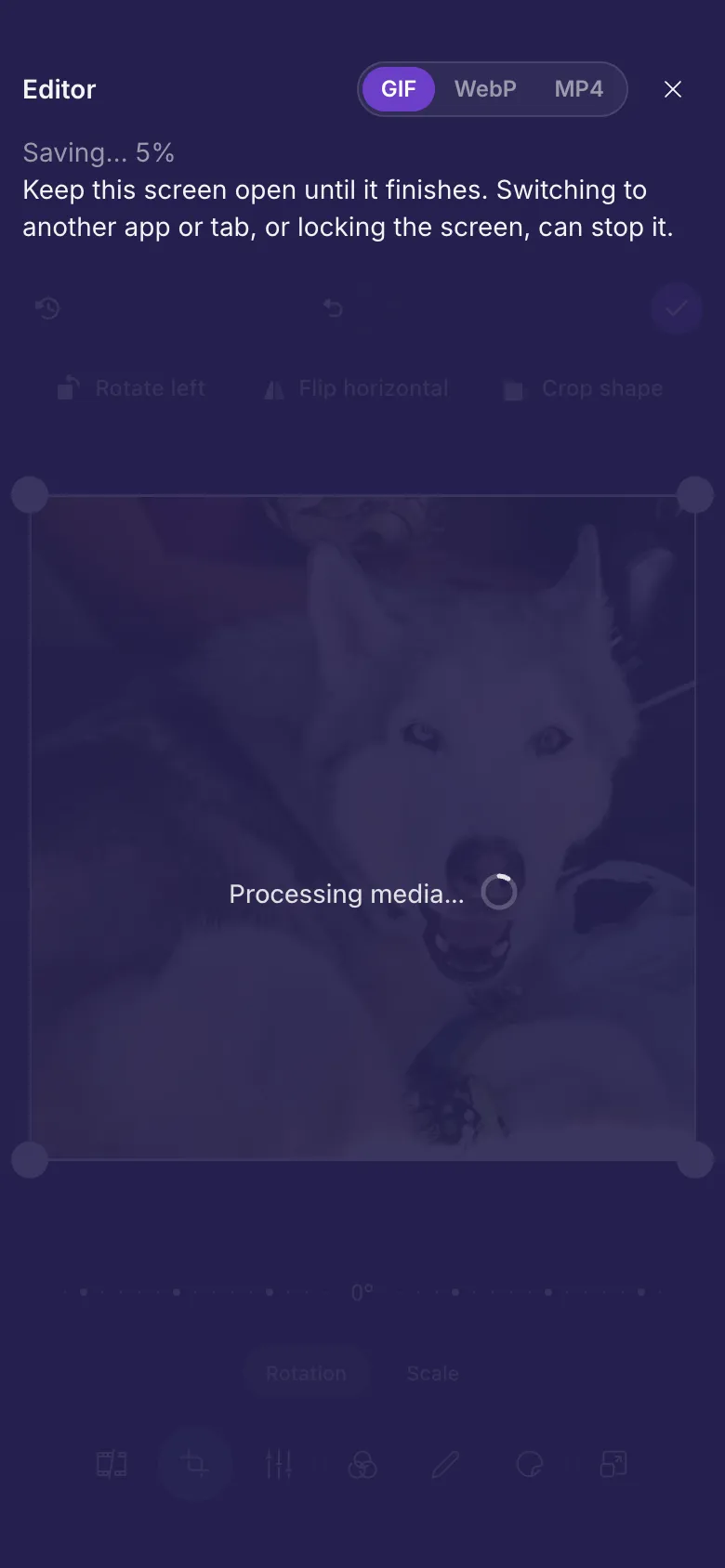
- The editor makes the GIF on your device, then uploads it to your library as a new file. Keep the screen open until it is done.
Keep it or share it
Your GIF is a file in your library like any other. Copy its link to send it, or post it on Nostr: Share on Nostr.
Or give a copy to everyone: the public nostr.build GIF library at gifs.nostr.build, where anyone can find and use it.
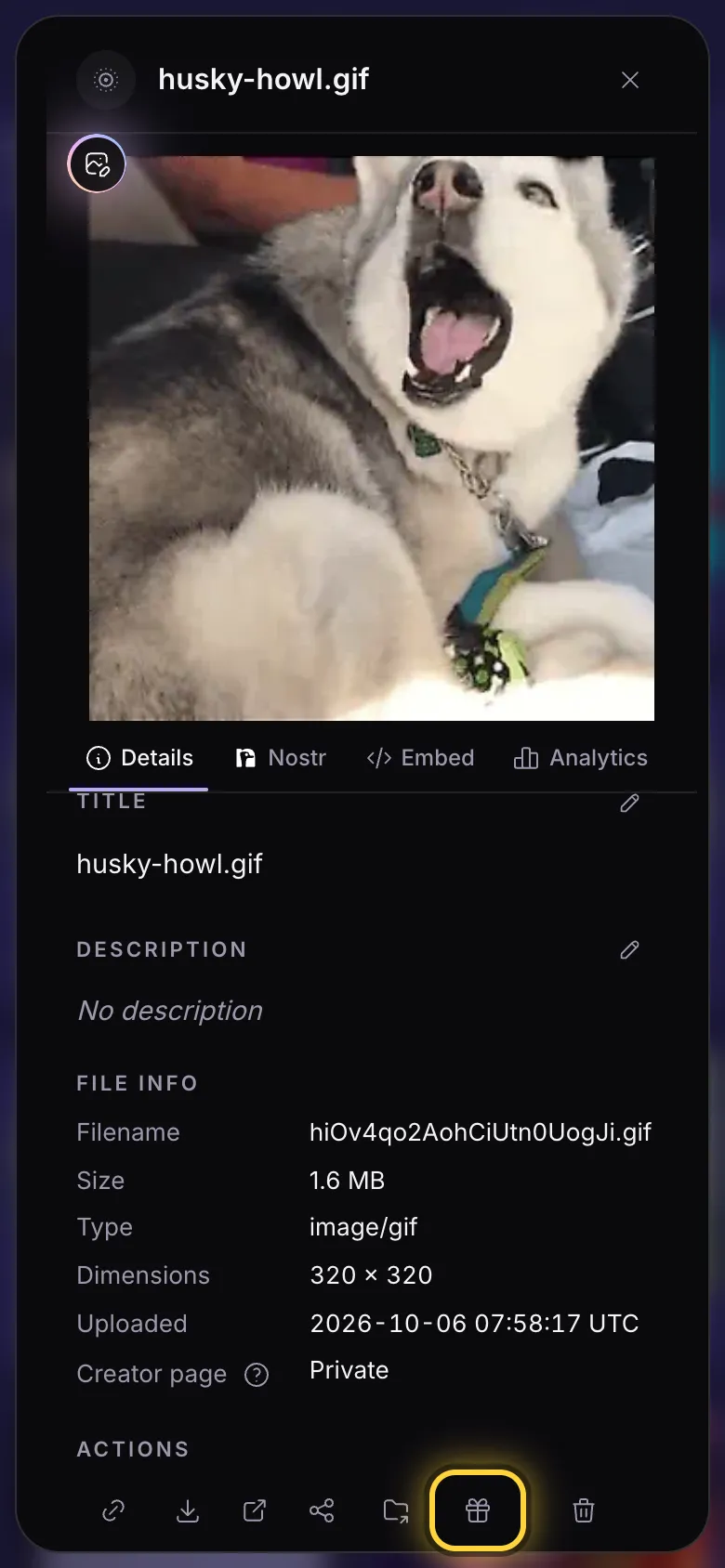
- Open the GIF's details: tap the three dots under it.
- In the row of buttons at the bottom, tap the gift box (Contribute to the GIF library).
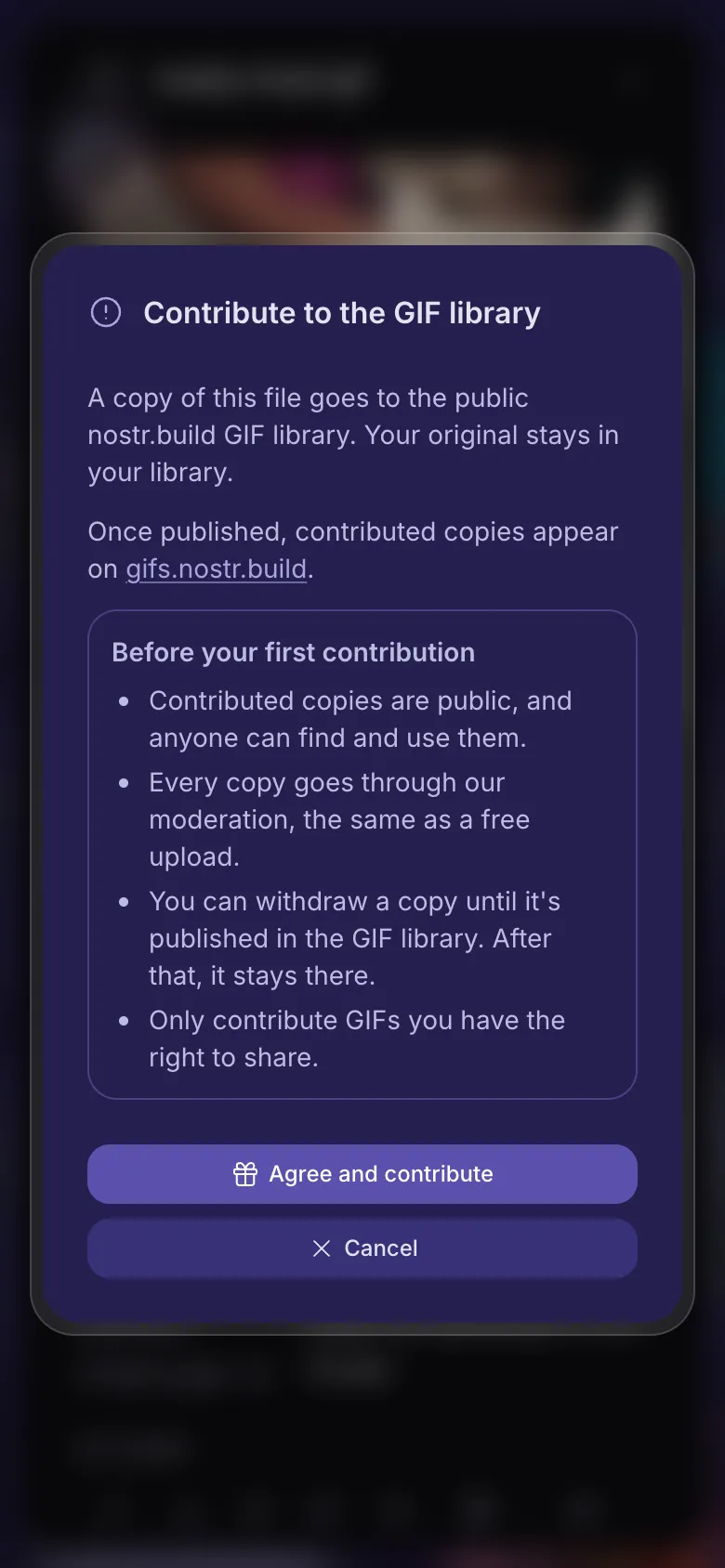
- The first time, read what it means and tap Agree and contribute. After that, one tap on Contribute does it.
- Contributed copies are public, and anyone can find and use them.
- Every copy goes through our moderation, the same as a free upload.
- You can withdraw a copy until it's published in the GIF library. After that, it stays there.
- Only contribute GIFs you have the right to share.
The gift box shows once your Nostr key is verified: Your relay shows how to verify it. Your original stays in your library.
Changed your mind? Once the copy is done, the gift box turns into Withdraw from the GIF library. Tap it and confirm to take the copy back, as long as it isn't published in the GIF library yet.
Ideas to try
A reaction with a caption
Trim to the best second or two, crop it to Profile picture 1:1, add a Meme text caption and save as GIF.

A small loop as WebP
Trim to one movement, keep the whole picture and save as WebP: a fraction of the size of the same GIF.

A sticker that bounces
Add a heart from Markers, set its Animation to Bounce and save as GIF.
Make a big GIF smaller
Open the GIF, tap WebP and save. The WebP looks nearly the same and is much smaller, and your GIF stays as it was.
Older iPhones and iPads
Making GIFs needs iOS 16.4 or later on an iPhone or iPad (on a Mac, Safari 16.4 or later). Before that, GIFs don't open and an animated WebP opens as a still picture.
If GIF, WebP and MP4 are all missing at the top of the editor, it opened in the simpler editor, which saves only video. Older iPhones and iPads explains when that happens.
Related guides
Video and GIF editor
Trim a clip, cut out a part, add captions that come and go, and choose the thumbnail people see first.
Trim, split and sound
Shorten a video, cut parts out of the middle, play it back, and what happens to the sound and to GIFs.
Moving stickers and captions
Every animation, captions that come and go on time, and GIFs or videos playing inside your video.
Share on Nostr
Post a file with a note of your own, share several at once, and see or take down what you posted.
Still stuck? When something goes wrong explains the common error messages, and Get help shows how to reach the team.