Moving stickers and captions
Bring what you add to a video to life: stickers and text that pop in, bounce or spin, captions that come and go with the scene, and GIFs or clips that play inside your video.
For anyone making a short video for social media who wants it to feel lively, or to explain what happens as it happens.
The pictures show a phone. On a computer the tools sit down the left side with their names, and the rest works the same way.
On this page
Make it move
- Add a sticker or some text with Sticker or Annotate.
- Tap it so it is selected.
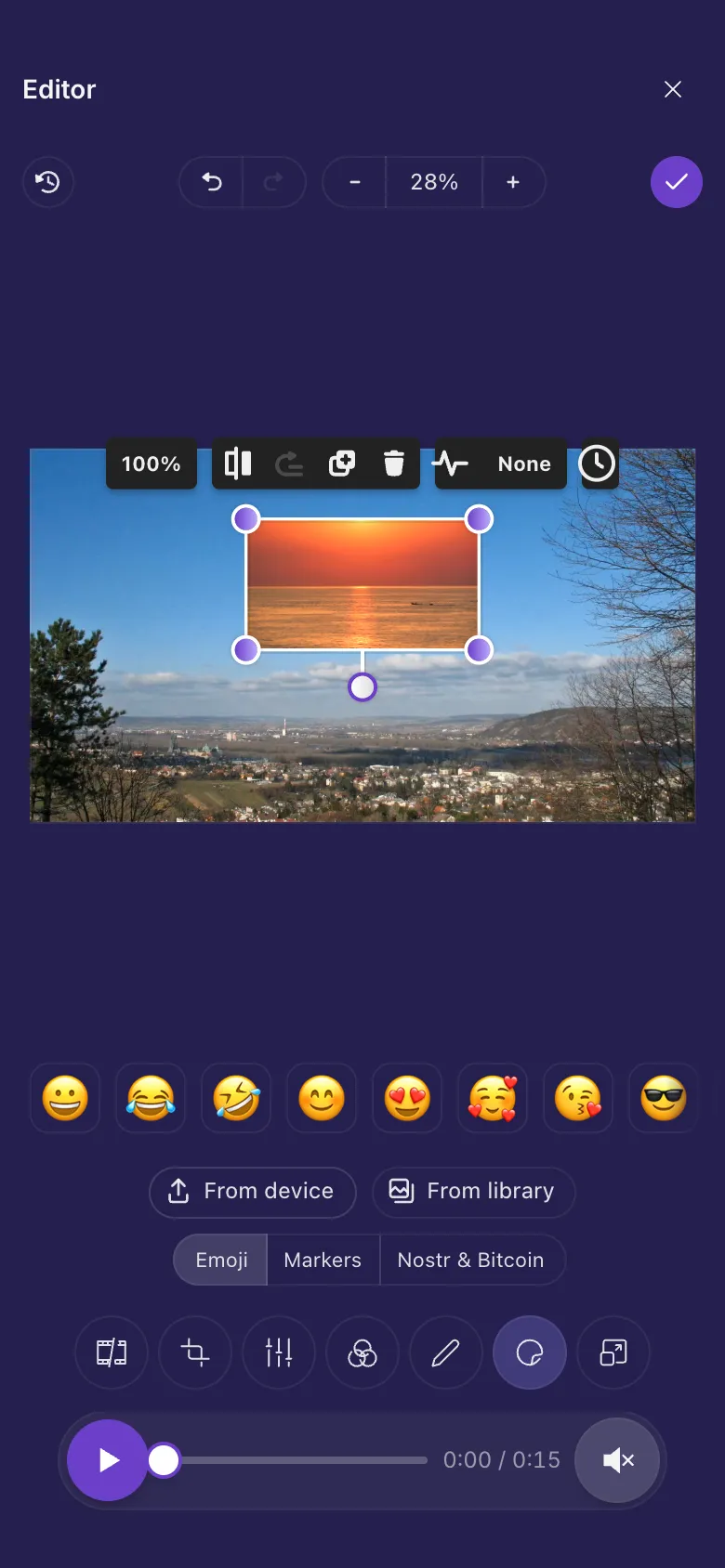
- Tap the Animation button above it (the little wave) and pick one.
- Tap Play to see it move. When the video is paused, everything rests where you put it, so it is easy to place.
The animations:
- Pop in: grows in with a little overshoot as it appears, then stays.
- Fade in: fades in as it appears, then stays.
- Pulse: gently grows and shrinks, like breathing.
- Heartbeat: a double beat, over and over.
- Bounce: hops up and down.
- Wiggle: a quick shake, then a pause, again and again.
- Spin: turns round and round.
- Flash: blinks twice, then a pause, again and again.
None stops it moving.
Show it only for a moment
Everything you add shows for the whole video until you choose otherwise.
- Tap what you added so it is selected.
- Move the player to where it should appear. Tap the clock button above it and choose Show from here.
- Move the player to where it should go away, tap the clock button again and choose Hide from here.
- The button now shows the times, and a band on the player marks when it is on screen. Whole video shows it all the way through again.
When you trim or cut
A caption stays with its scene. Trim the start or cut out a part before it, and it still appears at the same moment of the video. If you cut out the whole part it belongs to, it does not show at all.
A GIF or a video inside your video
- Tap Sticker, then From device or From library.
- Pick an animated GIF or a video. It plays inside your video, in a box you can move, resize and turn.
- Time it and animate it like any sticker. It starts playing when it appears, and plays over and over.
Older iPhones and iPads
On older iPhones, iPads and Macs, videos can open in a simpler editor without Animation, the clock button or GIFs and videos that play. Older iPhones and iPads explains when.
Ideas
A step-by-step video
One caption per step, each timed to its scene with Show from here and Hide from here, each with Pop in.
A reaction in the corner
Add your reaction GIF with From device, make it small in a corner and time it to the funny moment.
Draw the eye
A price or a date in text with Heartbeat, so nobody misses it.