How to use the video and GIF editor
Trim a clip to the good part, cut out the middle, add a caption that shows up at the right moment, and pick the thumbnail. Your edit saves as a new copy; the original stays as it was.
The video editor comes with the Professional plan and up.
The pictures show a phone. On a computer the tools sit down the left side with their names, and the rest works the same way.
On this page
Open a video or GIF
Open it the same way as a picture: Edit in the full-screen viewer's menu, the round Edit button in its details, or Choose a file on Editor. The image editor guide shows all three.
A GIF is turned into a video first, which takes a moment. The saved copy is a video too: smaller than a GIF, and it still loops where it is shown.
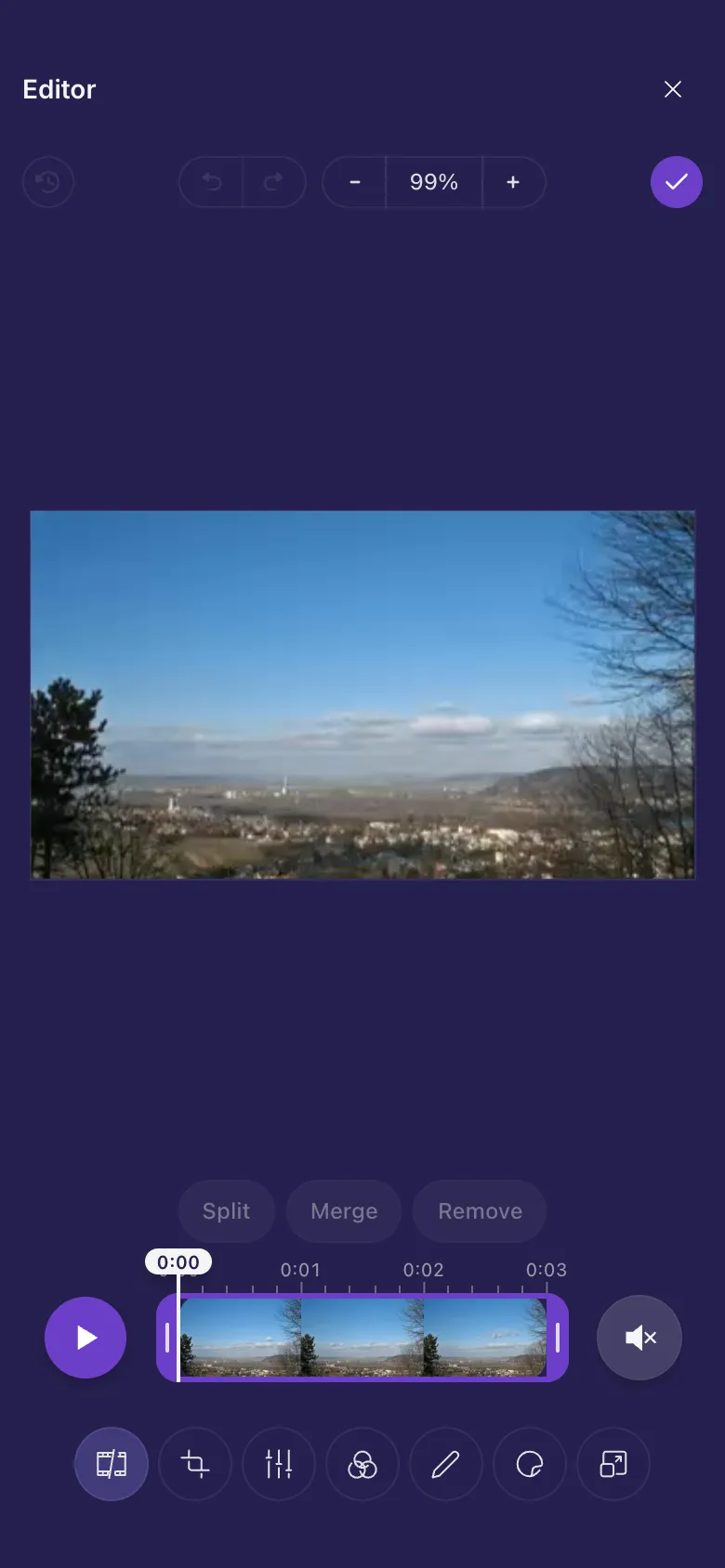
Trim the start and the end
- The editor opens on Trim, with your video as a strip of pictures.
- Drag the handle at the left edge of the strip to where the video should start.
- Drag the handle at the right edge to where it should end.
- Tap Play to watch what is left.
Cut a part out of the middle
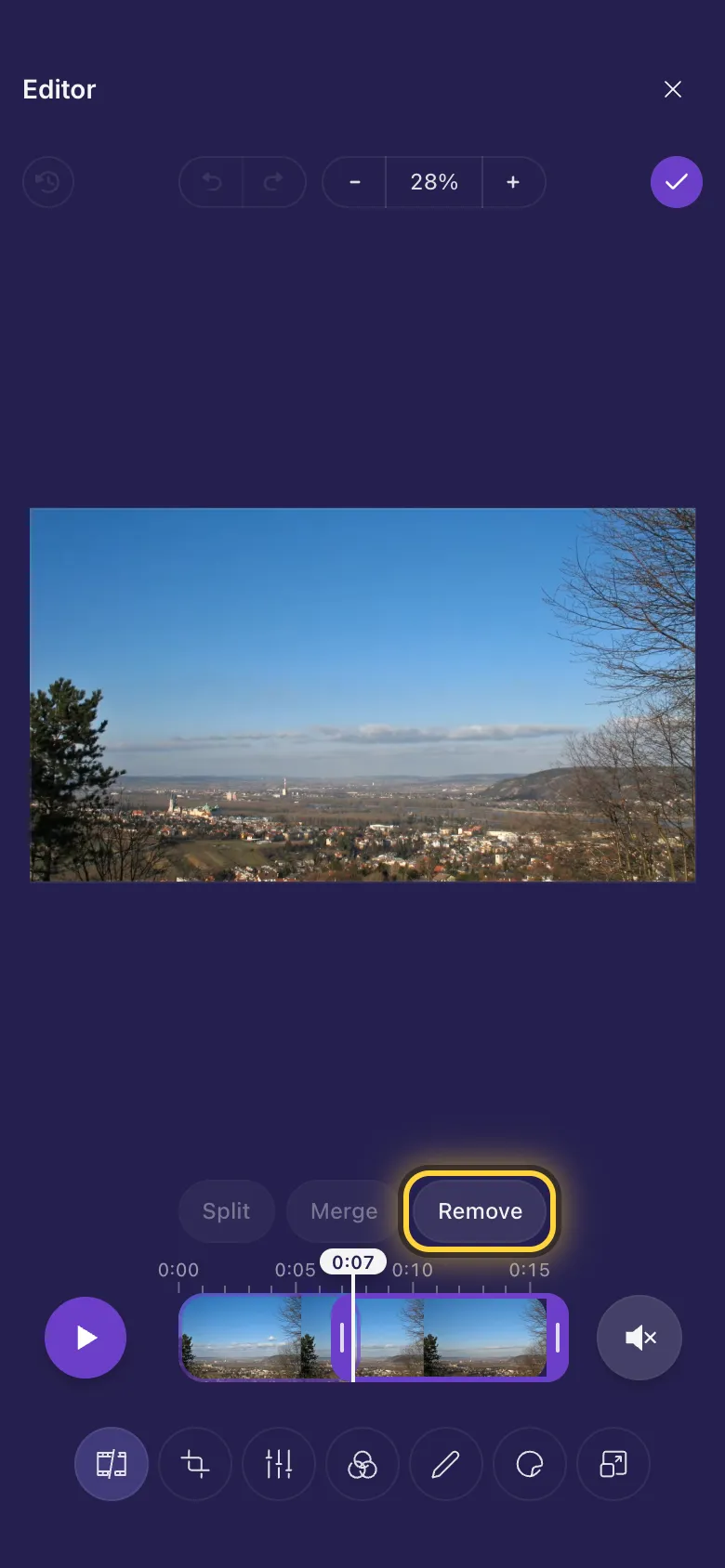
- Drag the line with the time on it to where the part you want to lose begins.
- Tap Split. The video is now two parts.
- Move the time line to where the unwanted part ends and tap Split again.
- Tap the part in the middle and tap Remove. Merge joins a part with the next one again.
Crop, colour and size
Crop, Finetune, Filter and Resize work just as they do for pictures, and change the whole video. The image editor guide shows how.
In depth: Crop, rotate and resizeText, memes and stickers on a video
Annotate and Sticker work as they do for pictures, including Meme text. The player under the video lets you move through it while you work.
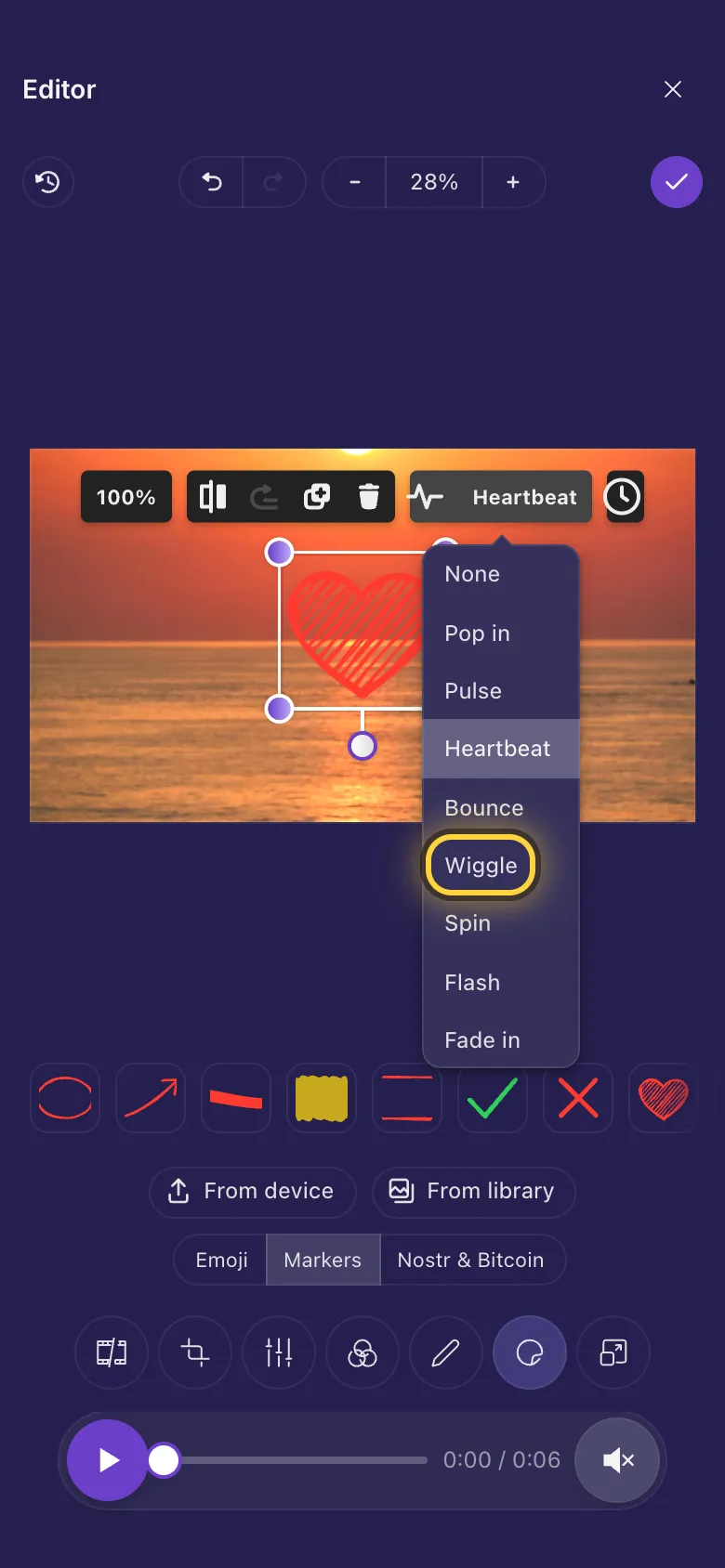
- Tap a sticker or text you added.
- Tap the Animation button above it (the little wave) and pick one, such as Wiggle.
Make a caption appear and disappear
Anything you add shows for the whole video until you say otherwise. For example, a caption from 0:03 to 0:06:
- Tap the caption so it is selected.
- Move the player to 0:03. Tap the clock button above the caption and choose Show from here.
- Move the player to 0:06, tap the clock button again and choose Hide from here.
- The times show on the button, and a band on the player marks when the caption is on screen. Whole video puts it back on for the whole video.
Put a video or GIF inside your video
In Sticker, tap From device and pick a video or an animated GIF. It plays inside your video, in a box you can move and resize, like picture-in-picture.
In depth: Stickers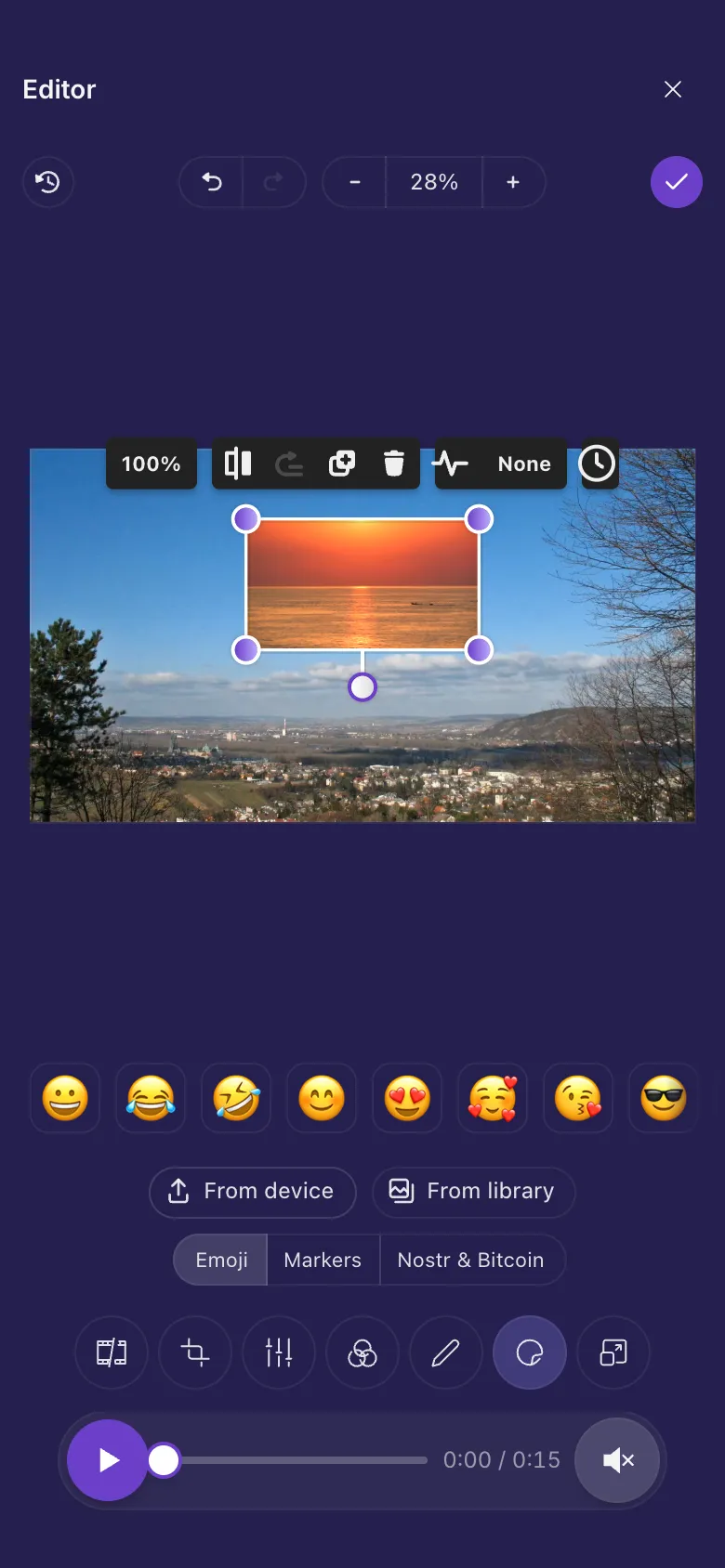
Sound
Videos open with the sound off so nothing blares out. Tap the speaker button next to the player to hear it. The saved copy keeps its sound either way.
In depth: Trim, split and soundChoose the thumbnail
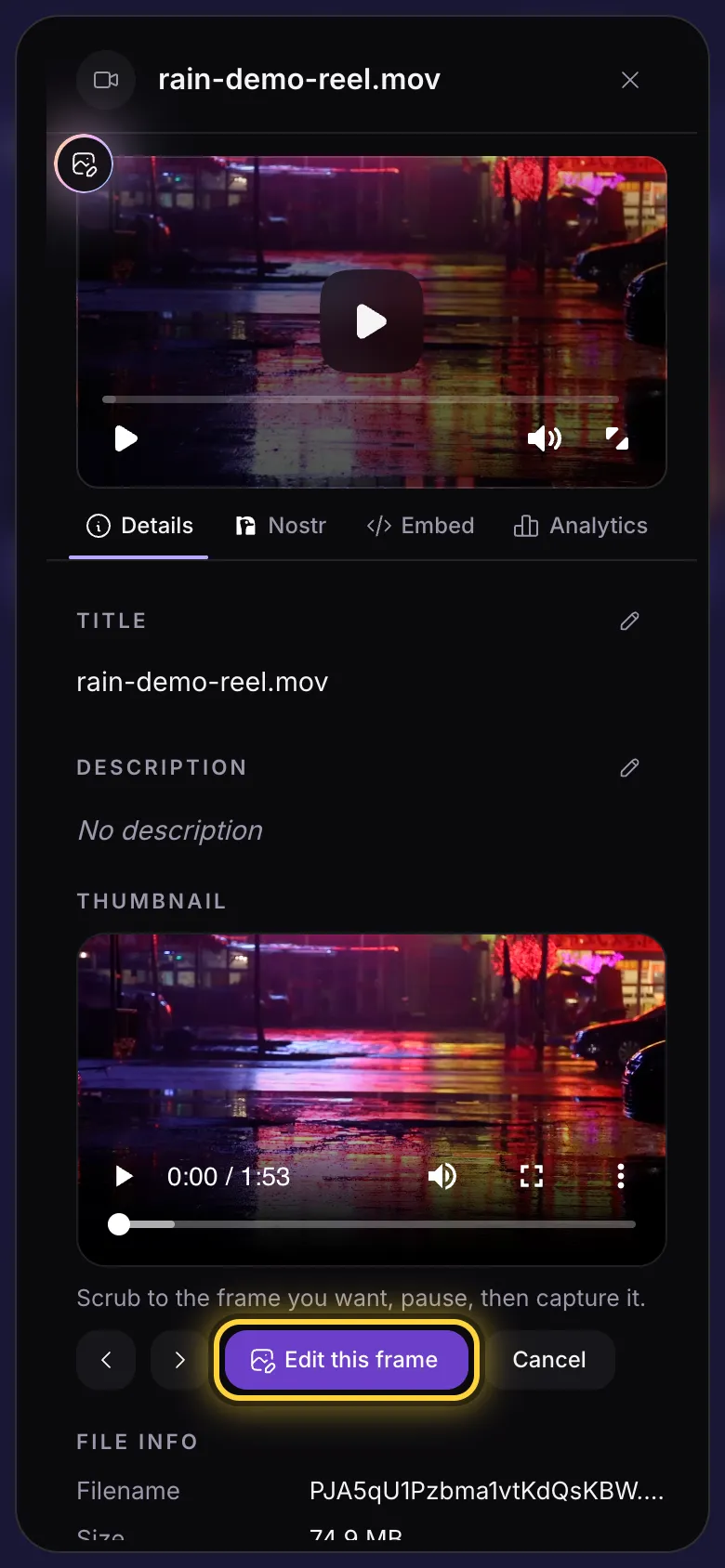
- Open the video's details (the three dots on its card) and find Thumbnail.
- Tap Capture from video and play or drag to the moment you want.
- Tap Edit this frame. The frame opens in the editor, so you can crop it or add words before you tap Done .
Save your video
Tap Done . The editor puts the new video together on your device, then uploads it as a copy next to the original.
Older iPhones and iPads
Everything on this page works in current Chrome, Edge, Firefox and Safari. On an iPhone or iPad it needs iOS 16.4 or later (on a Mac, Safari 16.4 or later).
Before that, videos open in a simpler editor. Trimming, cropping, drawing, text and stickers work, but stickers can't be animated, captions can't be timed to appear and disappear, a video or GIF you add stays still, and GIFs can't be opened.
On iOS 16.4 to 18 (Safari 16.4 to 18 on a Mac), a video whose sound was recorded in a less common format (some cameras and recorders do this) also opens in the simpler editor. From iOS 26 on, every video opens in the full editor.
Three quick recipes
A caption that shows up at 0:03
Annotate, then Meme text. Drag a box, type, move the player to 0:03 and choose Show from here on the clock button.
A reaction GIF over a clip
Sticker, then From device and pick the GIF. Drag it into a corner and tap Done .
Only the good part of a long recording
In Trim, drag the start and end handles in to the good part, tap Play to check, then Done .