How to use the image editor
Crop a photo, brighten it, write on it, add stickers or hide something private, right in your browser. Your edit saves as a new copy, so the original stays exactly as it was.
The image editor comes with every plan.
The pictures show a phone. On a computer the tools sit down the left side with their names, and the rest works the same way.
On this page
Open the editor
There are three ways in. Use whichever is closest.
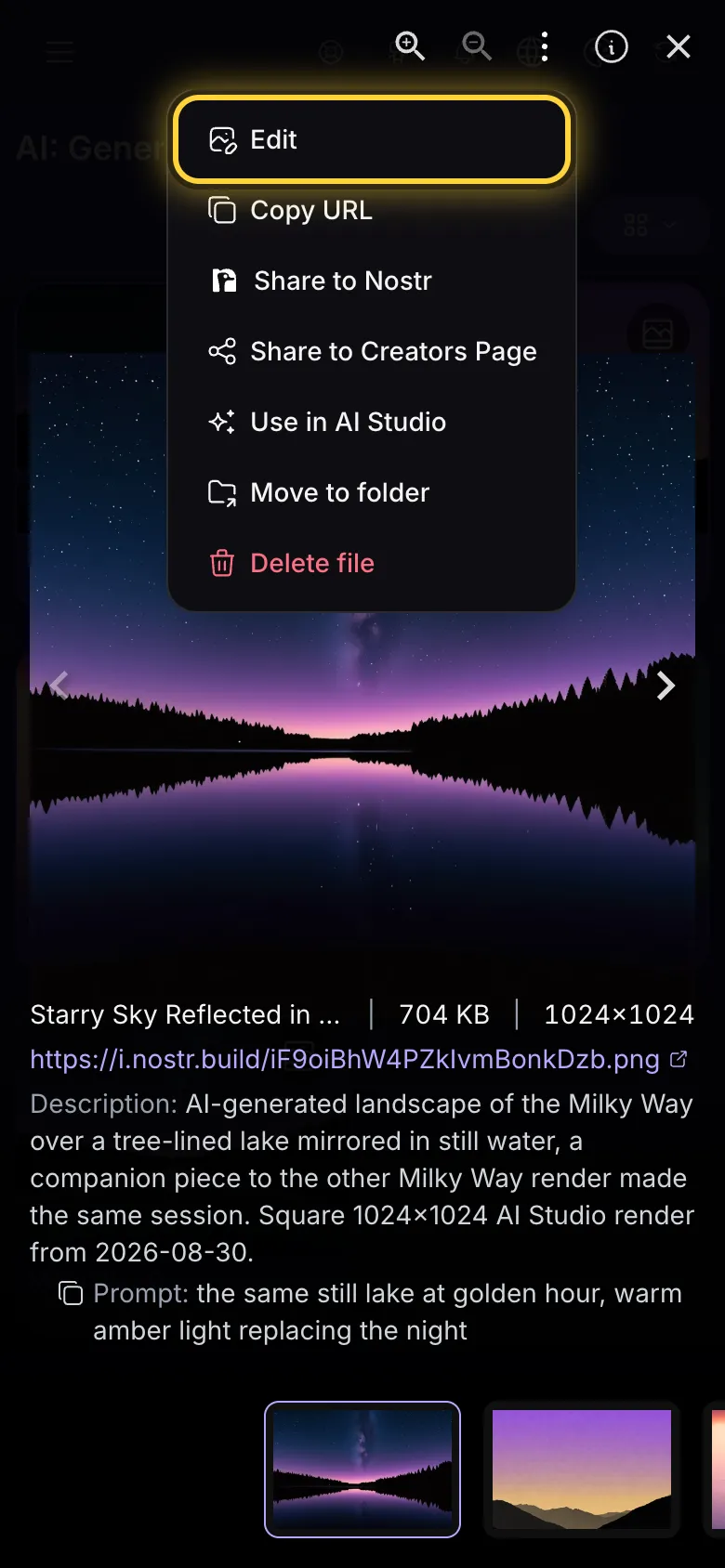
- In your library, tap a picture to see it full screen. Tap the three dots at the top and choose Edit.
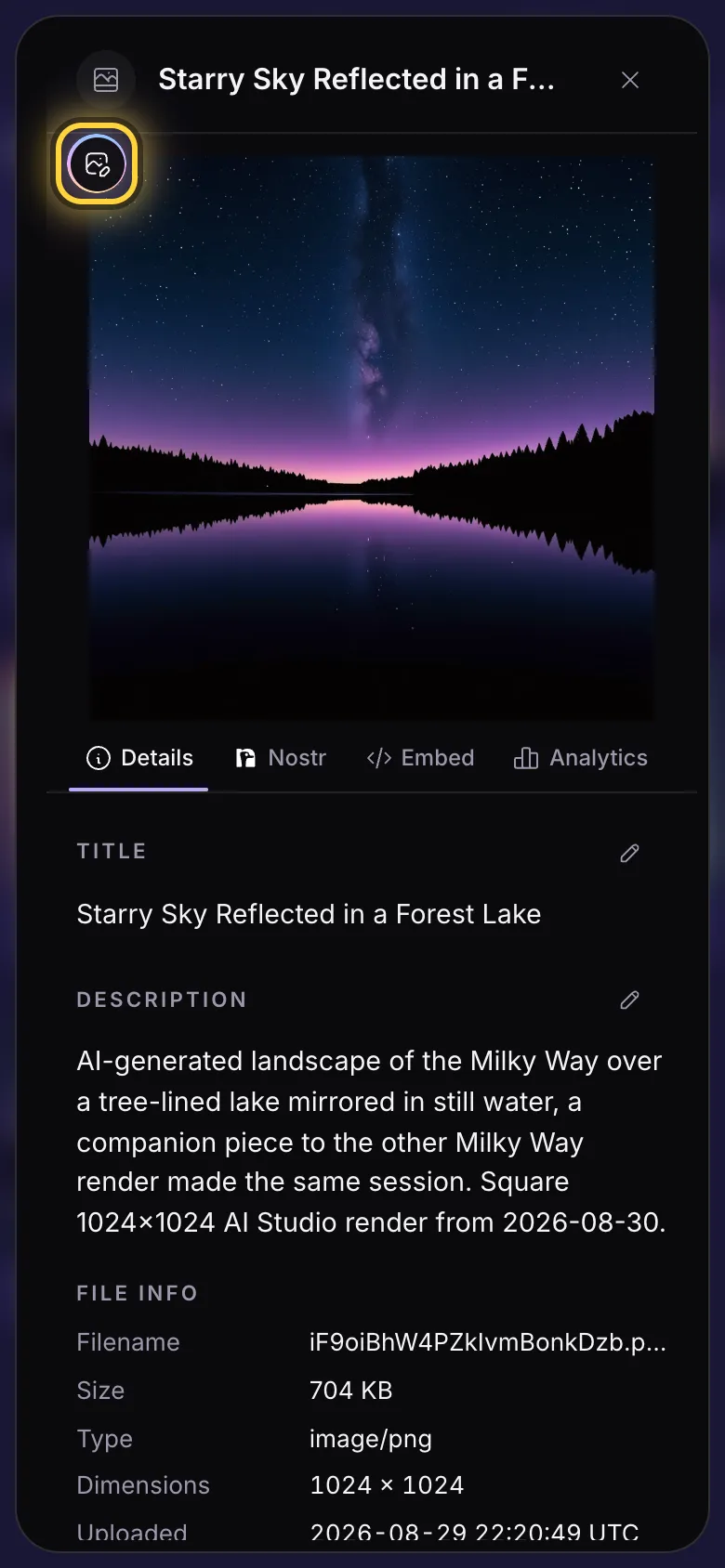
- Or tap the three dots on a picture's card to see its details, then tap the round Edit button on the picture.
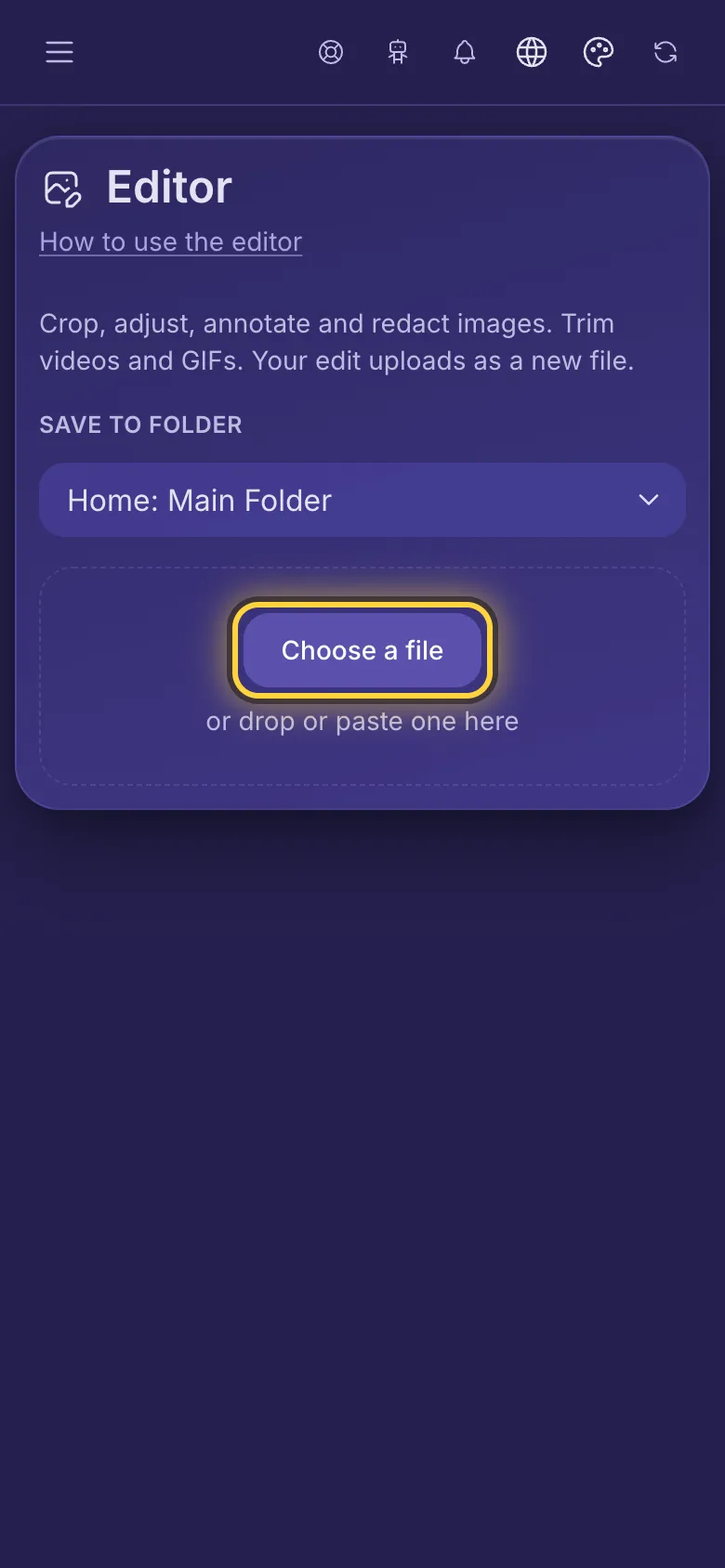
- Or open Editor from the menu, tap Choose a file and pick a picture from your phone or computer.
Save your edit
When you are happy with it, tap Done . The editor saves your edit as a new file next to the original and uploads it. The original is never changed.
Crop, rotate and flip
- Tap Crop. It is the first tool, and the editor opens on it.
- Tap Crop shape and choose a shape. Profile picture 1:1 makes a square for a profile picture, Banner 3:1 a wide one for a profile banner.
- Drag the picture, or the white dots on its corners, until only the part you want is inside the frame.
- Rotate left turns it a quarter turn, Flip horizontal mirrors it.
Make it brighter or more colourful
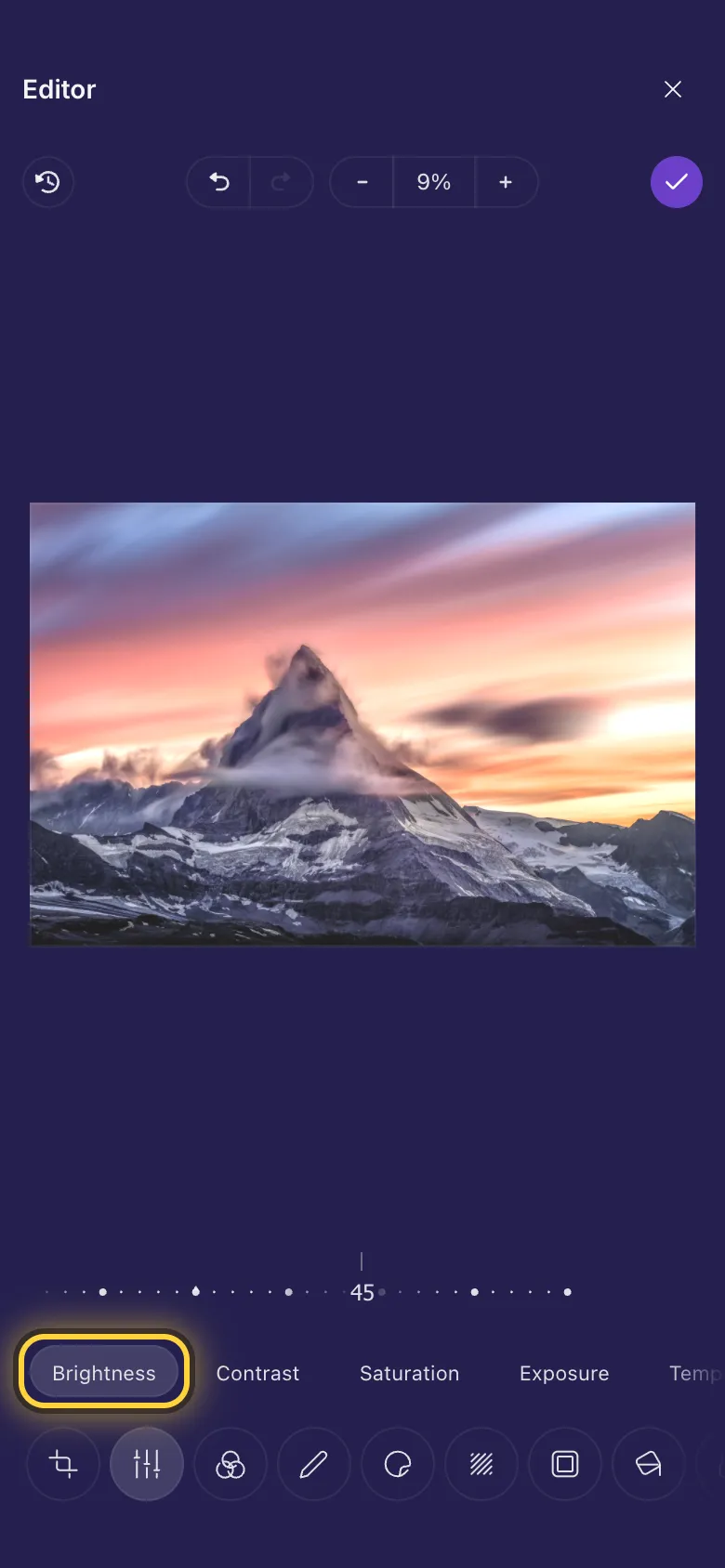
- Tap Finetune.
- Pick what to change: Brightness, Contrast, Saturation and more.
- Drag the dotted ruler left or right. At 0 nothing is changed.
One-tap looks
Tap Filter and tap a look to try it. The first one takes you back to the original colours.
In depth: Light and colour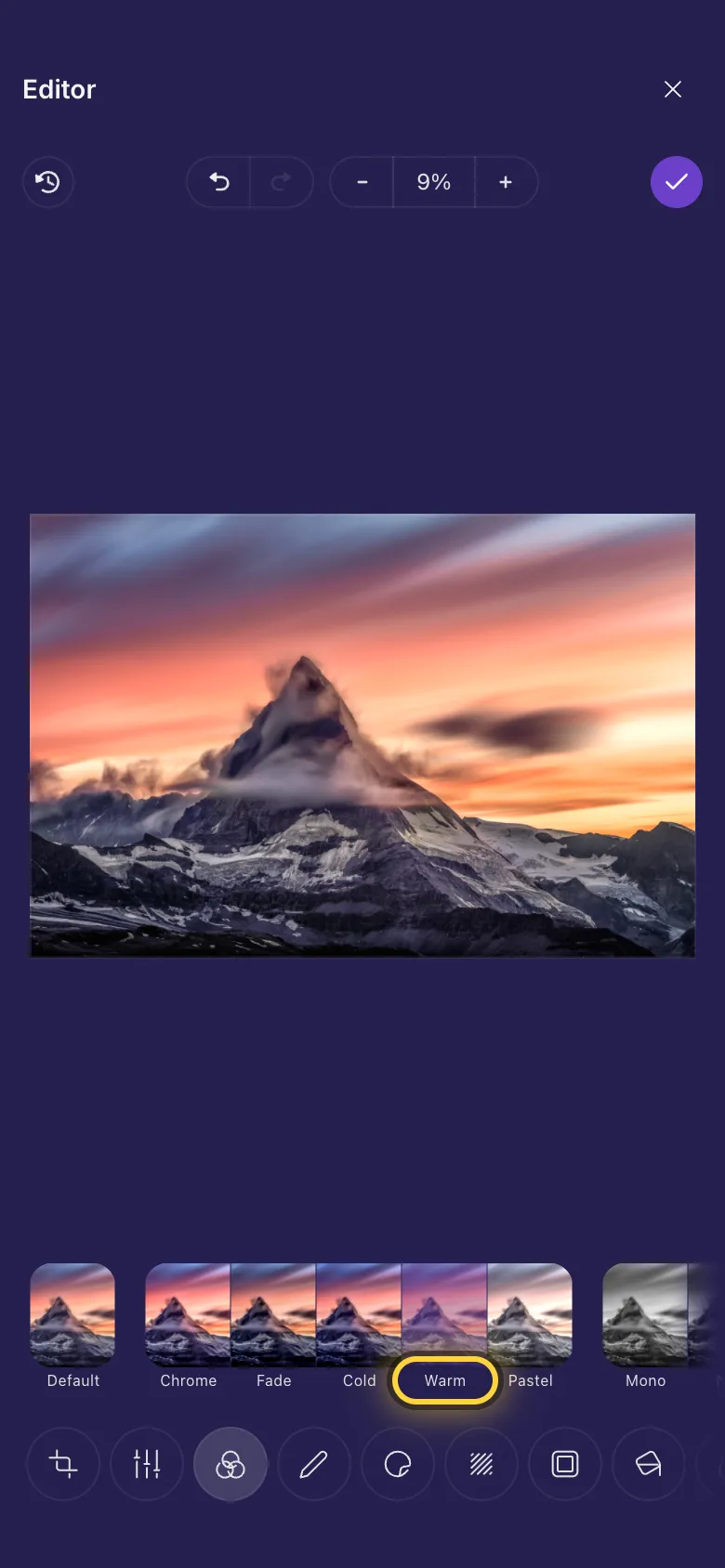
Draw, point and write
- Tap Annotate.
- Pick a tool from the row: Sharpie draws freehand, Arrow points at something, Rectangle boxes it in.
- For words, pick Text, drag a box where they should go and type.
- The row above the tools changes the colour, thickness or font of what you are drawing, or of whatever you tapped last.
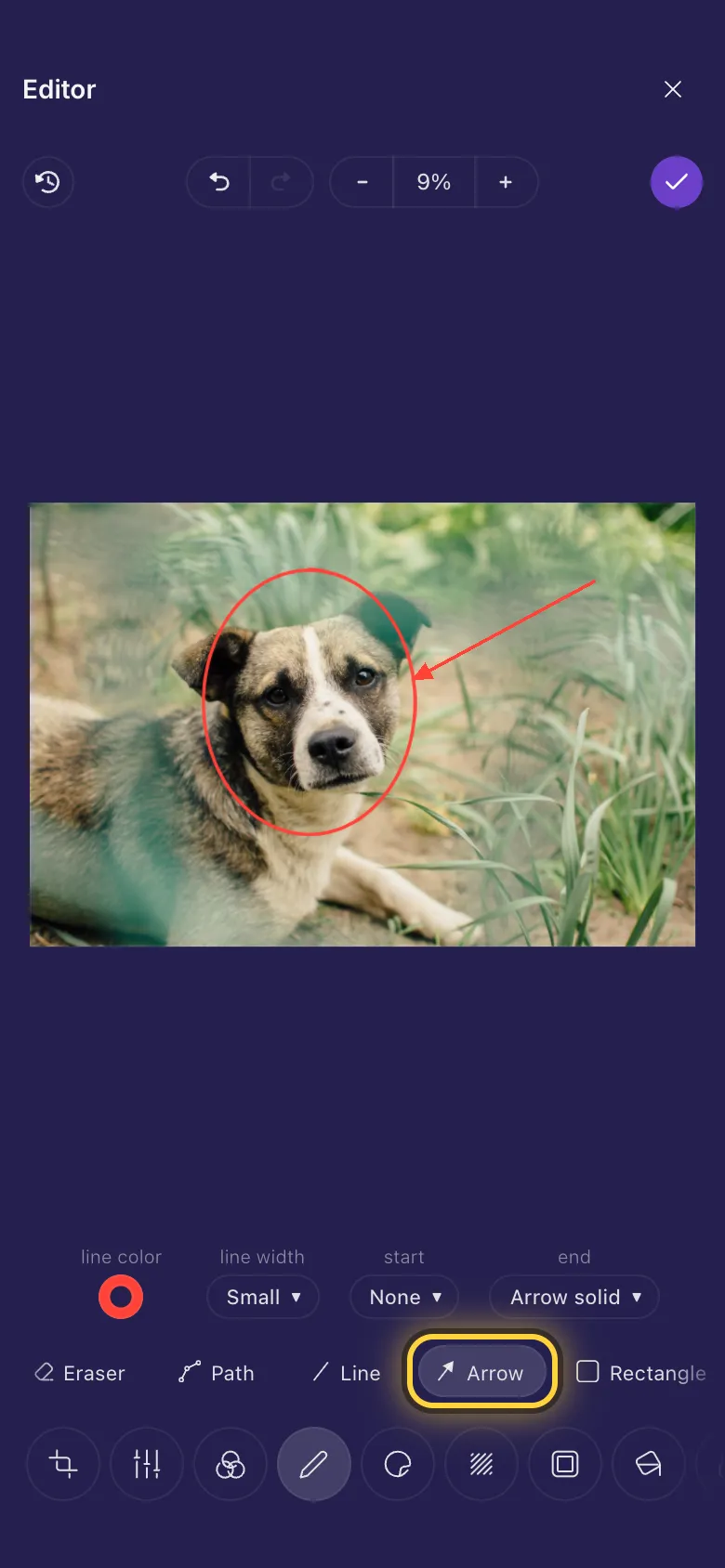
Make a meme
- Tap Annotate, then Meme text at the end of the tool row.
- Drag a box across the top of the picture and type. The words are big, white and outlined in black, like a classic meme.
- Tap outside the words when you are done, then drag another box along the bottom for the second line.
- The box grows with your words. Drag the dots on its sides to make it wider or narrower.
Add stickers
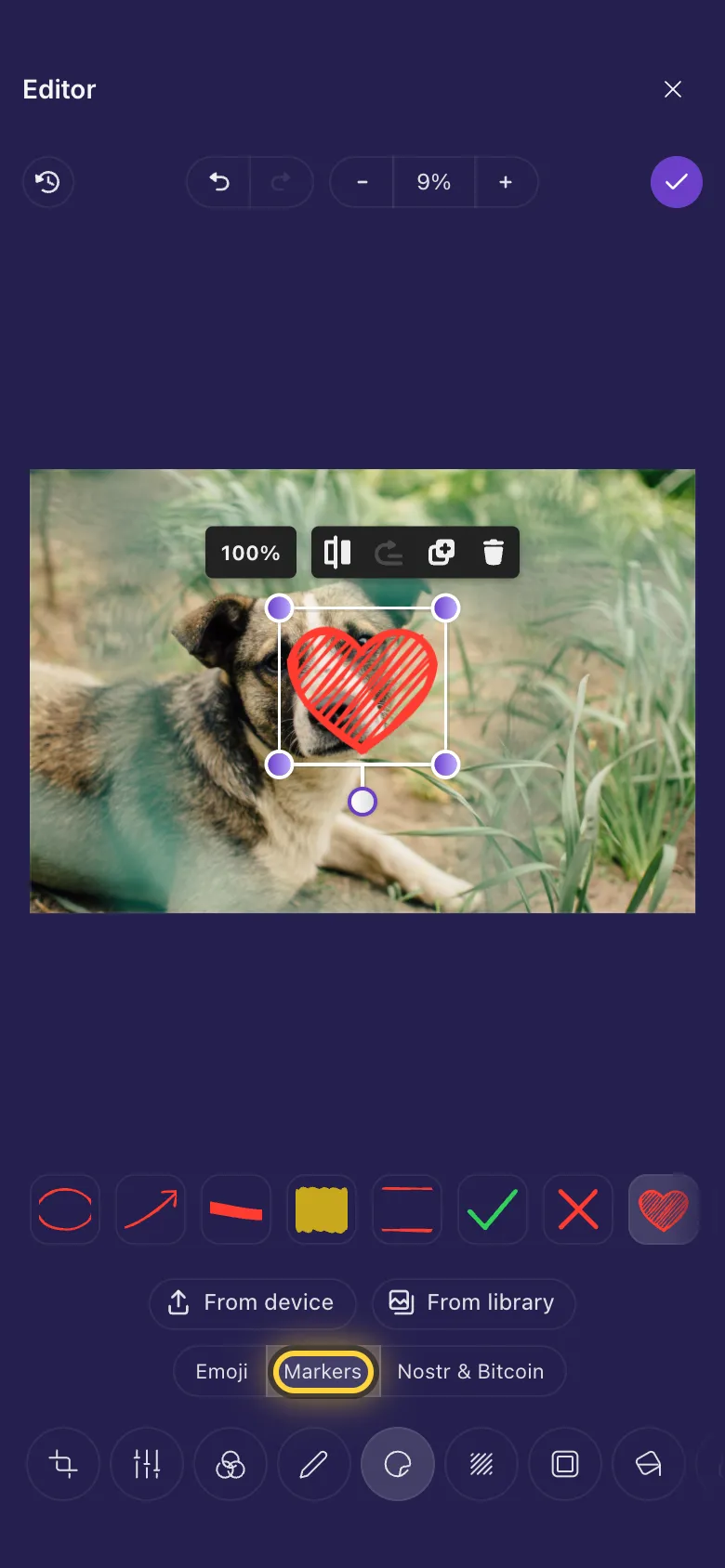
- Tap Sticker.
- Choose a set: Emoji, Markers (circles, arrows, ticks, hearts) or Nostr & Bitcoin.
- Tap a sticker to add it. Drag it where you want it and pull a corner to resize it.
- From device adds any picture from your phone or computer, From library one from your nostr.build library.
Hide faces, number plates and private details
- Tap Redact.
- Drag a box over what should not be seen. It turns into a blur straight away.
- Add as many boxes as you need.
Add a frame
Tap Frame and pick one. Polaroid gives the picture a white border with room underneath. Then use Text in Annotate to write on the frame.
In depth: Hide and finish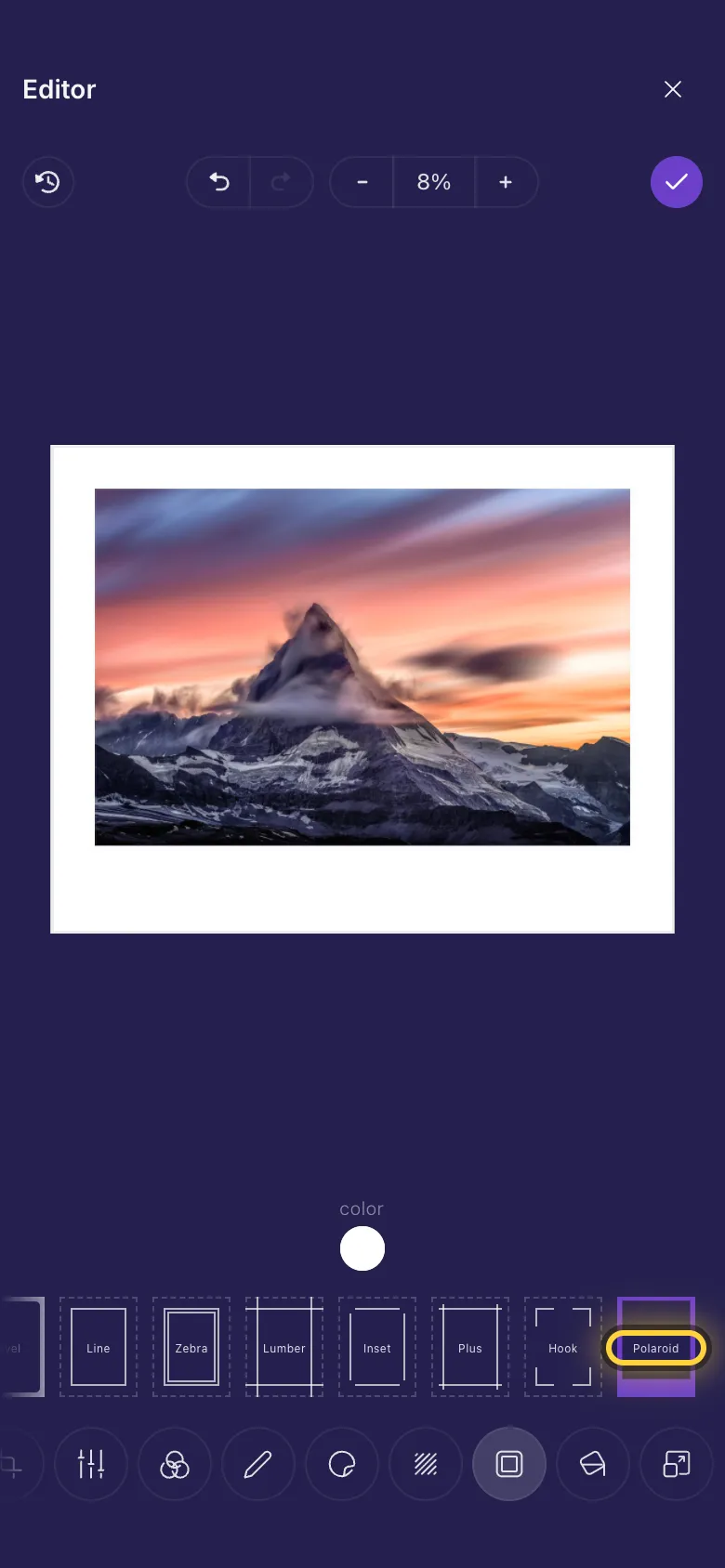
Background colour and exact size
Fill paints the empty area around a picture, for example after you turn it or crop wider than it is. Resize sets the exact size in pixels: type the Width or the Height and the other follows.
In depth: Crop, rotate and resizeThree quick recipes
A profile picture from a phone photo
Crop, then Crop shape and Profile picture 1:1. Drag your face into the middle and tap Done .
A meme in 30 seconds
Annotate, then Meme text. Drag a box at the top, type, then another at the bottom, type, and tap Done .
A car photo without its number plate
Redact, drag a box over the plate and tap Done . Share the copy.