Draw and write
Circle what matters, point at it, box it in or add a few words. Everything you add stays editable until you save: you can move it, restyle it or take it away.
For anyone marking up a screenshot, labelling a photo or making a meme.
The pictures show a phone. On a computer the tools sit down the left side with their names, and the rest works the same way.
On this page
The drawing tools
Open a photo or video in the editor and tap Annotate. A row of tools appears under the picture. Swipe it sideways to see them all.
- Sharpie draws freehand, like a pen.
- Eraser takes away a drawing you drag across.
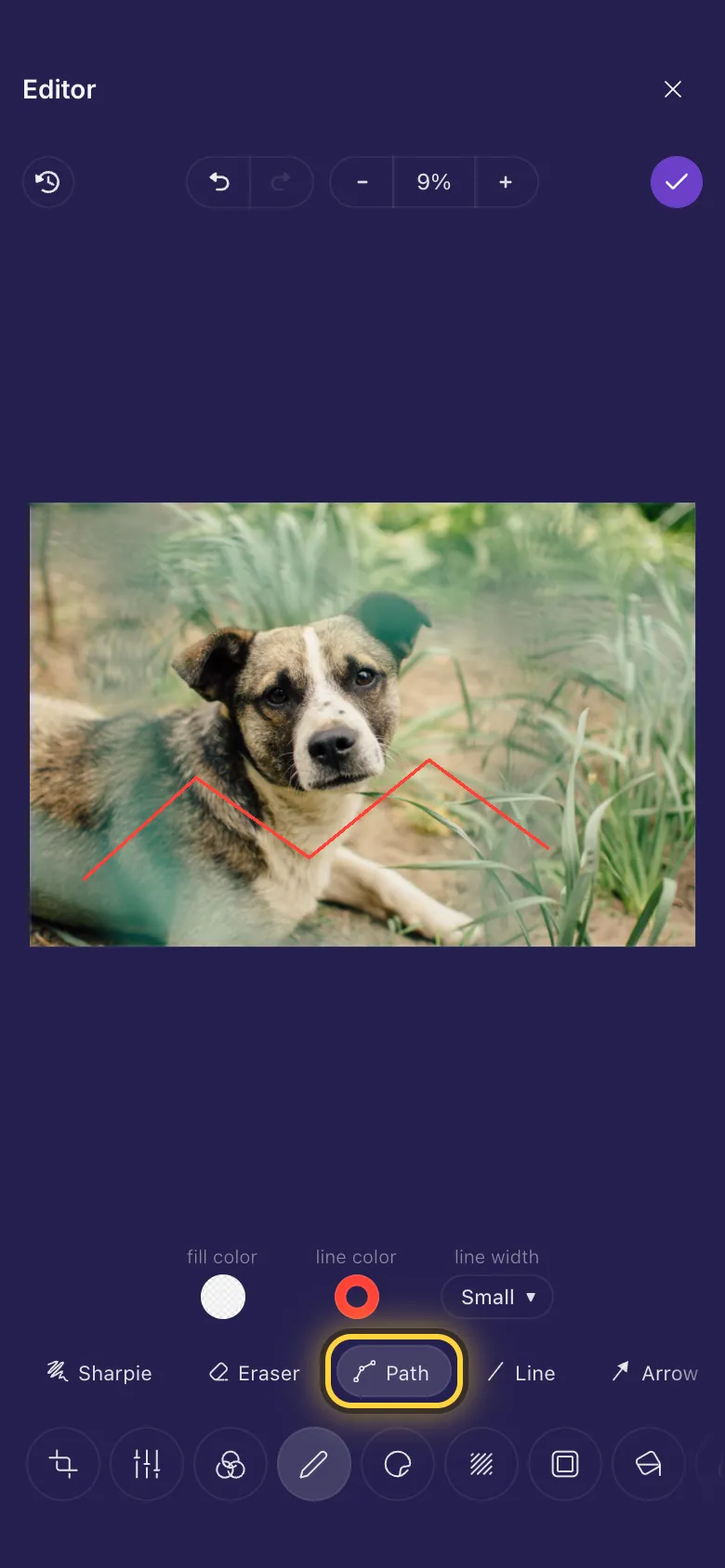
- Path draws straight lines from point to point.
- Line and Arrow draw a straight line, with or without a point at the end.
- Rectangle and Ellipse draw a box or a circle.
- Text writes words, and Meme text writes big outlined meme words.
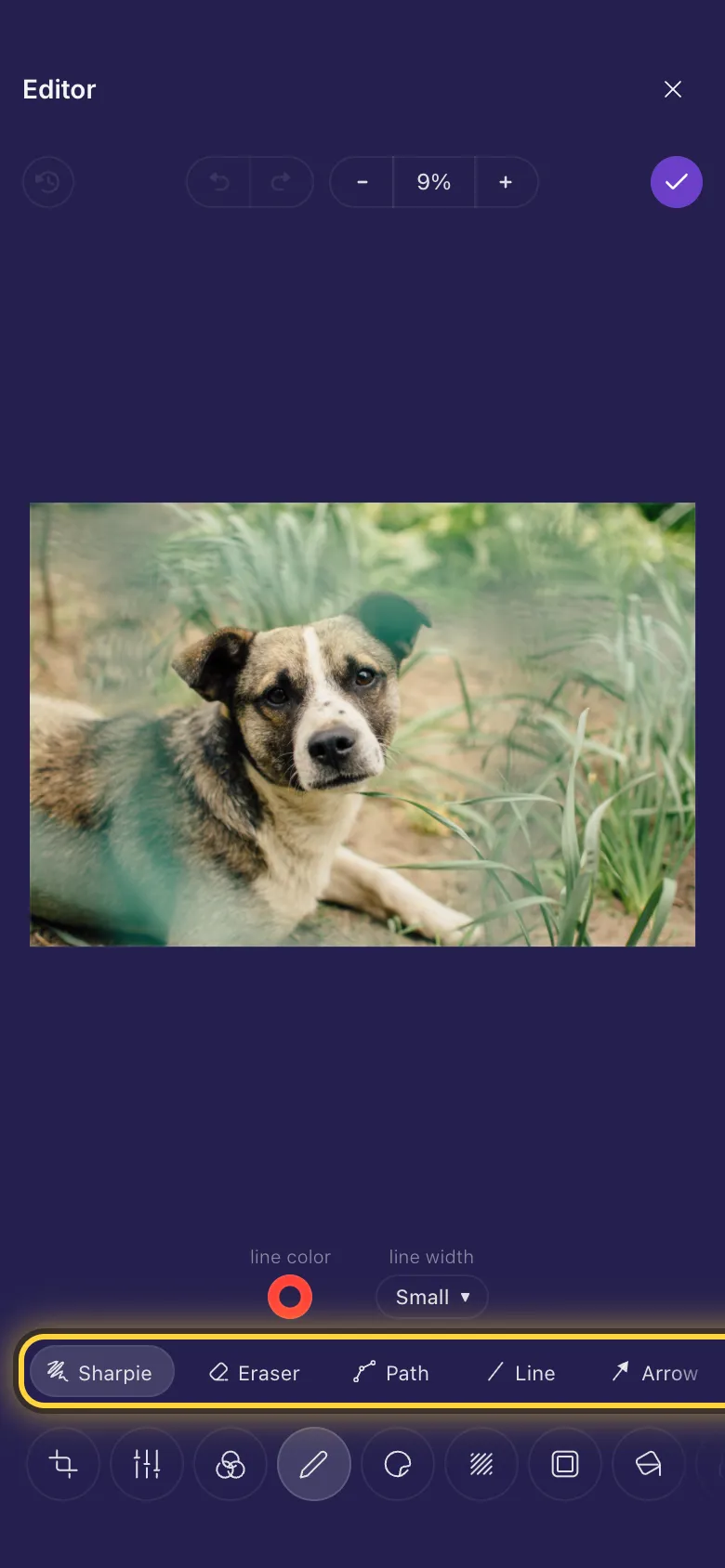
Draw freehand
- Tap Sharpie.
- Pick a colour under Line color and a thickness under Line width.
- Draw on the picture with your finger. Each stroke is a drawing of its own, so you can move or remove it later.
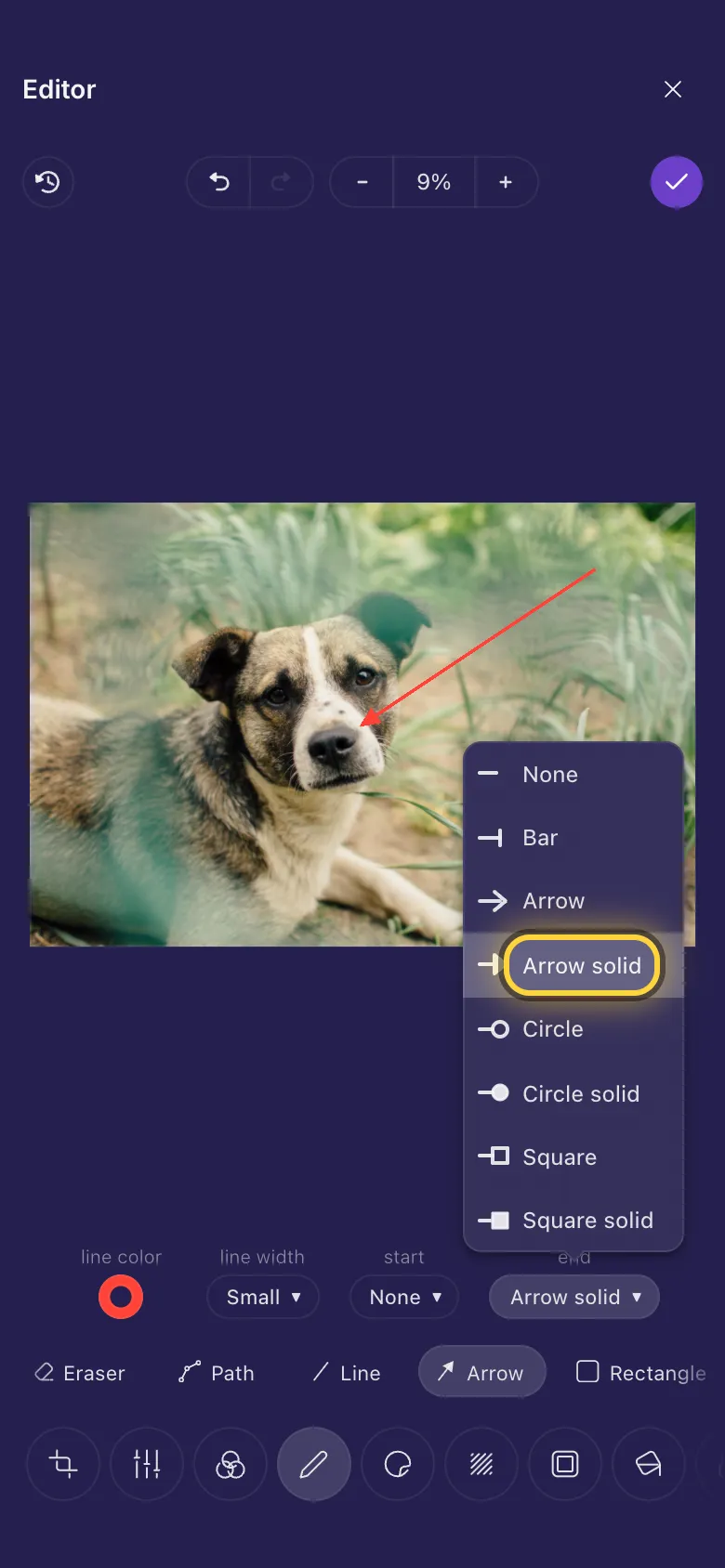
Point at something
- Tap Arrow, or Line for a line without a point.
- Drag from where the line starts to what it should point at.
- Start and End choose how each end looks: nothing, a bar, an arrow, a circle or a square, open or solid.
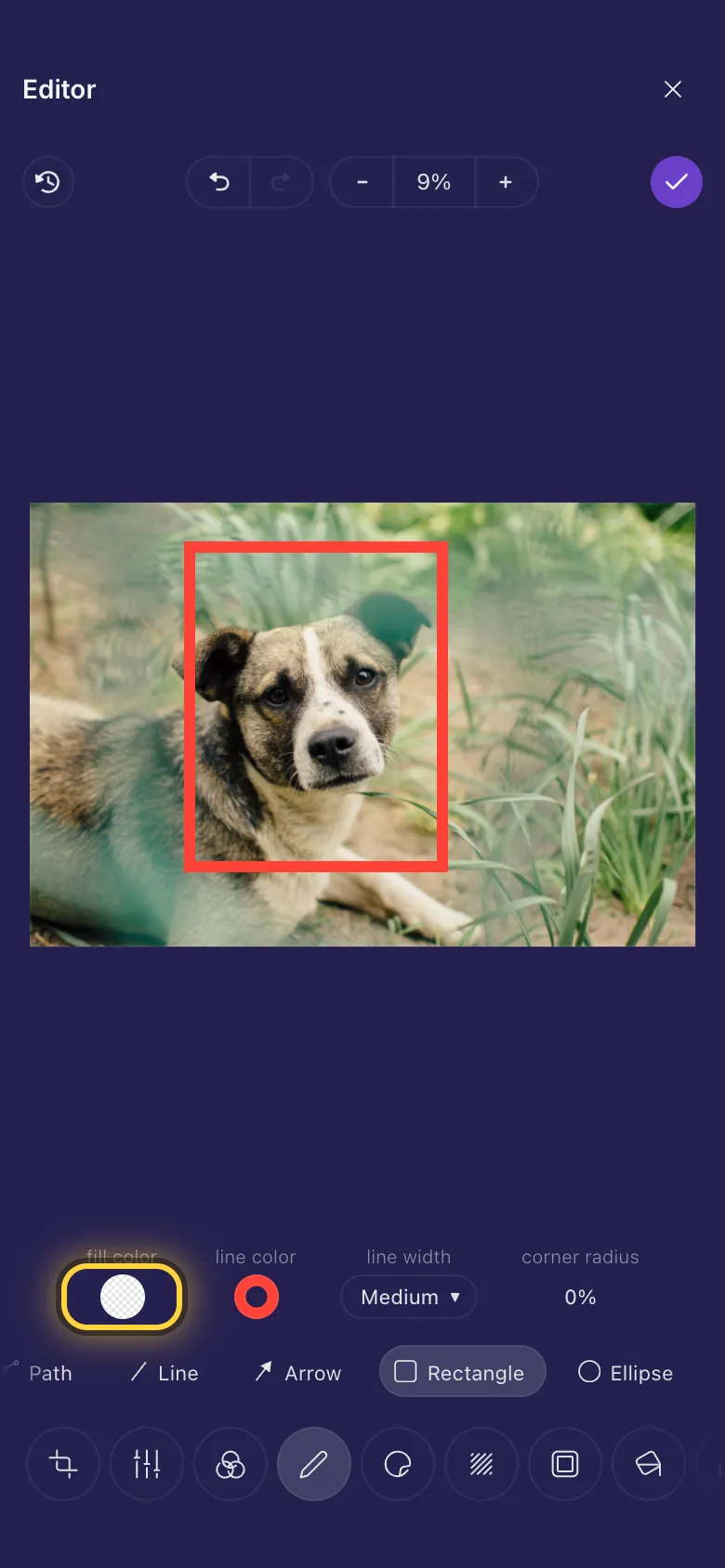
Box or circle something
- Tap Rectangle or Ellipse and drag across what you want to mark.
- A new box is filled with colour. For an outline only, open Fill color and pick the see-through square, the first one in the palette.
- Then choose how thick the outline is under Line width, and its colour under Line color.
Straight lines, point to point
- Tap Path.
- Tap where the line starts, then tap each place where it turns.
- Tap the last point once more to finish the line.
Write words
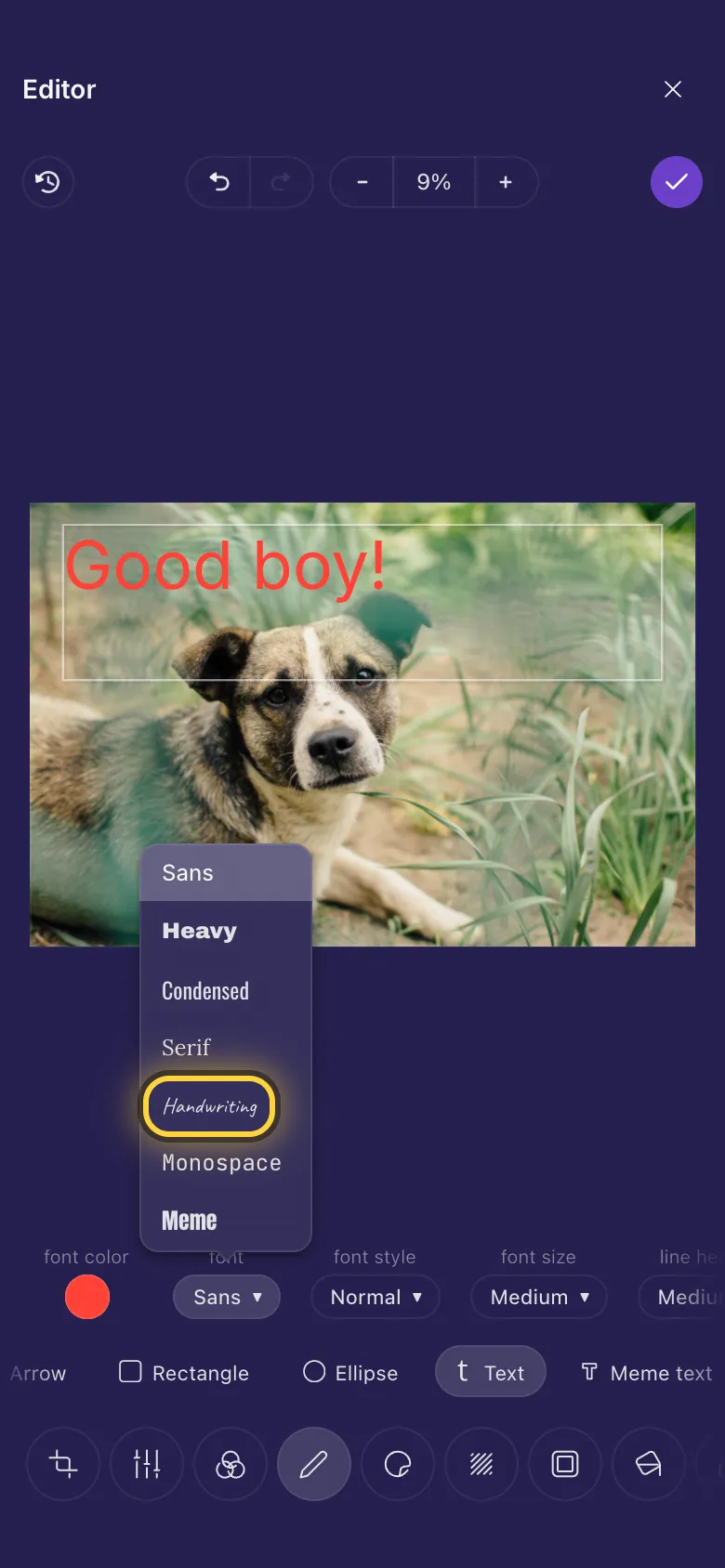
- Tap Text.
- Drag a box where the words should go, then type.
- Choose the look in the row above the tools: Font, Font style (bold or italic), Font size and Font color. Swipe the row for alignment and line spacing.
- Tap outside the words when you are done. To change them later, tap them, then Edit text.
Meme text
Meme text is ready-made meme text: big white letters with a black outline, in a box that grows as you type. Make a meme shows it step by step. Text outline changes the outline's colour and thickness.
Colours
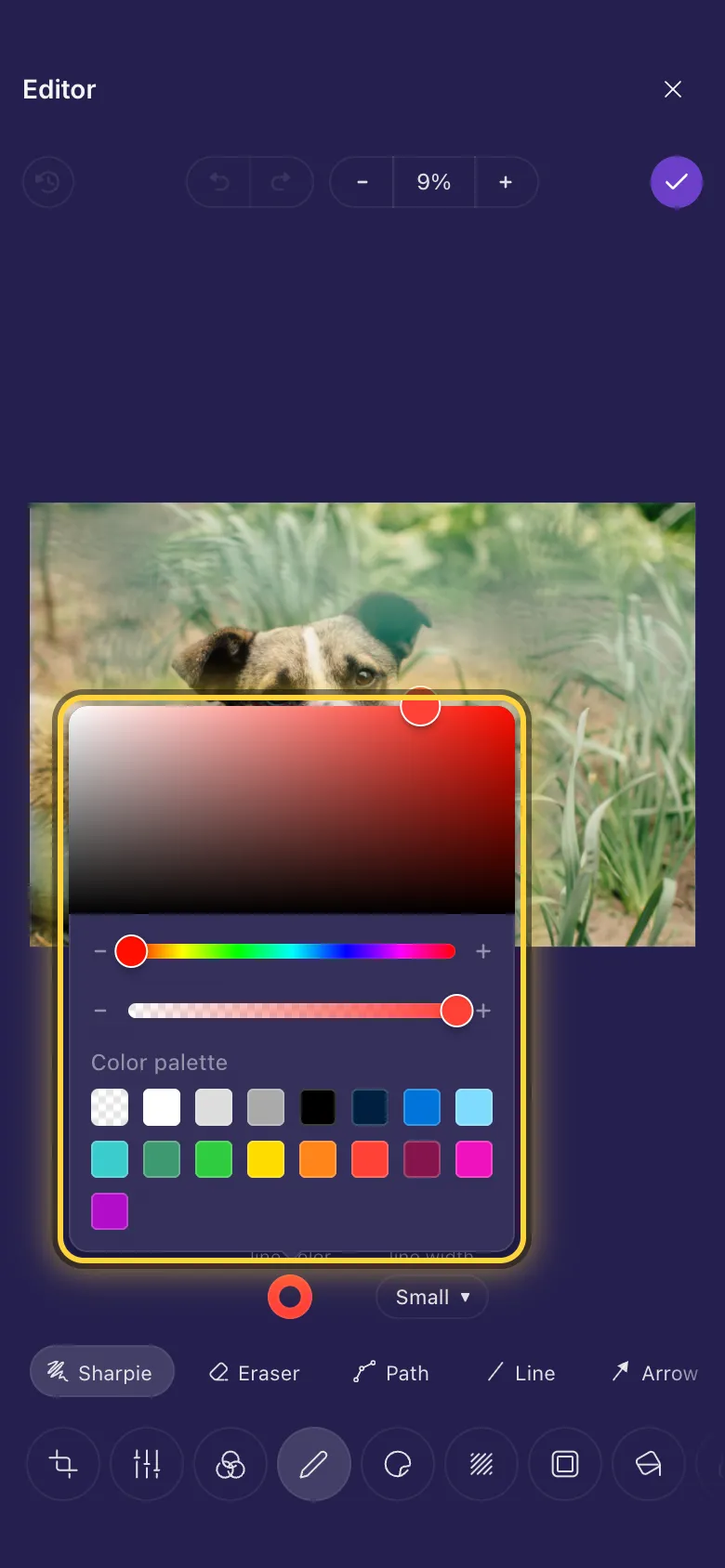
- Tap a colour setting, such as Line color or Font color.
- Pick a colour from the palette, or any colour at all in the big square and the rainbow bar under it.
- The bar under the rainbow makes the colour see-through. Slide it left for a softer mark that lets the picture show through.
Change, move or delete
Everything you add stays editable until you save. Tap it to select it, then:
- Drag it to move it.
- Drag the dots on its corners to resize it, and the dot underneath it to turn it.
- Use the buttons above it: Move to front puts it on top of the others, Duplicate makes a copy and Remove deletes it.
- Change any of its settings in the row above the tools.
Erase
Tap Eraser and drag across a drawing to remove it. The eraser takes away the whole drawing it touches, not just a part of it, and it leaves the photo itself alone.
On a video
All of this works on videos too. A drawing shows for the whole video unless you choose when it appears, and it can move: Animation makes it pop in, pulse, wiggle and more. The video guide shows both: Make a caption appear and disappear and Text, memes and stickers on a video.
Older iPhones and iPadsIdeas
Point out a detail
An Ellipse round it with an outline only, then an Arrow from the side.
Label a screenshot
A Rectangle round each part and a short Text beside it, all in one colour.
Cover a mistake
A Rectangle in the background's colour over the mistake, then Text with the right words on top.