Crop, rotate and resize
Cut away what you don't need, fit a picture to a profile or a story, straighten a crooked horizon, or make a photo smaller before you share it.
For anyone making a profile picture or banner, fixing a tilted photo, or sharing a smaller copy.
The pictures show a phone. On a computer the tools sit down the left side with their names, and the rest works the same way.
On this page
Cut to a shape
- Tap Crop.
- Drag the white dots on the corners to cut the picture down.
- Drag the picture itself to choose which part stays inside the frame.
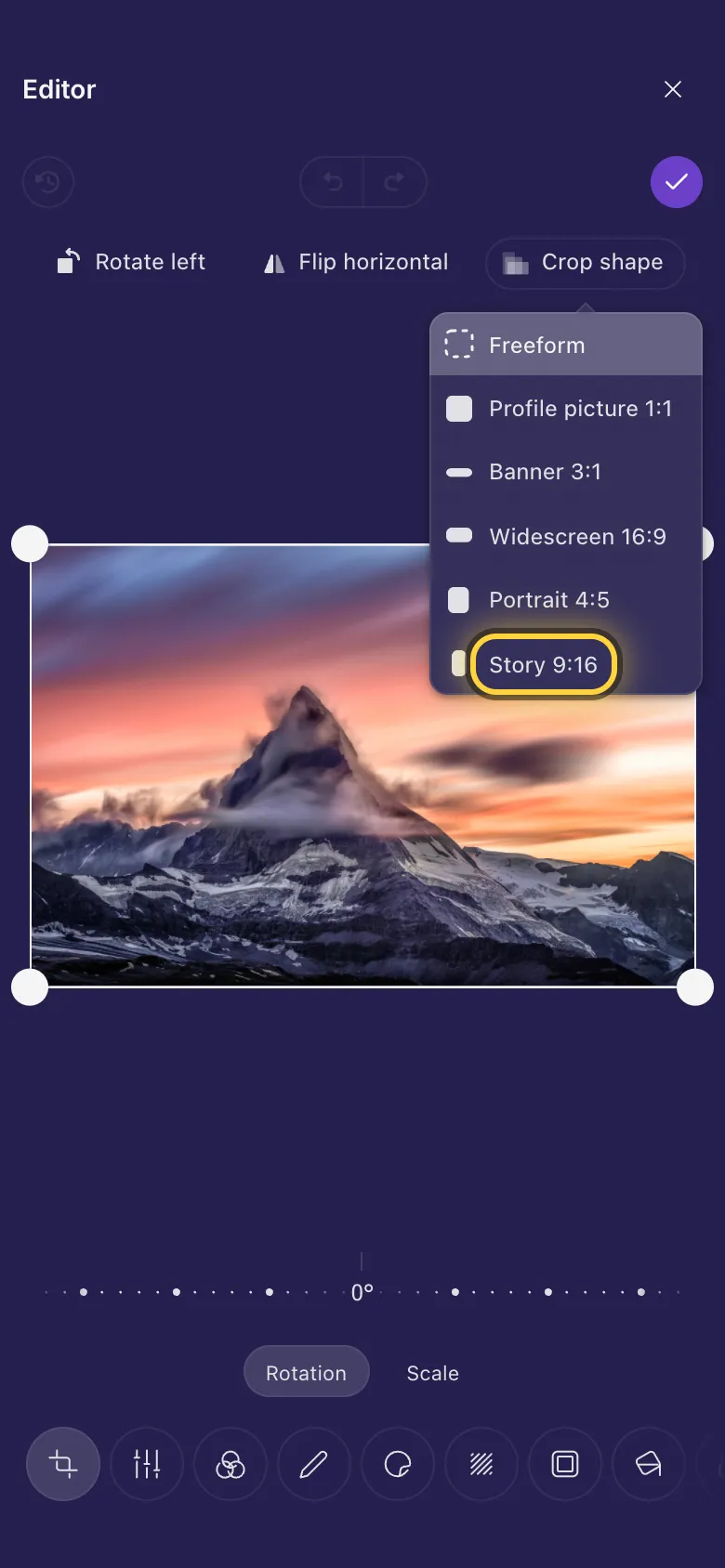
- For an exact shape, tap Crop shape and pick one. The frame then keeps that shape however you drag it.
The shapes:
- Freeform: any shape you like.
- Profile picture 1:1: a square, for a profile picture.
- Banner 3:1: long and thin, for a profile banner.
- Widescreen 16:9: the shape of a TV or a laptop screen.
- Portrait 4:5: a little taller than wide, the usual shape of feed posts.
- Story 9:16: a phone screen standing up, for stories and short videos.
Straighten a tilted photo
- In Crop, tap Rotation under the picture.
- Drag the ruler left or right. The picture turns a little at a time, up to 45 degrees each way, and grows just enough to leave no empty corners.
- Line the horizon or a wall up with the frame, then let go.
Turn it or mirror it
Rotate left turns the picture a quarter turn, so a sideways photo stands up. Flip horizontal mirrors it, left to right.
Zoom in on a detail
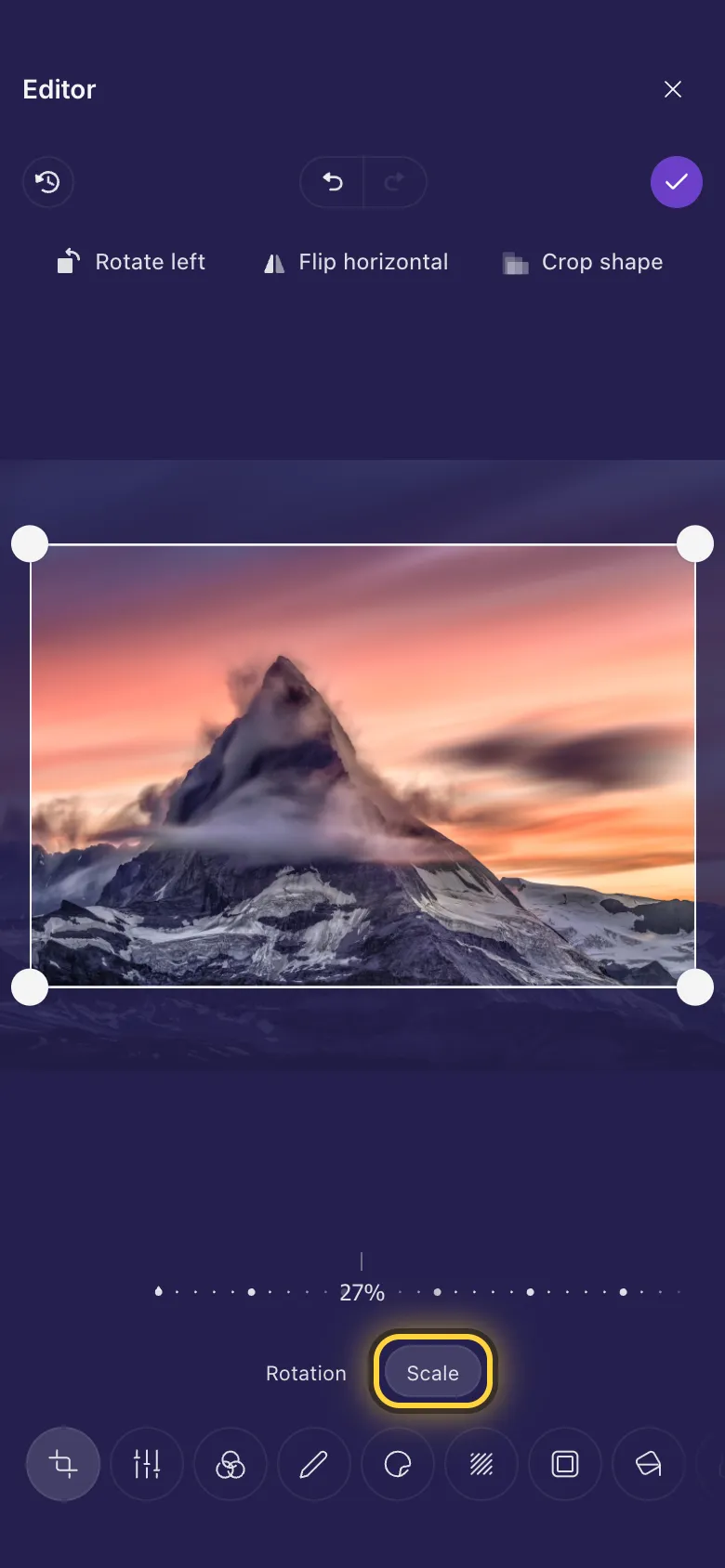
- In Crop, tap Scale under the picture.
- Drag the ruler to zoom the picture in, inside the frame.
- Drag the picture to put the detail you want in the frame.
An exact size in pixels
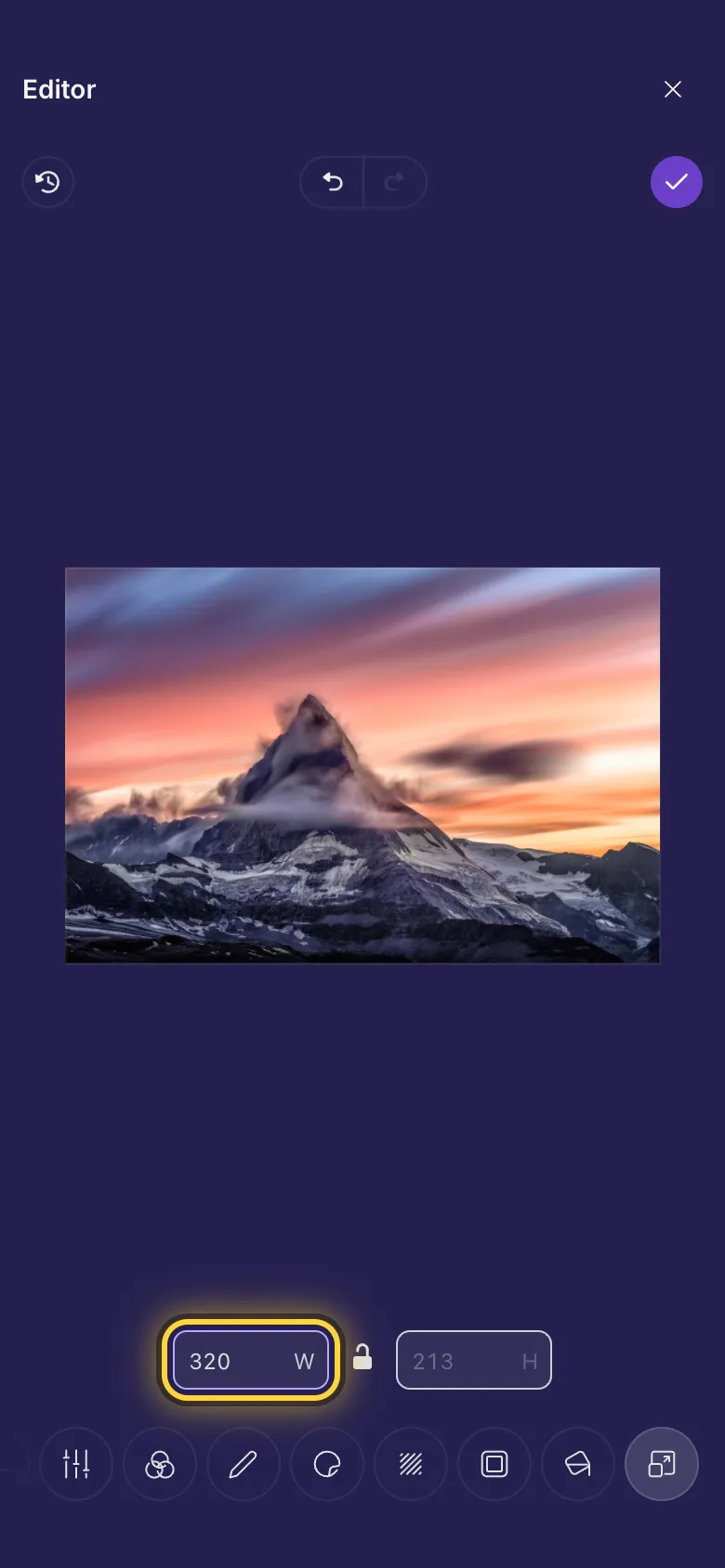
- Tap Resize, the last tool in the row.
- Type the width you want. The height follows, so the picture keeps its shape.
- Leave the height box empty and it follows along. Type a height as well only if you want a different shape.
On a video
All of this works on videos too: the crop, turn and size apply to the whole video. Story 9:16 is the shape for short videos to watch on a phone.
Ideas
A profile picture
Crop shape, then Profile picture 1:1. Drag your face to the middle and tap Done .
A profile banner
Crop shape, then Banner 3:1. Keep the important part away from the edges: some apps cover them.
A lighter copy to share
Resize, type 1600 as the width, then Done . The copy is much smaller and still sharp.