Trim, split and sound
Keep only the good part of a video: cut the start and the end, take parts out of the middle, and check how it sounds before you save.
For anyone with a video or GIF that runs too long, starts too early or has a part nobody needs to see.
The pictures show a phone. On a computer the tools sit down the left side with their names, and the rest works the same way.
On this page
The timeline
A video opens on Trim. Under the picture is your video as a strip of small pictures, from the start on the left to the end on the right.
- The handles at the two ends of the strip set where the video starts and ends.
- The line with the time on it shows where you are. Drag it, or tap the strip, to jump to a moment.
- Play plays the video from there, skipping every part you took out.
Trim the start and the end
- Drag the handle at the left end of the strip to where the video should start.
- Drag the handle at the right end to where it should end.
- Tap Play to watch what is left. Drag a handle back out to get a part back.
Cut parts out of the middle
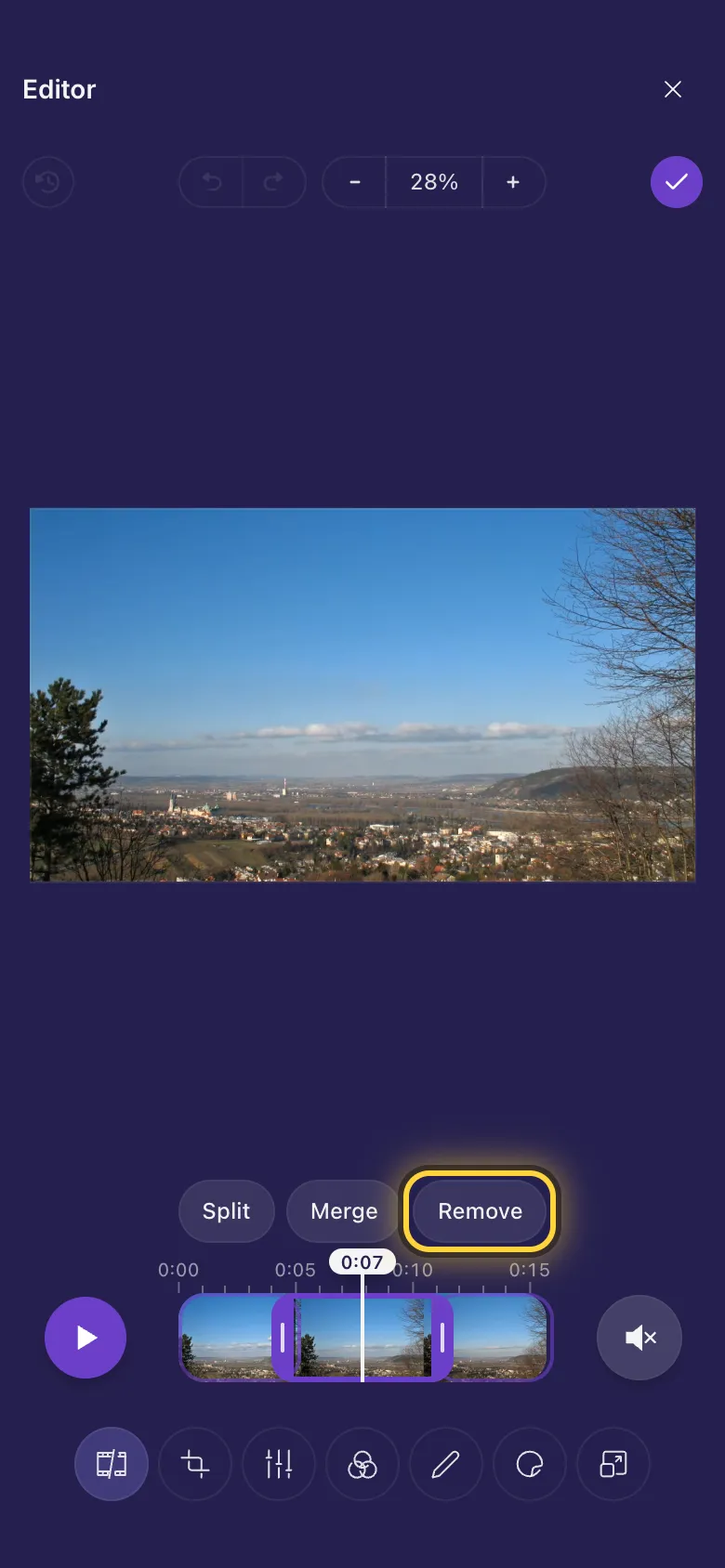
- Drag the time line to where the part you want to lose begins, and tap Split.
- Drag it to where that part ends and tap Split again. The video is now three parts, shown as boxes on the strip.
- Tap the part in the middle to select it, then tap Remove.
Sound
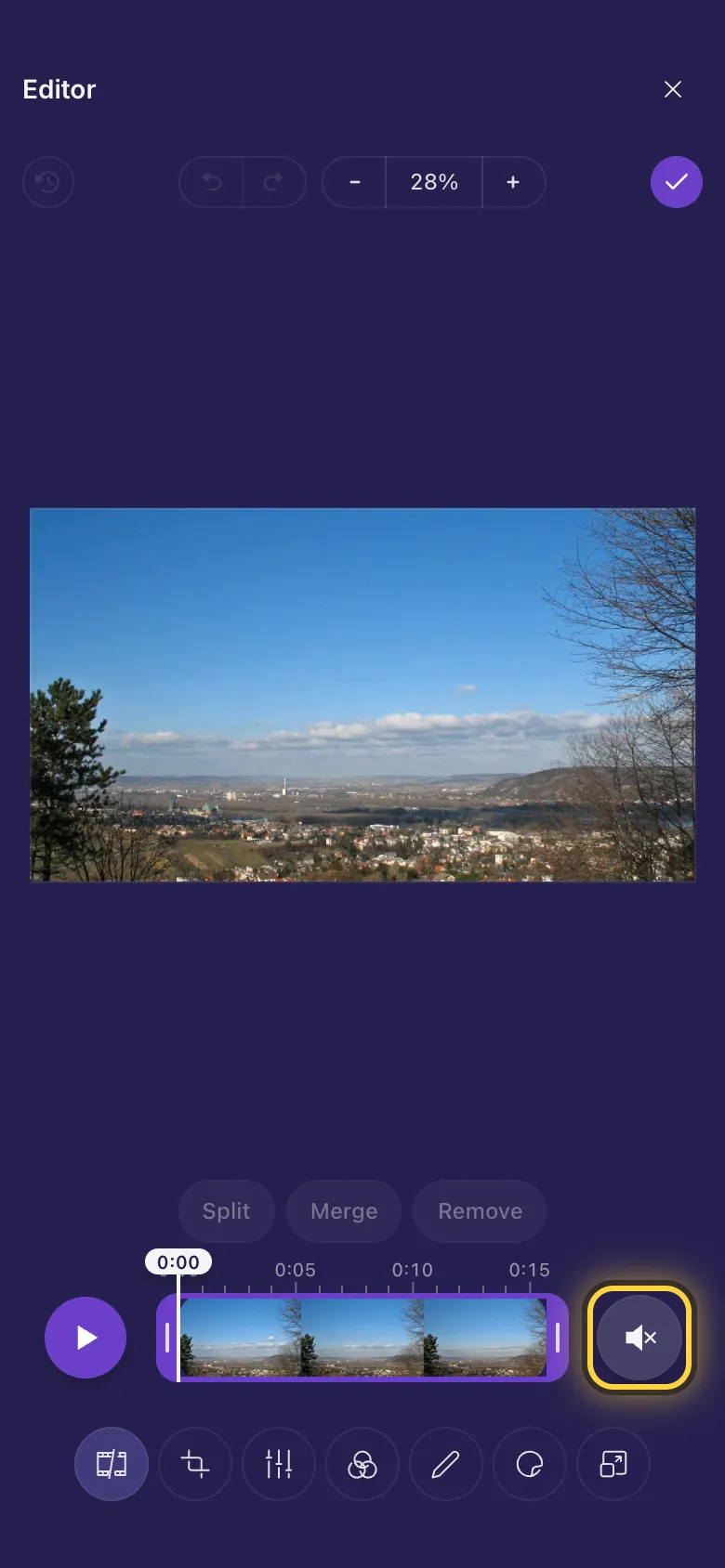
- Videos open with the sound off, so nothing blares out.
- Tap the speaker button at the right end of the strip to hear it, and tap it again to turn the sound off.
GIFs
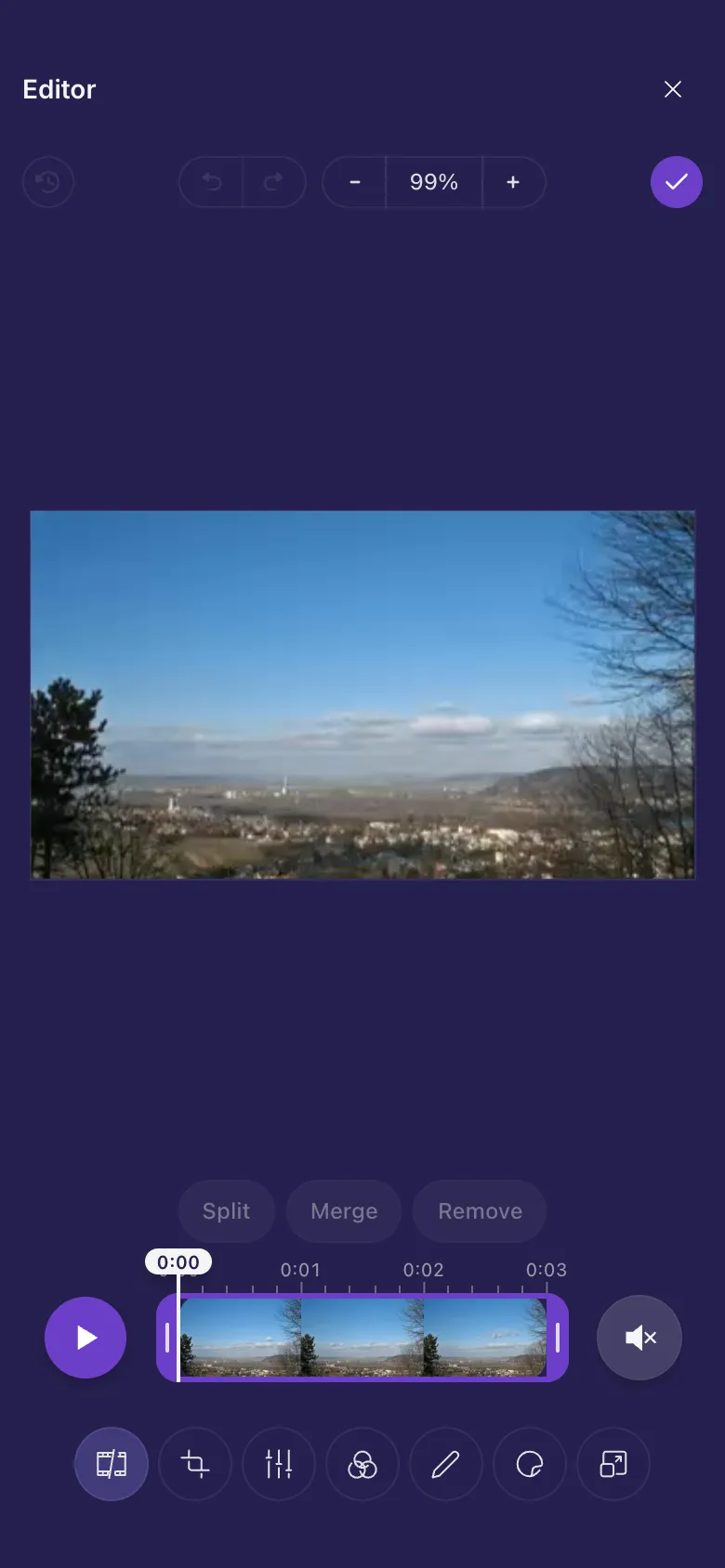
An animated GIF turns into a video as it opens: you see "Converting GIF to video" for a moment. Trim it like any video. The saved copy is a video, usually much smaller than the GIF, and your GIF stays as it was. On an iPhone or iPad, GIFs need iOS 16.4 (Safari 16.4 on a Mac) or later.
Save
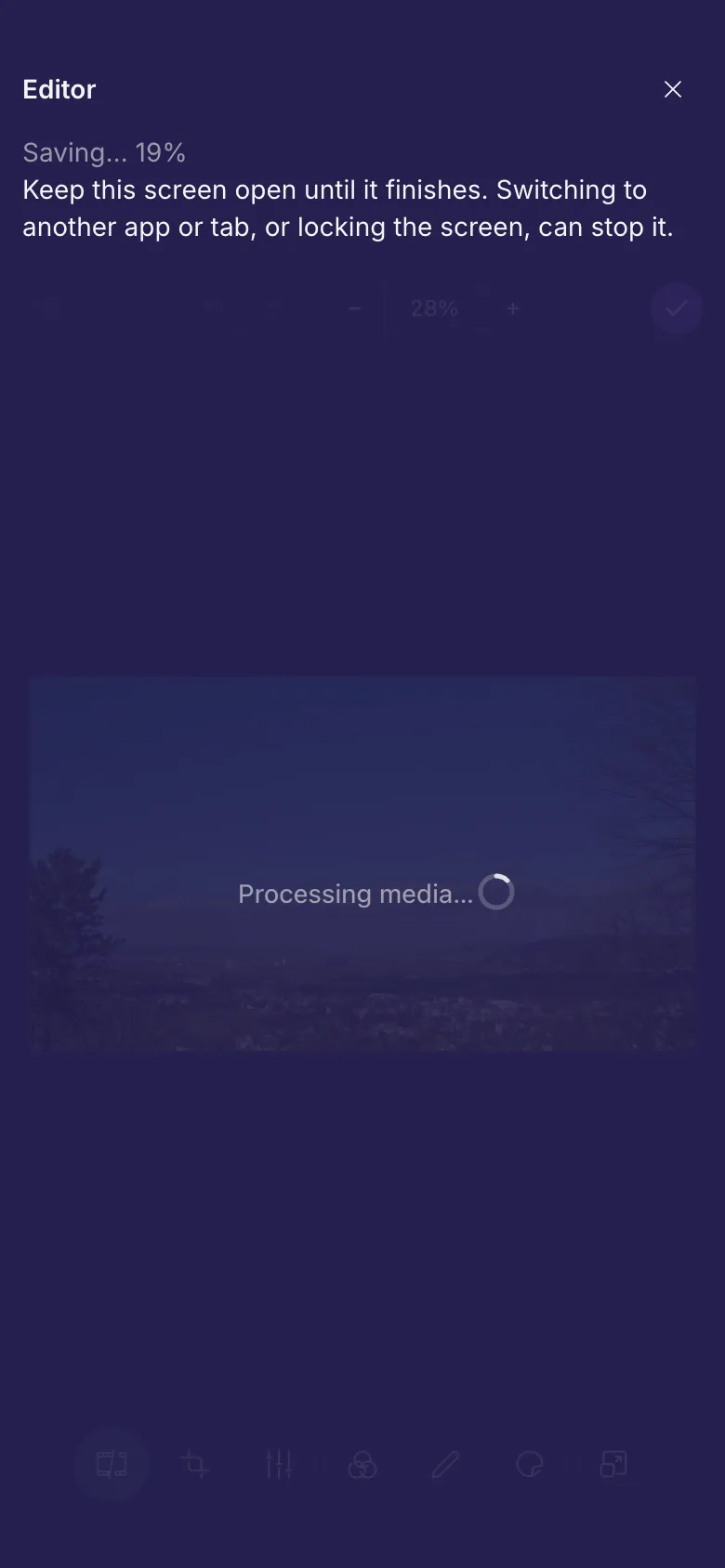
- Tap Done . Your phone or computer puts the new video together, then uploads it as a copy next to the original.
- Keep the screen open until it finishes. Switching to another app or tab, or locking the phone, can stop it.
On older iPhones and iPads that open videos in the simpler editor, saving takes about as long as the video itself plays. Older iPhones and iPads explains when.
How long and how big
The editor opens videos up to 30 minutes long and 1 GB in size. The saved copy also has to fit your plan's upload limit: if it would not, the editor says so before it starts, and a shorter trim or a smaller size in Resize fixes it.
Ideas
Skip the slow start
Drag the start handle to the moment something happens. People decide in the first second.
Take out a mistake
Split before and after it, select the part, Remove.
A shorter GIF
Open the GIF, trim it to the best two seconds and save: you get a small video of just the good bit.