Share on Nostr
Post any file from your library to Nostr, with a few words of your own. This guide shows what you need first, how to share one file or many, what people will see, and how to take a post down again.
For everyone with a plan and a Nostr key.
The pictures show a phone. On a computer the folders sit down the left side and the buttons show their names, and the rest works the same way.
On this page
What you need first
A post on Nostr is signed with your own key, so nostr.build never posts in your name by itself. You approve each post in a signer, the app that holds your key:
- On a computer: a browser extension such as Alby or nos2x.
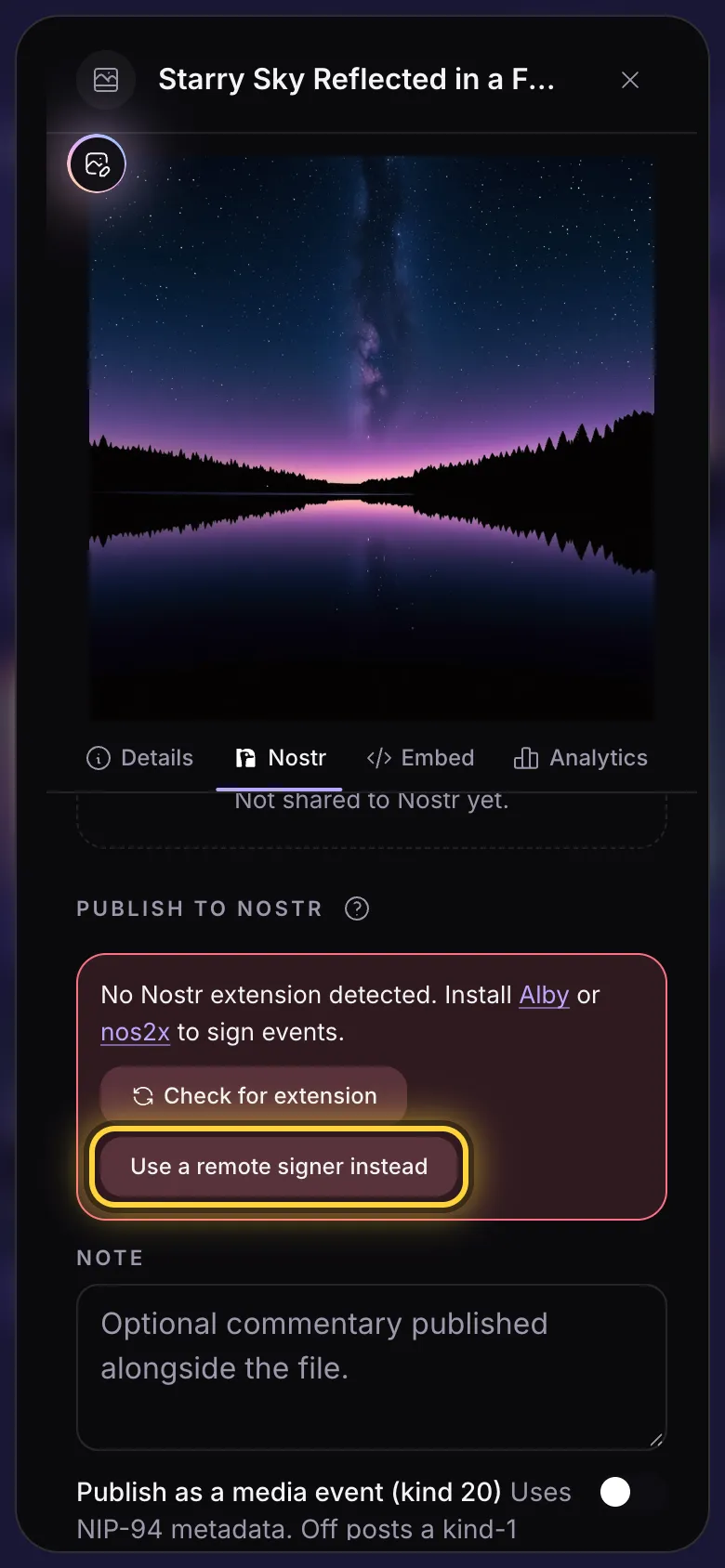
- On a phone, or without an extension: a signer app, on this phone or another device. If you see Use a remote signer instead, tap it and follow the steps.
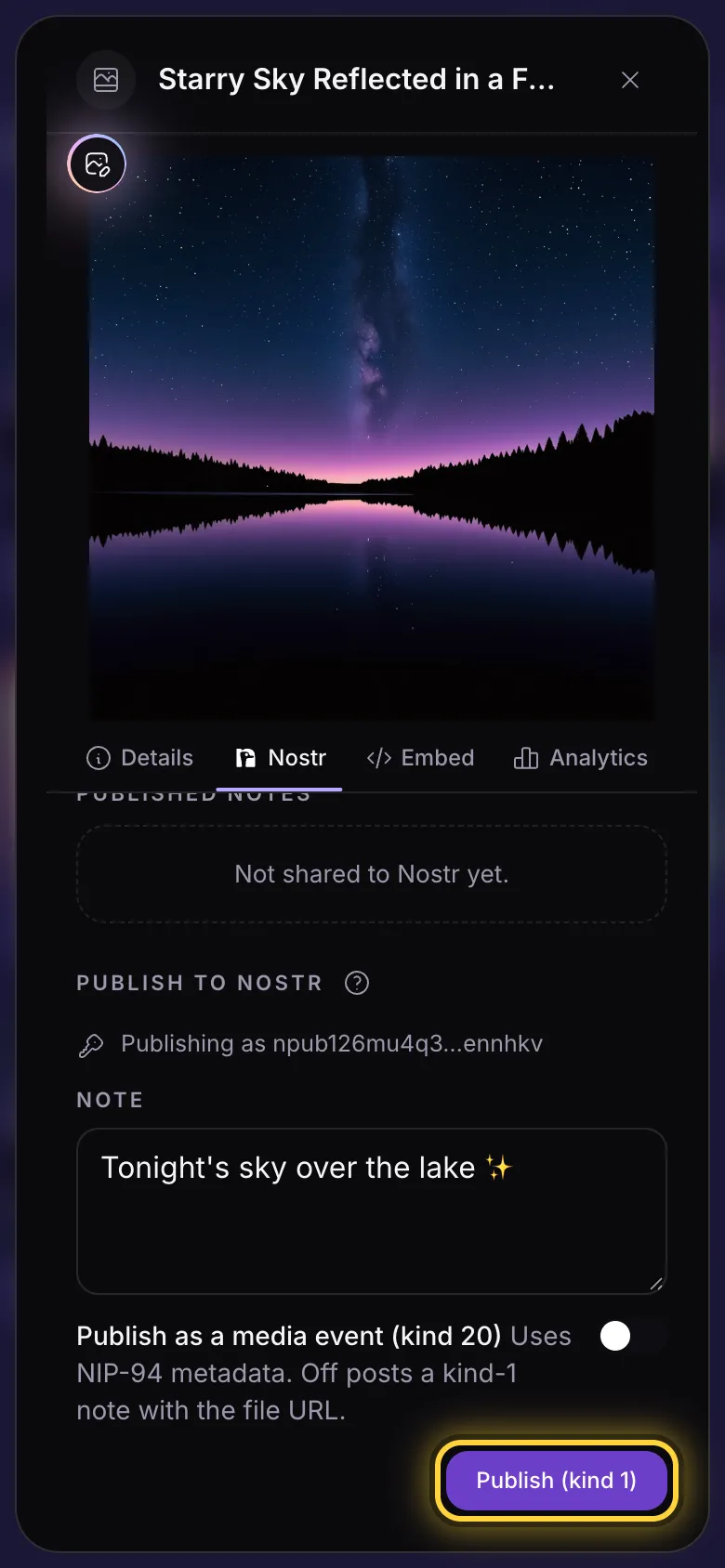
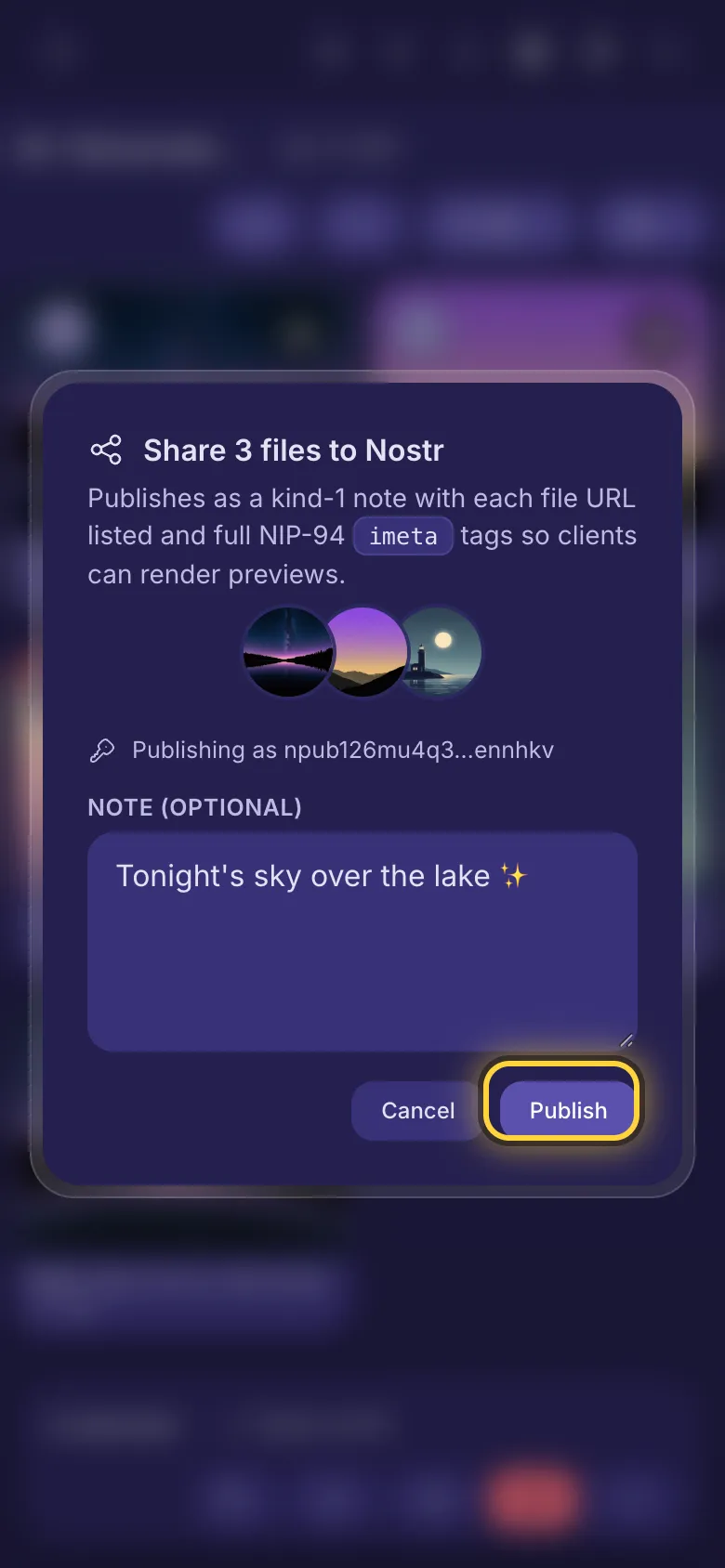
Above the note it says which key will sign: Publishing as npub1…. If your signer holds a different key, switch to your account's key in the signer first.
Share one file
- Tap the three dots under the file to open its details.
- Tap the Nostr tab.
- Write a few words in Note if you like. They go above the file.
- Tap Publish (kind 1) and approve the post in your signer.
- The post now shows under Published notes.
What people will see
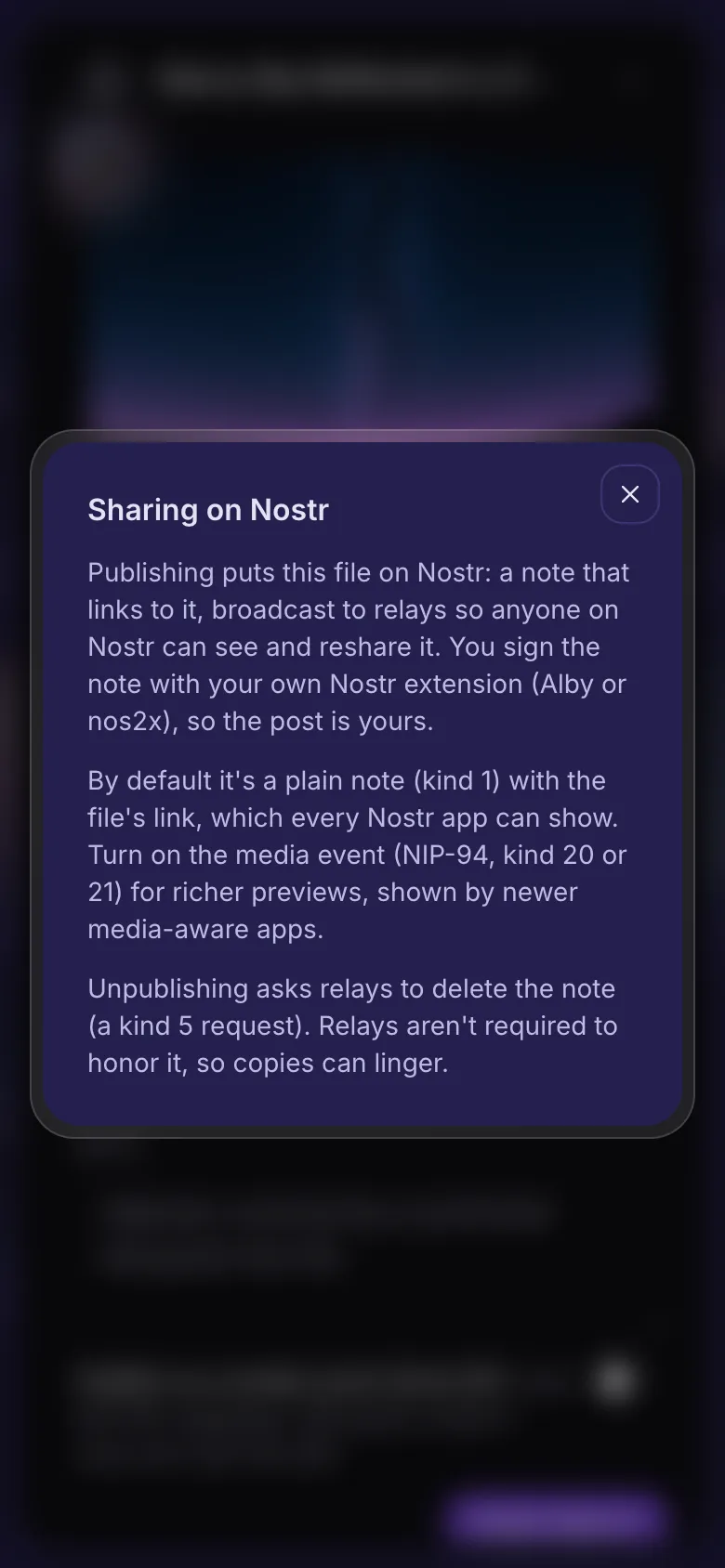
Your post shows your words, then the file's link. Most Nostr apps turn the link into the picture or a video that plays right in the post.
Publish as a media event makes a picture, video or sound post instead. Apps made for pictures and videos show it nicely, but many others don't show it at all. Leave it off to reach everyone.
Share several files at once
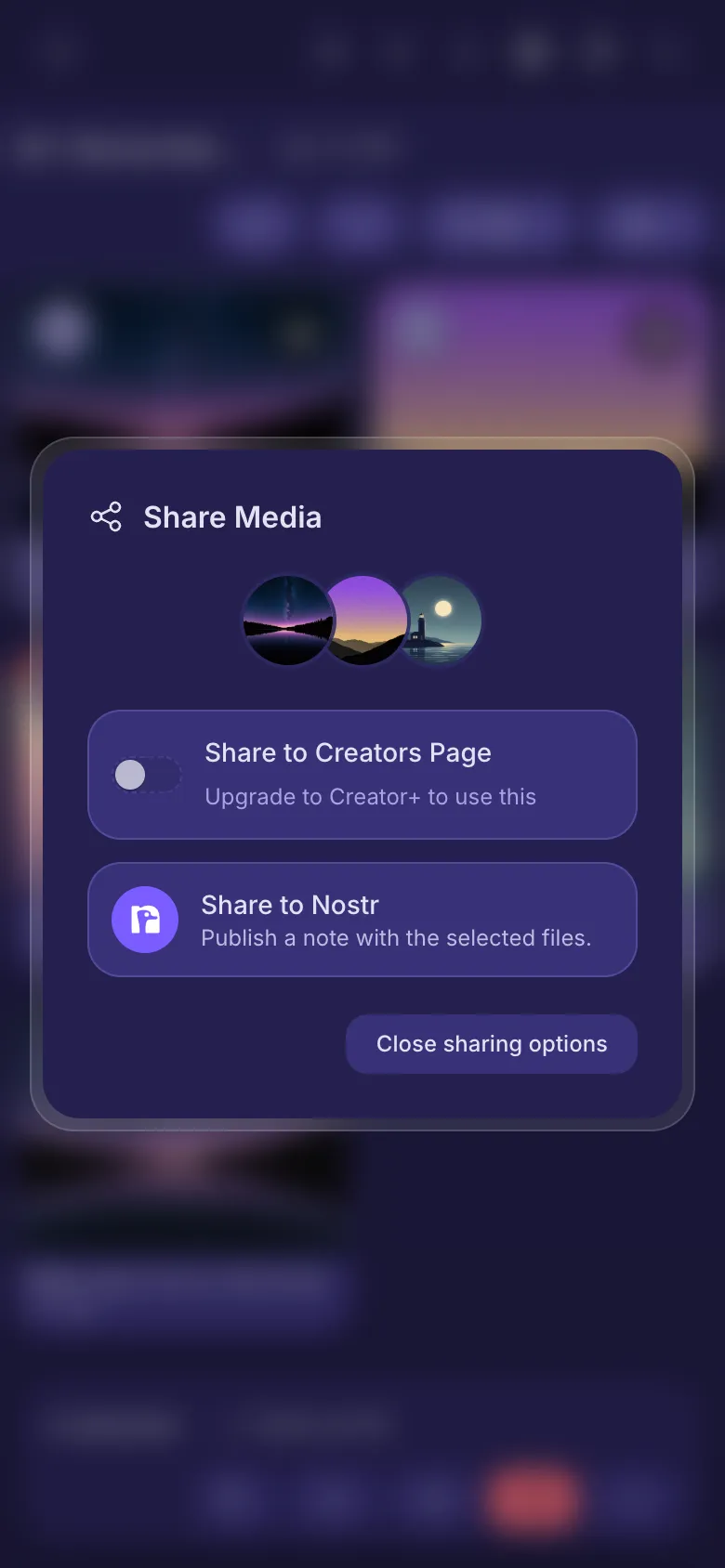
- Tap Select (the tick) and tap the files you want.
- Tap the three joined dots in the bar at the bottom.
- Tap Share to Nostr.
- Write a note if you like, tap Publish, and approve the post in your signer.
It becomes one post with every file's link in it, up to 100 files at a time.
See and take down your posts
- A file you have shared wears a small Nostr badge in the library, with the number of posts. Tap it to go straight to them.
- Each post in the list has three buttons: copy its id, open it on the web, and the bin to take it down.
Your Creators Page
The Creators Page is a public gallery of the files you choose, at your own nostr.build page link. It comes with the Creator and Advanced plans. Turn on Share to Creators Page in the sharing options, or use the button in a file's details. It only changes who can see the file: nothing moves, and you can make it private again at any time.