When something goes wrong
Most problems show a short message that says what happened. Find yours below, with what to do about it.
For everyone, on every plan.
The pictures show a phone. On a computer the pages look the same, only wider.
On this page
An upload fails
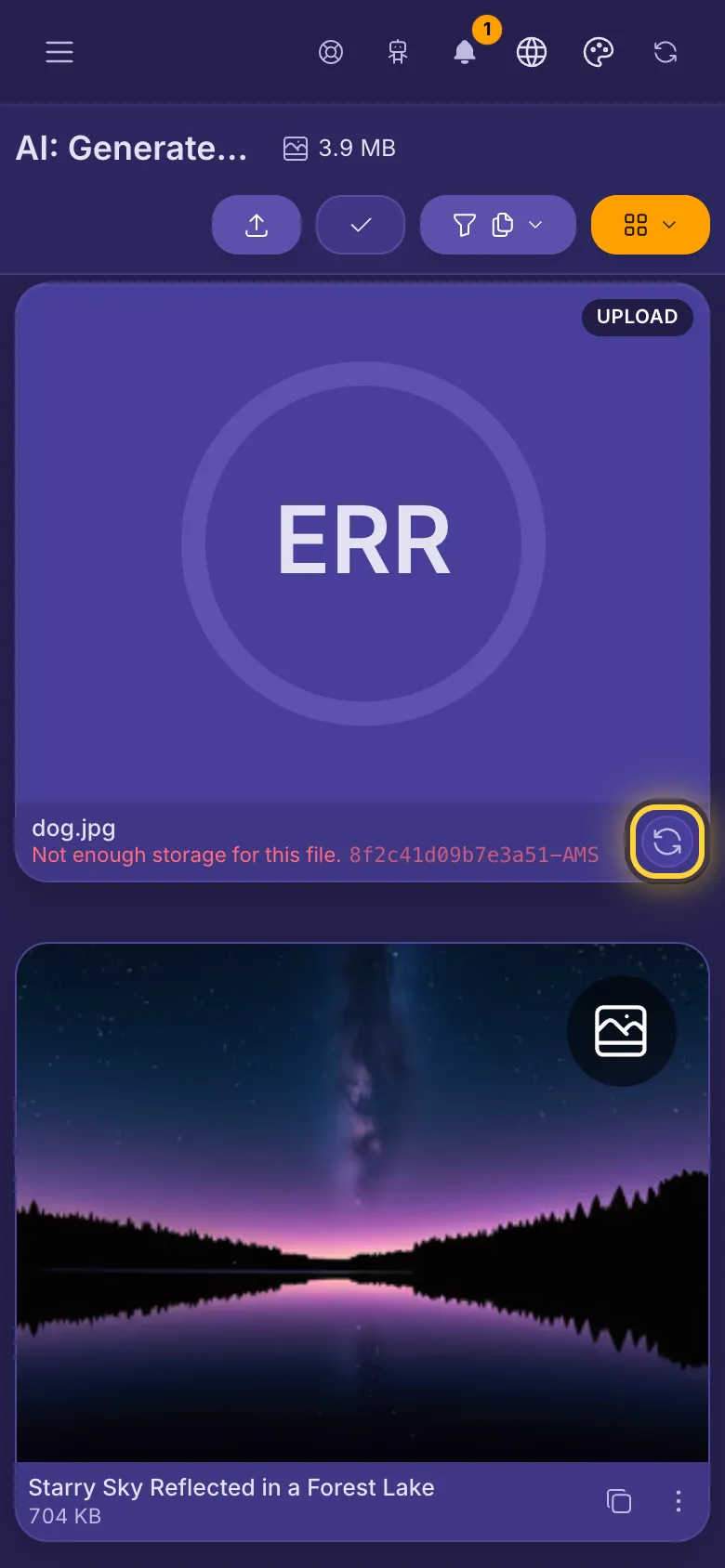
A failed upload shows ERR on its card. At the Large and Normal grid sizes, the reason is under the file name. Tap the round arrow on the card to try again. The most common reasons:
- Your session expired. Sign in and try again. Sign in again, then upload the file again.
- Your session is out of date. Refresh the page and try again. This happens in a tab that was left open for a long time. After you refresh, upload the file again.
- Not enough storage for this file. Delete files you no longer need, or move to a bigger plan.
- Your plan has expired. Renew to keep uploading. The files you already uploaded stay where they are, and you can still share them.
- If the line just says Upload failed, the connection most likely dropped. Try again: a file of 40 MB or more carries on where it stopped; a smaller one starts over.
After the reason there is often a short code. It points us to the exact upload, so put it in your ticket if you ask for help. If you can't see the reason or the code, choose Large with the grid size button at the top right of your media. On a computer, you can also point at the line to read all of it.
You can't upload at all
- If the Upload button is missing, or the upload panel says Your account is not eligible to upload files. Renew or upgrade your plan to continue., your plan has ended, your storage is full, or your plan doesn't include uploads. Renew or upgrade your plan, or delete files you no longer need.
- A file your plan doesn't take, or one bigger than the storage you have left, is refused when you pick it, with a short message in the upload panel. The note under the uploader says what your plan takes: every plan takes pictures, video and sound; documents and archives come with bigger plans.
The editor won't open a file or won't save
- This file type can't be edited. The editor takes pictures, and videos on plans that include video editing. On an older iPhone or iPad, videos need a newer system: see Older iPhones and iPads.
- This video is too long to edit (over 30 minutes). This video is too large to edit (over 1 GB). Shorten or compress the video in another app first, or upload it without editing.
- While a file saves you see Keep this screen open until it finishes. Switching to another app or tab, or locking the screen, can stop it. If you switch apps or lock the screen and it then says Saving stopped responding and was cancelled. Nothing was uploaded., save again and leave the screen on.
- If you see The edited file couldn't be queued for upload. Try again. or Couldn't load this file into the editor., tap Try again. If the edited copy then fails to upload, retry it from its card, like any upload.
You can't sign in
- A code from a Nostr message or an email works for 10 minutes, and stops working after too many wrong tries. That code expired. Request a new one. Ask for a new one.
- The Nostr extension didn't respond. Try again, or sign in with your password. Open your extension, check it is switched on for this site, and try again.
- Your signer did not answer. Is it online and is the relay reachable? Check that your signer app is open and online, then try again. Your signer did not sign in time. Open your signer app, approve the sign-in request, and try again.
More ways to get back in are in Signing in and your accounts.
A payment didn't go through
- Payment didn't complete means the invoice expired or was cancelled, so nothing was charged. Tap Start over to try again.
- Paid with Bitcoin and still waiting? Confirmation can take a while. You can close the window: your plan switches on by itself once the payment confirms.
- Charged but your plan didn't change? Write to admin@nostr.build.
A page won't load
- A new version of the app is available. Tap Reload to get the latest version of the app.
- If a page says Something went wrong, tap Reload. If it happens again, tap Go home and try once more.
- If your media says Couldn't load your media, check your connection, then tap Try again.
Still stuck?
Open a support ticket and tell us what you did, what you expected and what happened, with the message you saw. Get help shows how.