Signing in and your accounts
You can sign in with a password, with your Nostr key, or with a one-time code. This guide shows each way, what to do when you forget your password, how to make an account, and how to switch between several.
For everyone.
The pictures show a phone. On a computer the pages look the same, only wider.
On this page
Ways to sign in
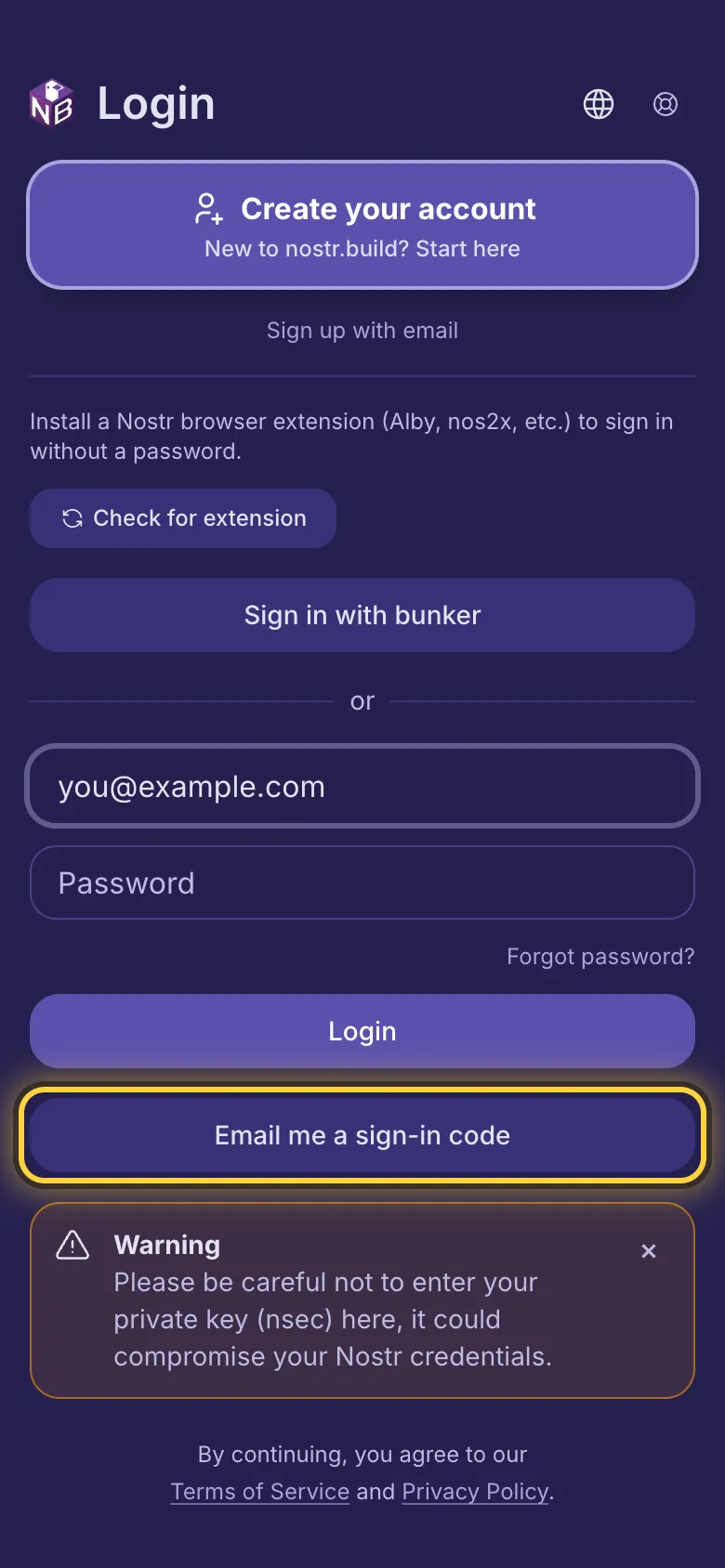
The sign-in page offers several ways in. Use whichever suits you:
- Your npub or your email address, and your password.
- A Nostr browser extension such as Alby or nos2x, with no password.
- A remote signer, if the page offers one: a signer app on this phone or another device.
- A one-time code sent to you as a Nostr direct message.
- A one-time code sent to your email address.
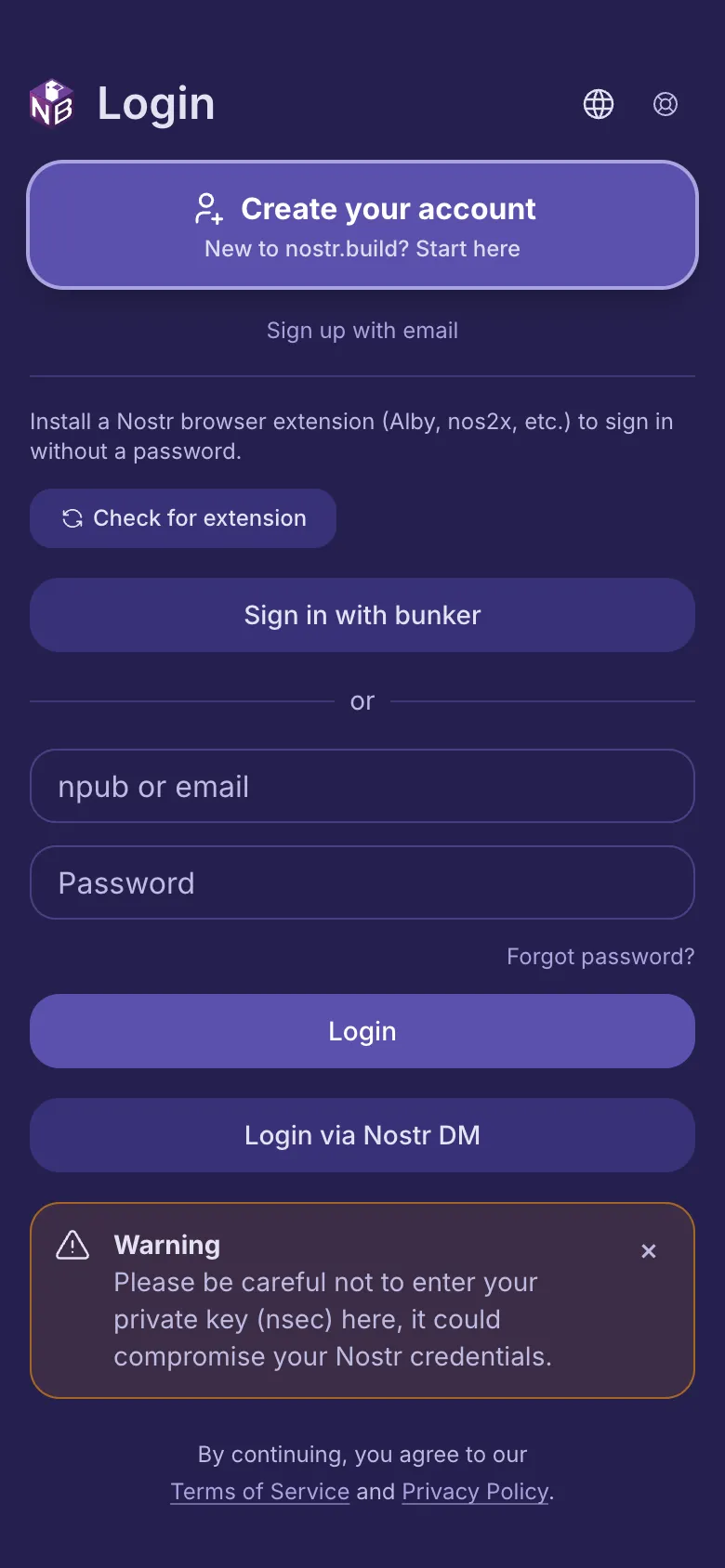
With a password
- Type your npub or your email address in the first box.
- Type your password and tap Login.
An email address works once you have confirmed it from the email we sent.
With a Nostr browser extension
- When a Nostr extension is installed, the page shows Login with Nostr (NIP-07). Tap it.
- Approve the request in your extension. You're in.
With a remote signer
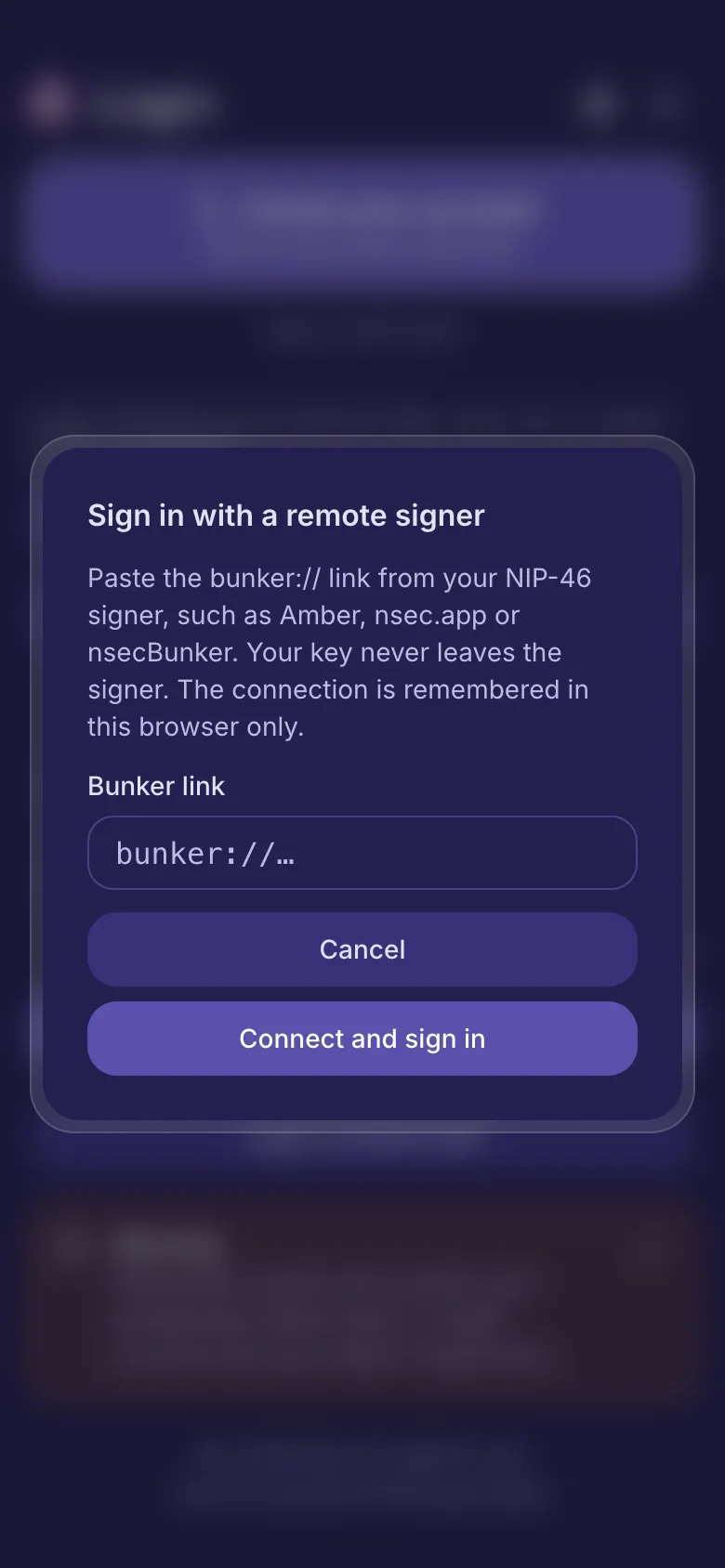
- Tap Sign in with bunker, if the page shows it.
- In your signer app, such as Amber or nsec.app, copy its bunker:// link and paste it into Bunker link.
- Tap Connect and sign in and approve the request in your signer.
Your key never leaves the signer. This browser remembers the connection, so next time it's quicker.
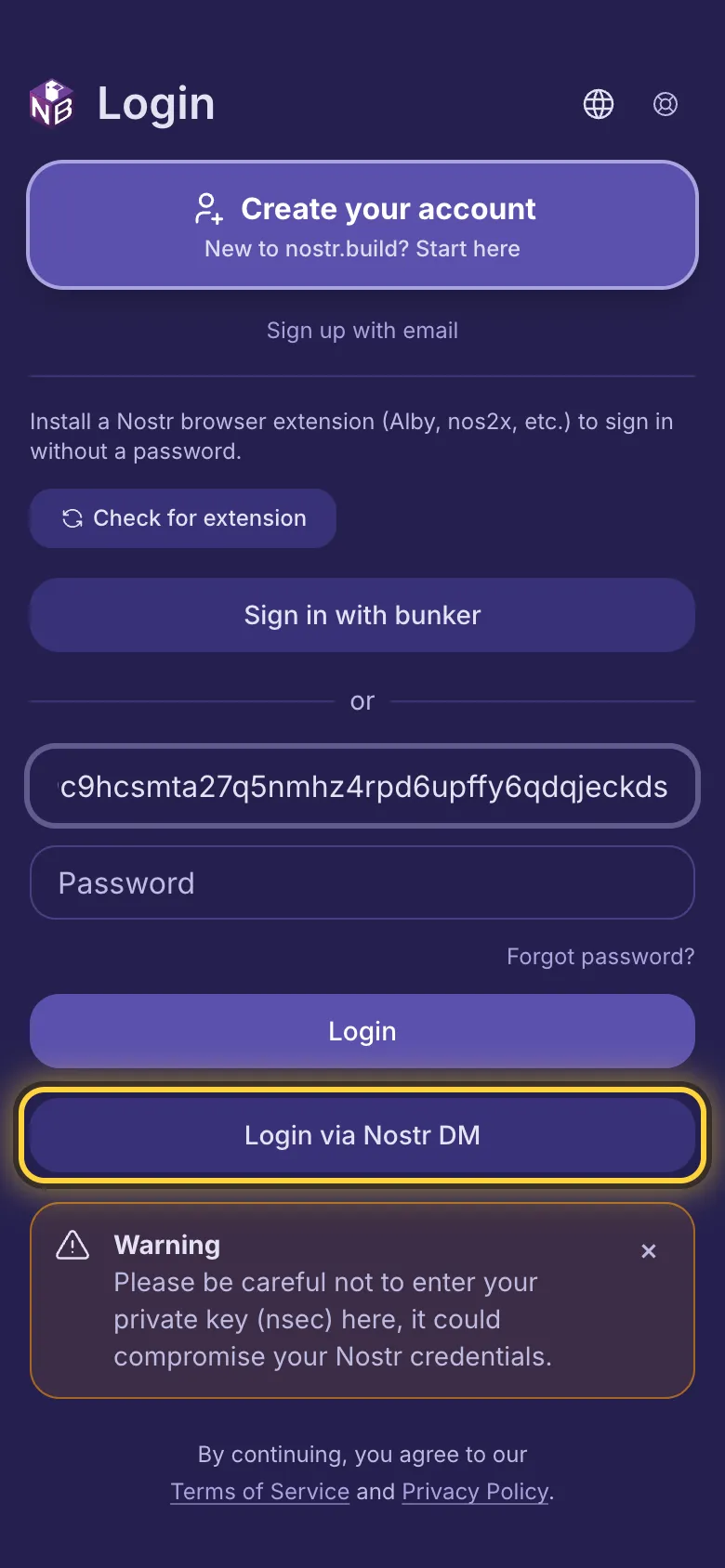
With a code by Nostr message
- Type your npub in the first box.
- Tap Login via Nostr DM.
- Open your Nostr messages. You'll find a code and a link from nostr.build.
- Type the code and tap Submit code. Or open the link and tap Log in to nostr.build.
The code works for 10 minutes. If it runs out, ask for a new one.
With a code by email
- Type your email address in the first box.
- Tap Email me a sign-in code.
- Type the 6 digits from the email. You're signed in as soon as the last one is in.
The code works for 10 minutes, for an email address you have confirmed.
Forgot your password
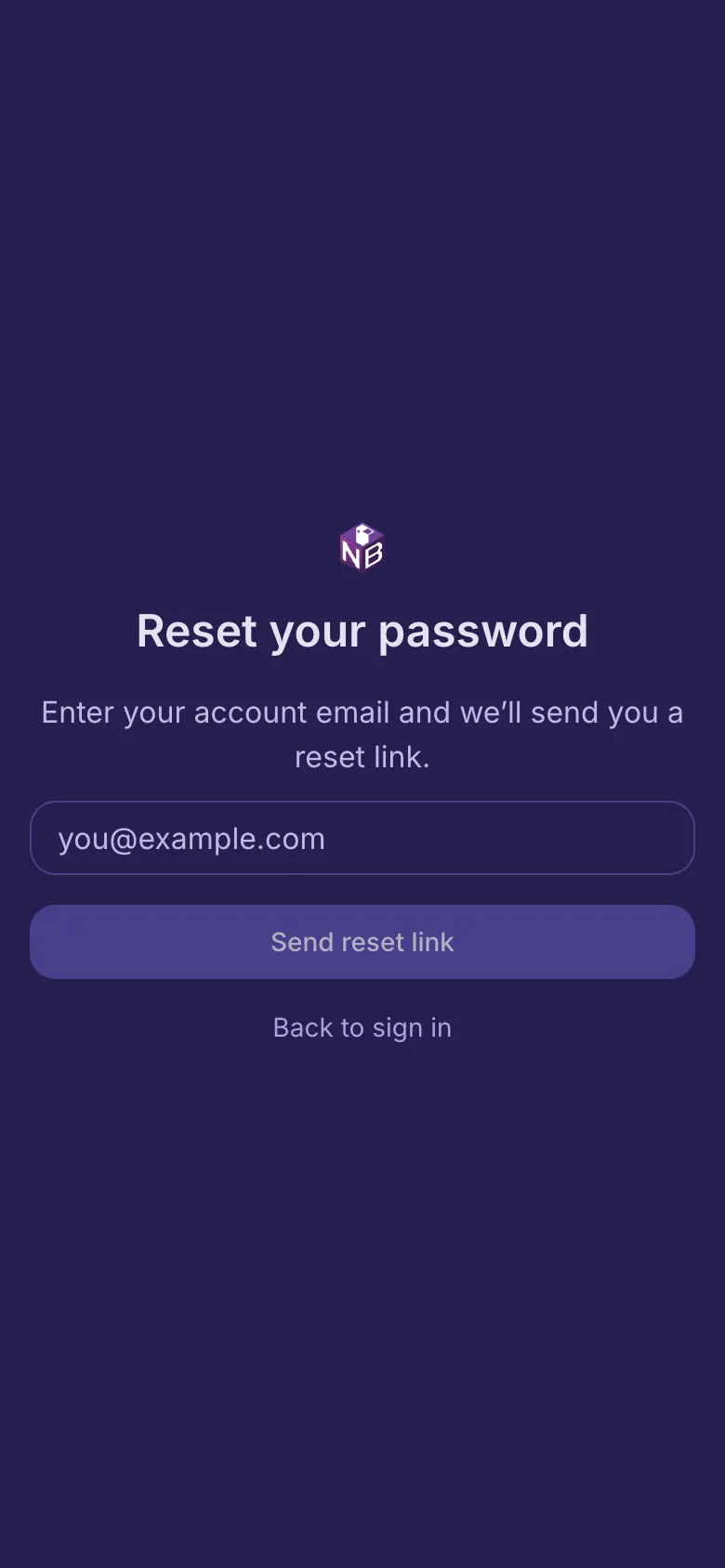
- On the sign-in page, tap Forgot password?.
- Type your account's email address and tap Send reset link.
- Open the email and tap Reset password.
- Type a new password twice and tap Set password.
The link in the email works for one hour.
Make a new account
- Create your account takes you to the plans. Pick one and sign up with your Nostr key or your email address.
- Want an account without choosing a plan yet? Tap Sign up with email, type your email address and tap Send link. Open the link in the email, choose a name and a password, and tap Create account.
Switch between accounts
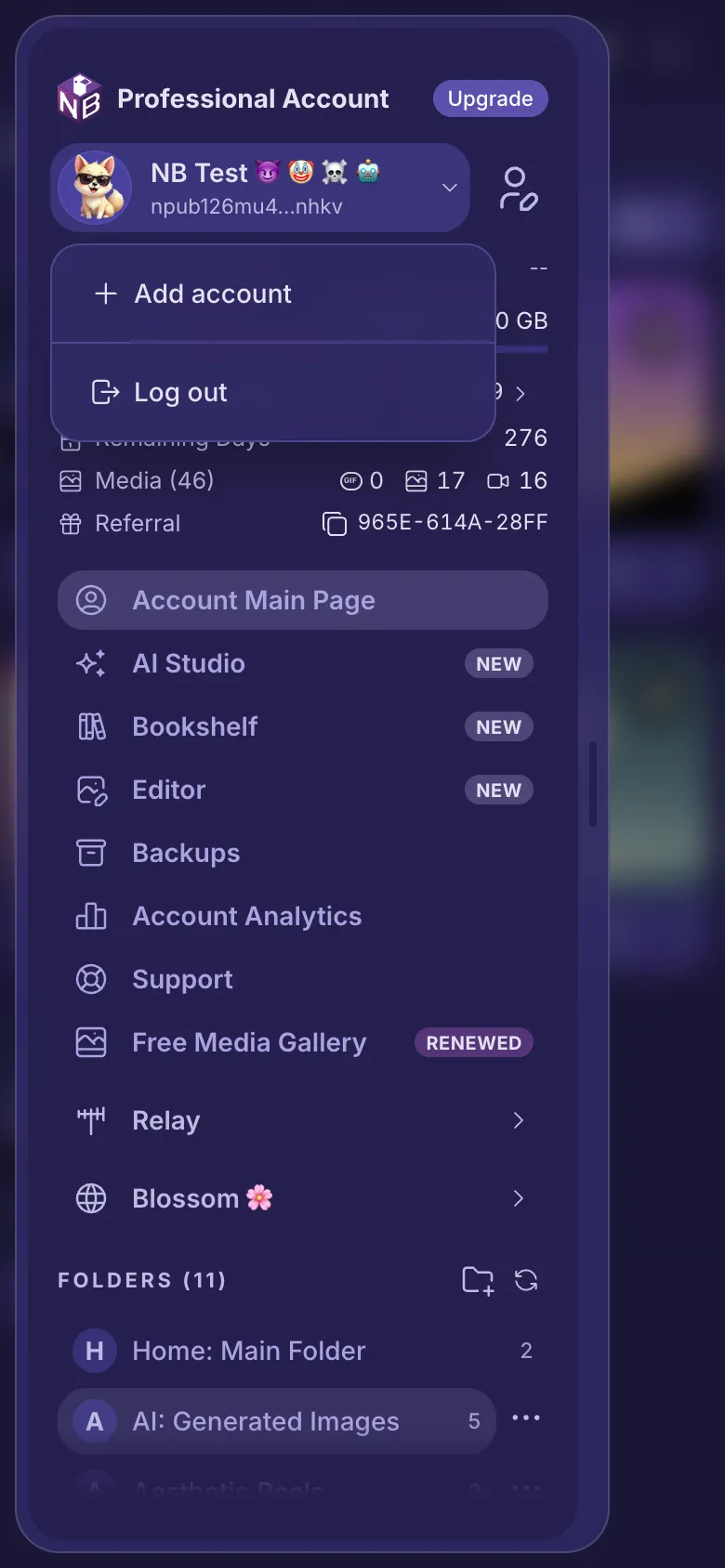
- Open the menu (three lines, top left) and tap your name.
- Tap another account under Other accounts to switch to it.
- To add one, tap Add account and sign in to it.
This browser remembers up to 5 accounts. Log out signs you out of the one you're in; Sign out of all accounts signs out of every one.
Your sign-in settings
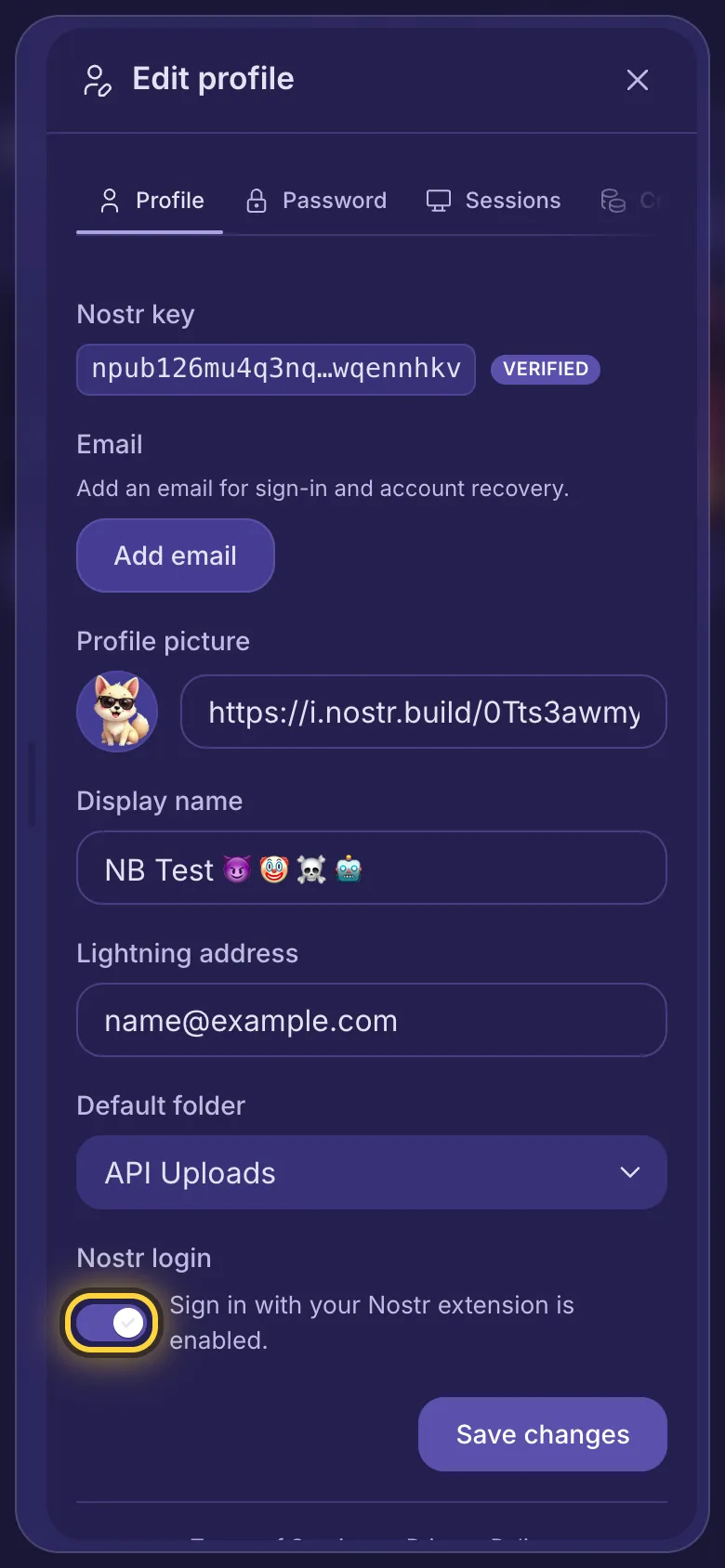
- Open the menu and tap the button with a person and a pencil beside your name (Edit profile).
- Once your Nostr key is verified, the Nostr login switch on Profile lets you sign in with it: an extension, a remote signer or a code by Nostr message. Turn it off and only your password, or a code sent to your confirmed email, will work. Then tap Save changes.
- Add an email address with Add email, then confirm it from the email we send. You can then sign in with it and reset a forgotten password.
- On Password, change your password. You can sign out your other devices at the same time.
- On Sessions, see every device that's signed in and sign out the ones you don't use.