Make pictures with AI Studio
AI Studio turns a short description into a picture, or changes a picture you already have. It has dozens of models from different makers. This guide shows how to pick one, write a good prompt, start from your own pictures, and what it costs.
For every paid plan. The models you see depend on your plan.
The pictures show a phone. On a computer the pages look the same, only wider.
On this page
Open AI Studio
- Open the menu and tap AI Studio.
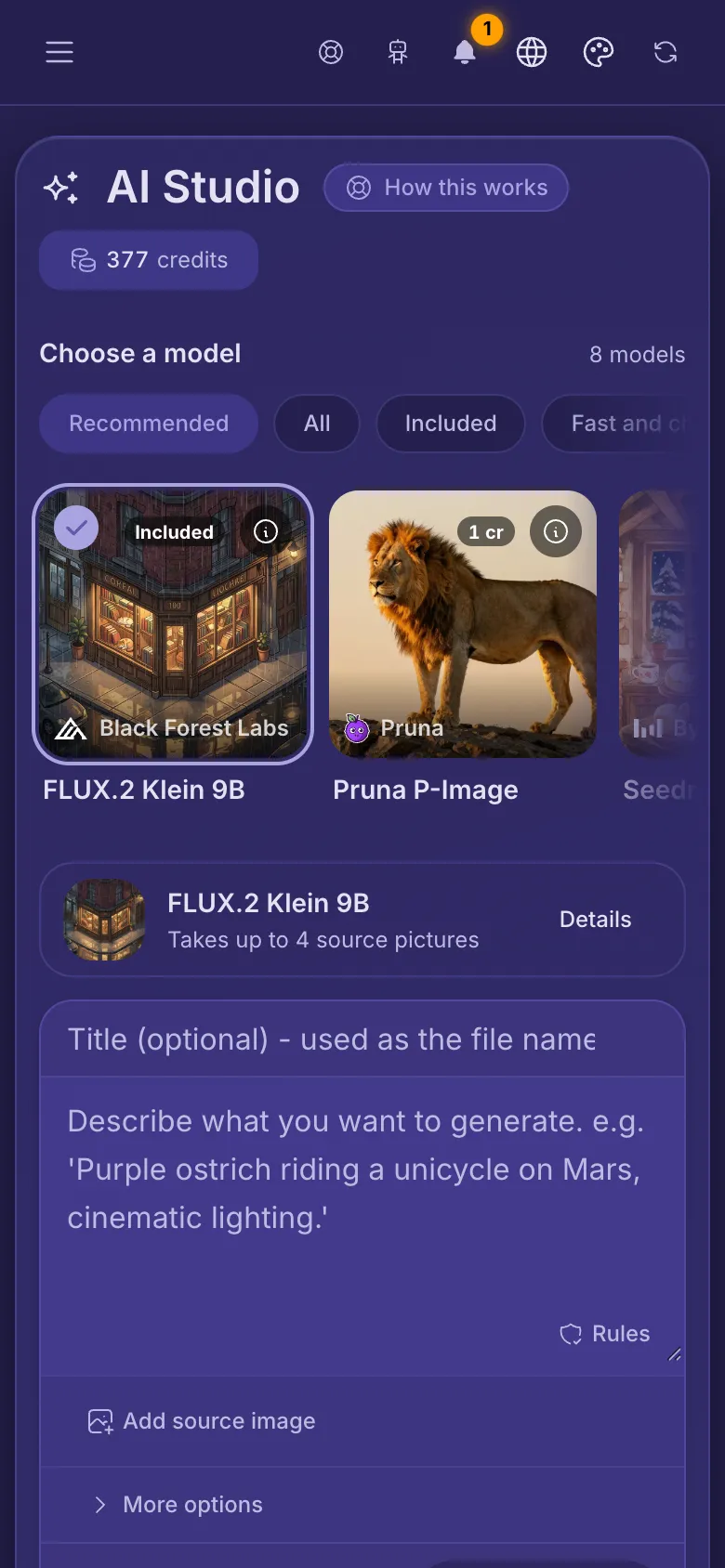
- At the top you choose a model. Under it is the box where you describe the picture, with Generate at the bottom.
- The button at the top right shows your credits. Tap it to see them and buy more.
- Further down are the pictures you made before, in the folder AI: Generated Images.
Make your first picture
- Pick a model at the top, or keep the one that is already chosen.
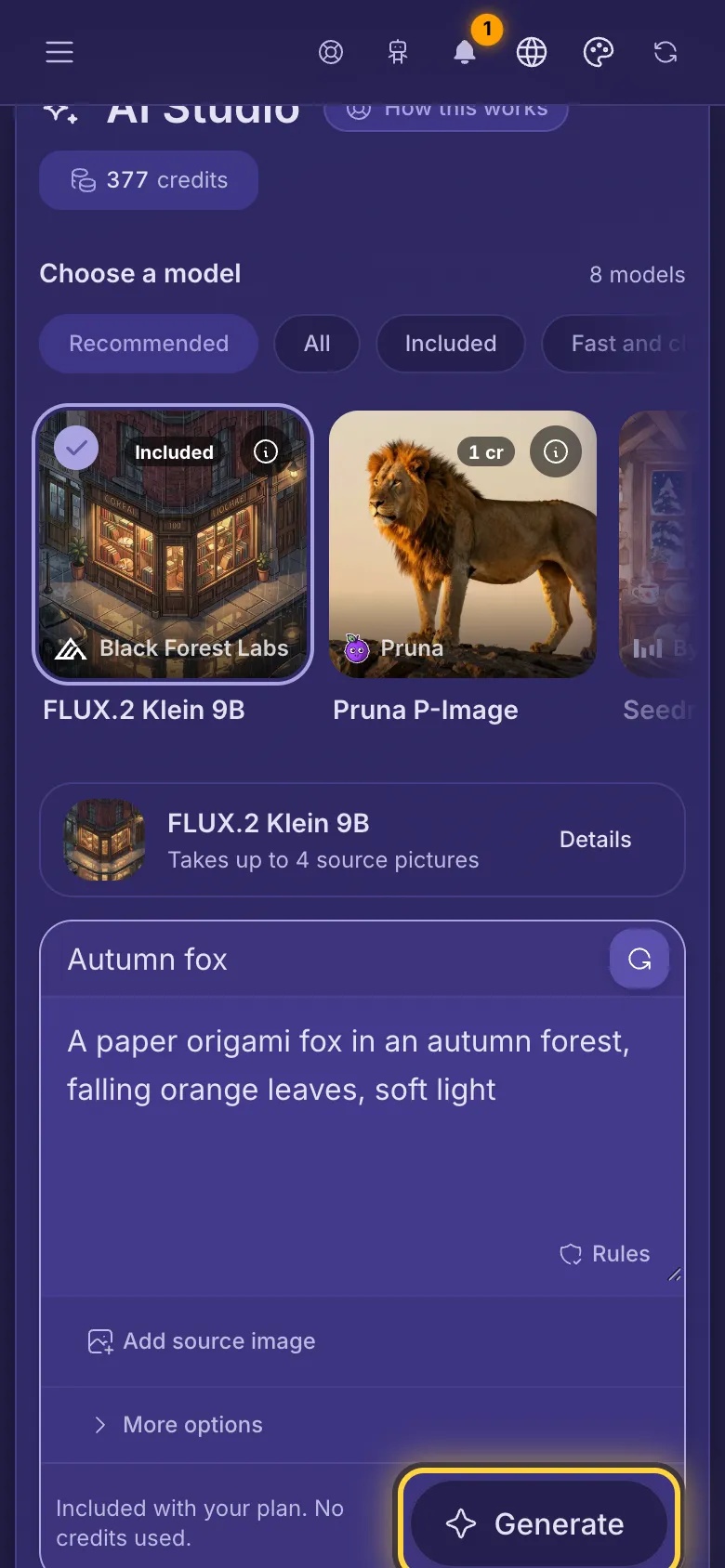
- In the big box, write what you want to see: what is in the picture, where, and in what style, like a photo, a painting or a drawing.
- If you like, type a title in the top line. It becomes the file name.
- Check the line next to Generate. It says how many credits this picture uses, or that your plan includes it.
- Tap Generate. Most pictures take a few seconds, the biggest models up to a minute or two. Keep the page open while it works.
Your new picture
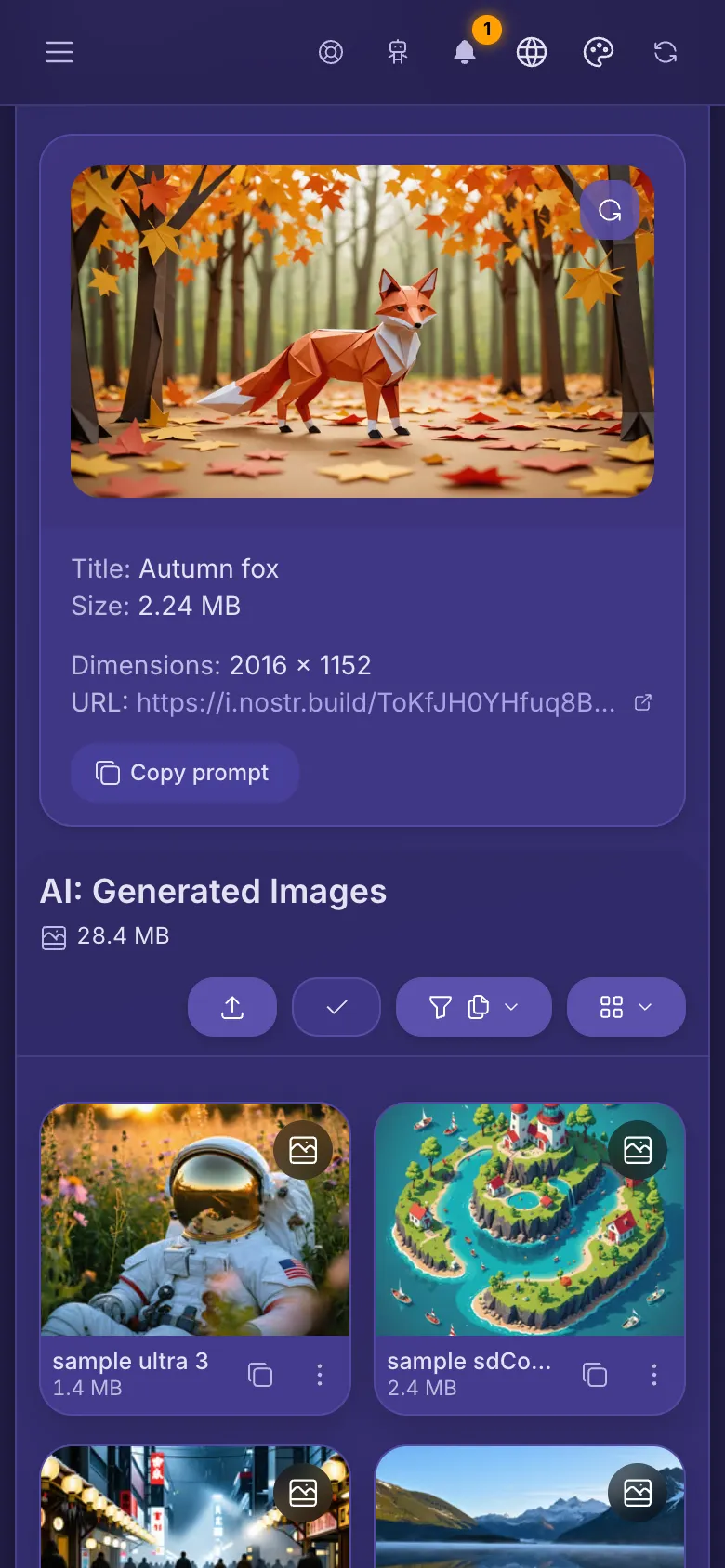
- The new picture shows under the box, with its size and link. It is saved in AI: Generated Images, like an upload.
- Copy prompt copies what you wrote, handy to try the same idea with another model.
- Clear image (the round arrow on the picture) only hides it here. It stays in your library.
- In your library you can share, move, edit or delete it like any other picture.
Choose a model
- The chips at the top sort the models. Recommended shows a few strong ones for different jobs, All shows every model on your plan.
- Swipe the row of cards sideways to see more. Tap a card to use that model. The chosen one has a tick.
- The badge on a card shows the credits one picture uses (like 7 cr), or Included when it uses none.
- Under the cards, the chosen model's line says how many pictures it can take. Tap Details to learn more about it.
The kinds of models
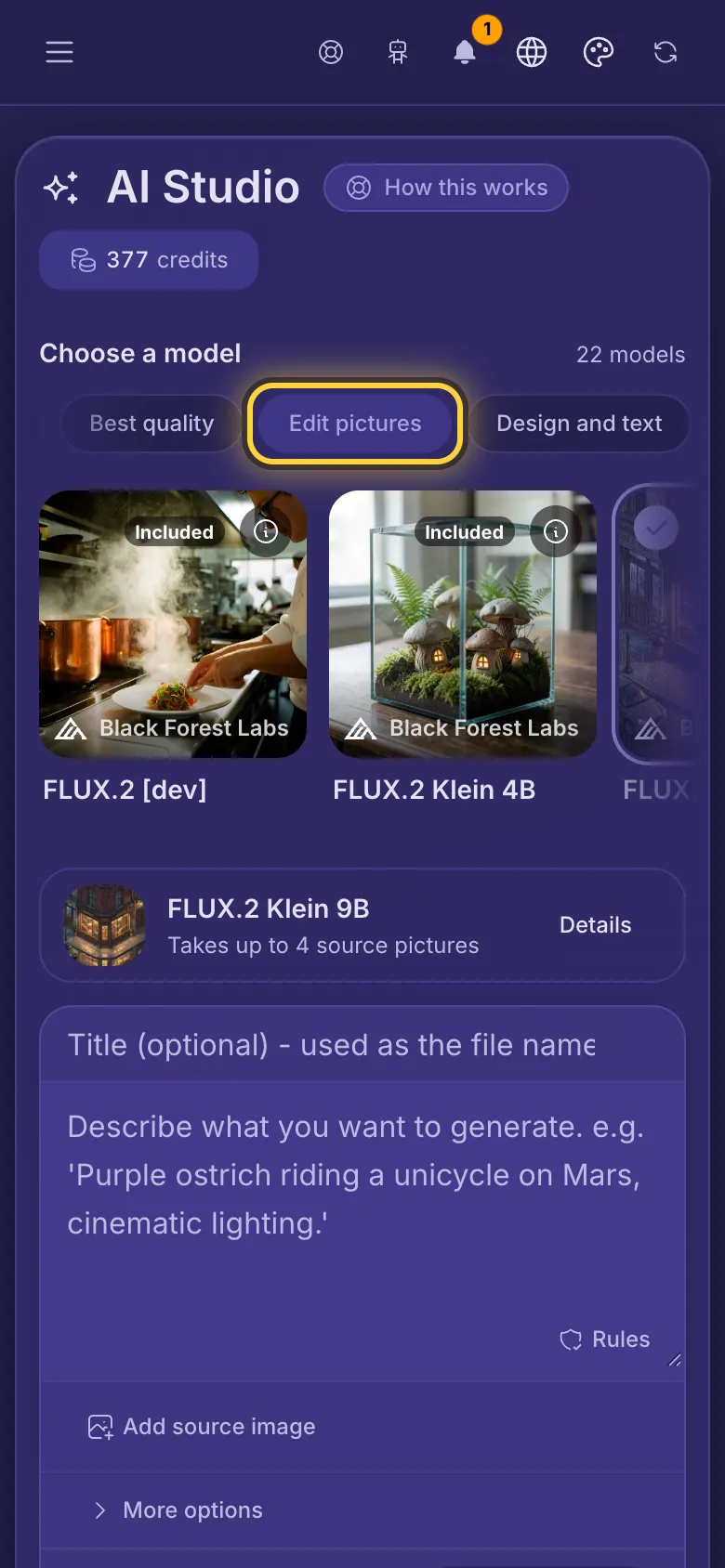
Each chip gathers models that are good at one thing. A model can be in more than one.
- Included: models your plan includes, so they use no credits. Good for trying ideas. Not every plan has them. For example: FLUX.2 Klein 9B, SDXL-Lightning, and Stable Diffusion XL.
- Fast and cheap: quick and low in credits. Good for drafts and simple pictures. For example: Pruna P-Image, GPT Image 2.5 Flare, and Stable AI Core.
- Best quality: the most detail, the best light and the most natural faces. They take longer and use more credits. For example: Seedream 5 Pro, FLUX.1 Kontext [pro], and Nano Banana Pro.
- Edit pictures: models that take your pictures and change them: a new background, another style, one more object, or several pictures mixed into one. For example: FLUX.2 Klein 9B, Seedream 5 Pro, and FLUX.1 Kontext [pro].
- Design and text: logos, posters, icons and pictures with words in them. Some let you pick brand colors. For example: Recraft V4.1, Qwen Image 3.0 Pro, and Recraft V3.
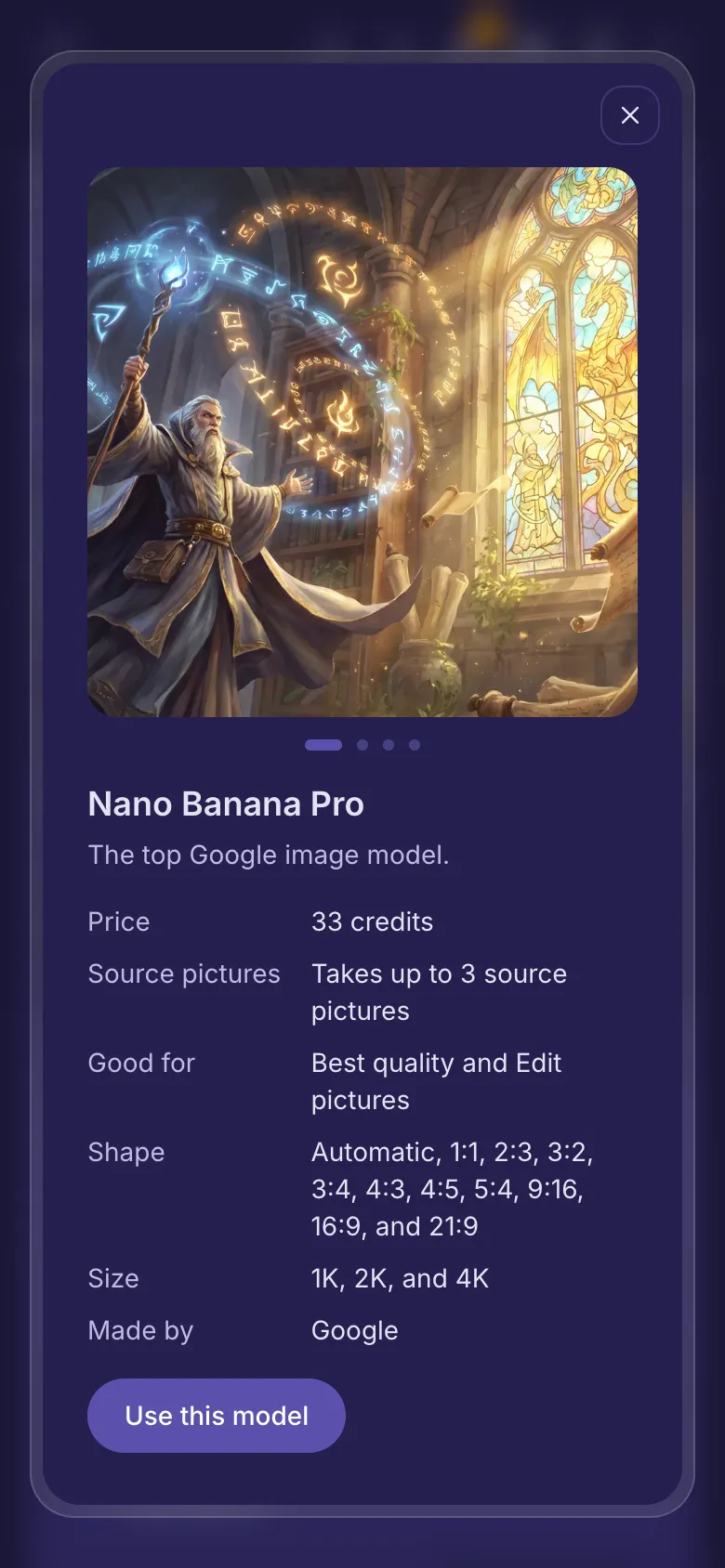
See what a model can do
- Tap the (i) on a card, or Details under the cards.
- Swipe the sample pictures to see what the model makes. Each one was made by that model.
- Price is the credits for one picture, and some models add credits for each picture you attach. Source pictures says how many pictures it takes, Good for names its chips and Made by the company behind it. Other lines list its options, like Shape.
- Tap Use this model to choose it.
Start from your own pictures
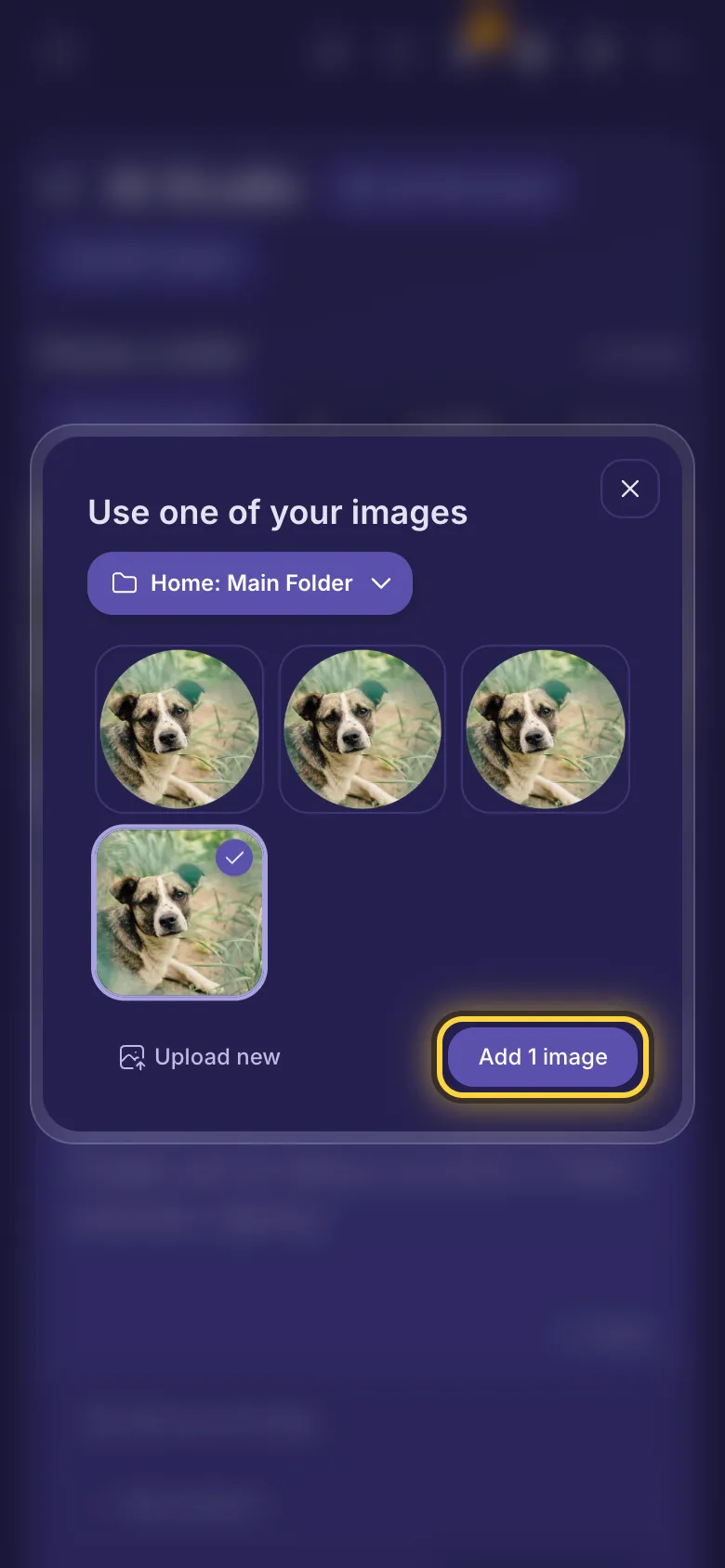
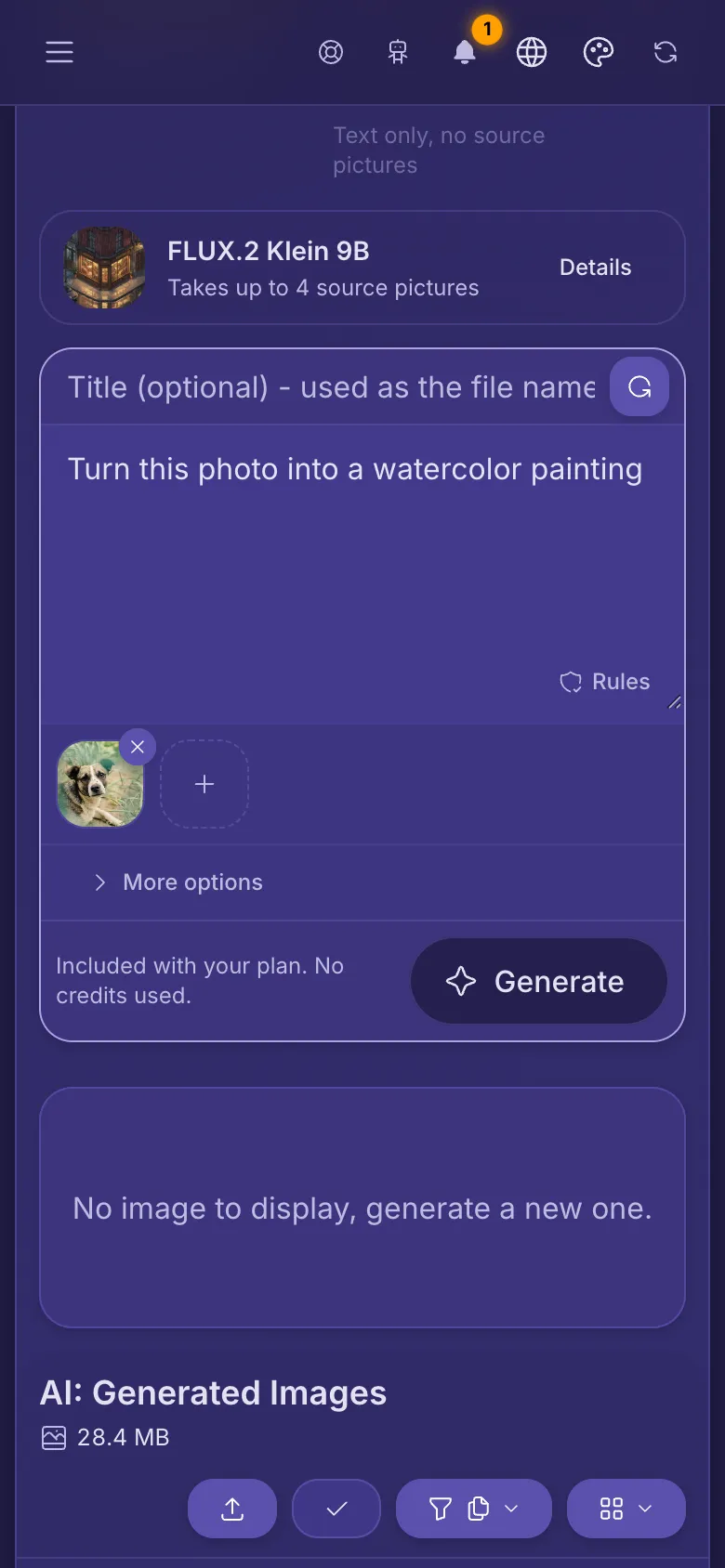
- Under the prompt, tap Add source image.
- Choose a folder at the top, tap one or more pictures, then tap the Add button. Upload new adds a picture from your device first.
- If the chosen model can't take pictures, AI Studio switches to one that can and tells you which.
- In the prompt, say what to change, for example: turn this photo into a watercolor painting.
- The + next to your picture adds another one, up to what the model takes. The x on a picture removes it.
- Some models show Variation: lower keeps the result closer to your picture, higher lets it change more.
- Krea models take Style pictures instead. They copy the look of your pictures (colors, texture, technique) and don't edit them.
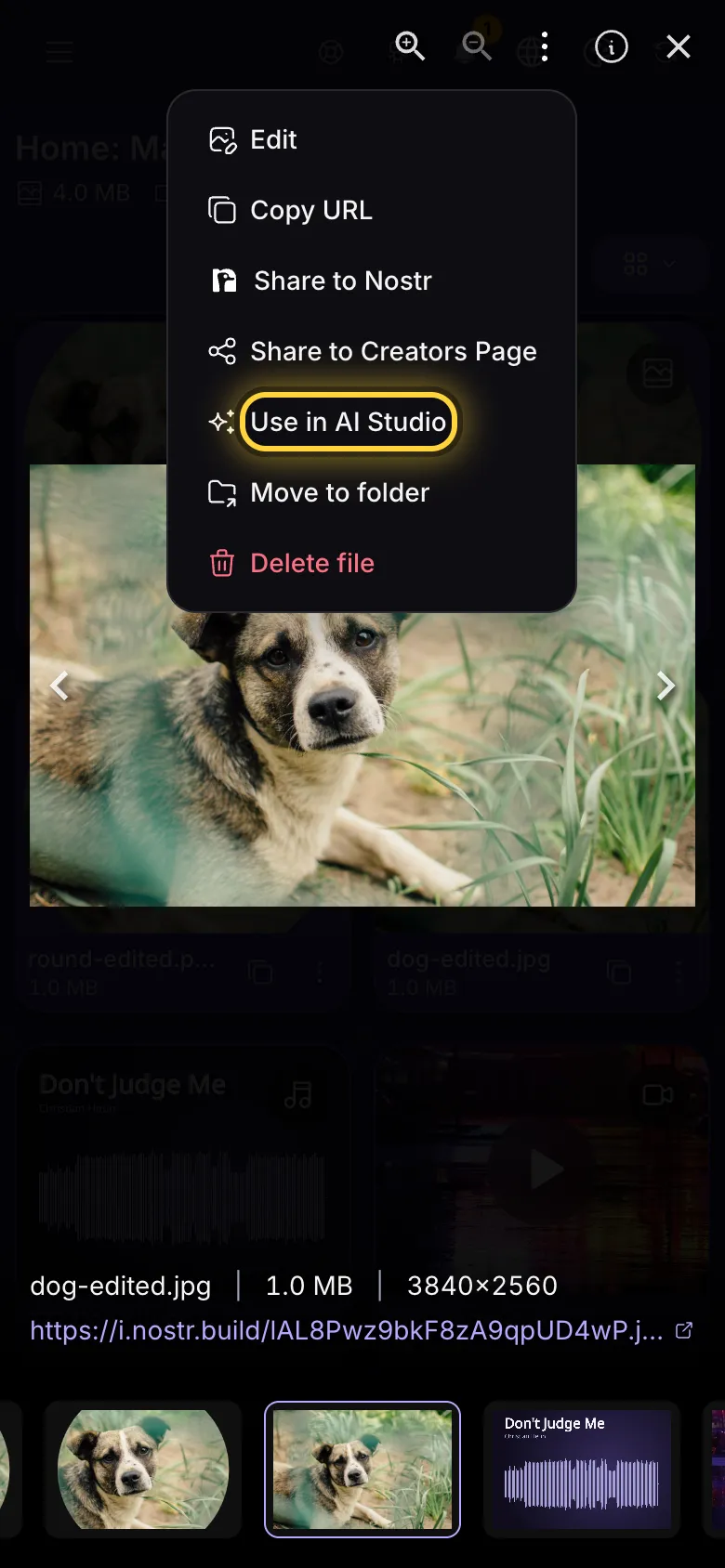
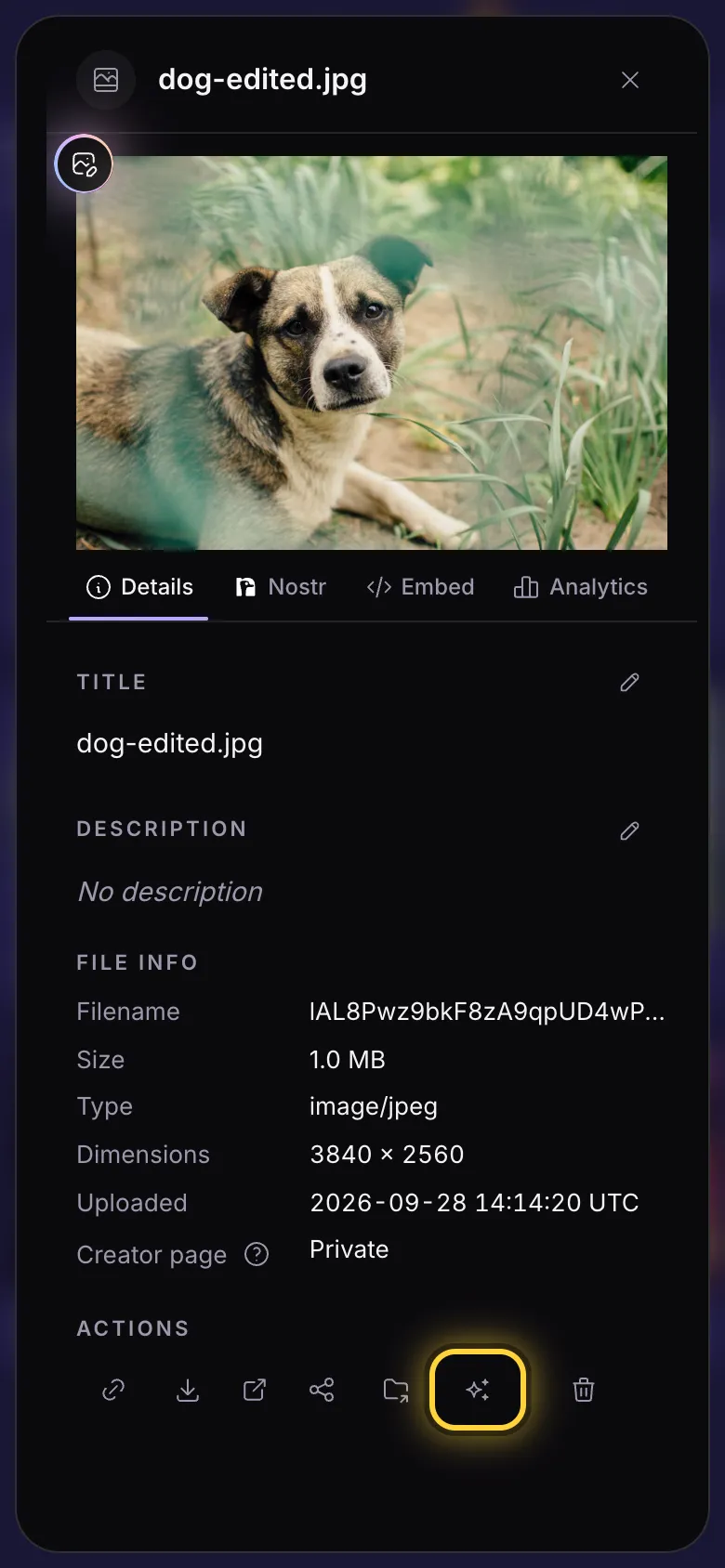
From any picture in your library
- Open a picture full screen, tap Actions (the three dots) and then Use in AI Studio.
- Or open the picture's details panel and tap Use in AI Studio (the sparkles button) in its row of buttons.
- AI Studio opens with the picture attached. If the chosen model can't take pictures, it switches to one that can.
- Say what to change and tap Generate. Your original stays as it is: the result is a new picture.
More options
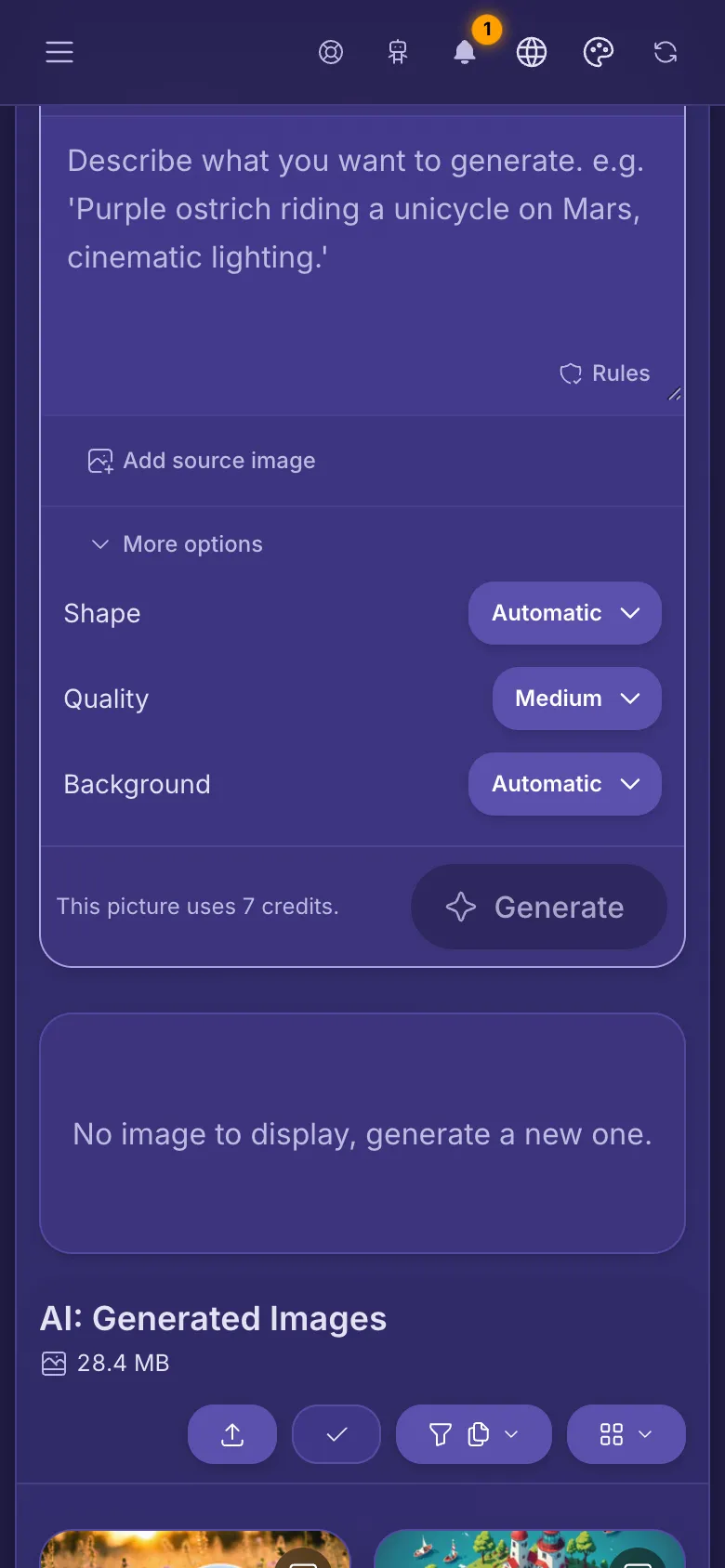
- Tap More options under the prompt. What you see depends on the model.
- Shape sets the shape of the picture: square, tall or wide. Size and Quality make a bigger or finer picture, and can use more credits.
- Some models also offer Background for logos and stickers, Brand colors for design, or Seed: the same seed and prompt give the same picture again.
- Once you change something, the button says how many options you changed. Reset next to an option sets it back.
- Some models add a second box for what you don't want in the picture. Stability models have their own Aspect ratio menu, and Core and Ultra a Style preset menu.
What it costs
- Models marked Included use no credits. Every other picture uses credits, shown on its card and on the line next to Generate before you tap it.
- The price can change with the options you pick and the pictures you attach. The line always shows the total for this picture.
- Tap your credits at the top right to see them and buy more. When you run low, a Top-up button shows next to them.
- If a picture fails, the credits it used come back to you.
Tips for better pictures
Describe the picture
Write what the picture shows. "A red fox asleep in the snow at sunrise, soft light, close-up photo" works better than "make a fox".
Name the style
Say what kind of picture it is: a photo, an oil painting, a pencil sketch, a 3D render or pixel art. Add the light and the angle.
Words in the picture
For a poster or a logo, pick a model under Design and text and put the words in quotes: a poster that says "Summer Sale".
Small changes to a photo
Attach the photo, pick a model under Edit pictures, and say only what should change: "make the sky a sunset, keep everything else".
Try it cheap first
Test your prompt with an included or fast model. When you like the idea, make the final picture with a model under Best quality.
Related guides
Your library
Upload from a phone or computer, sort files into folders, copy a link to share, move and delete files.
Image editor
Crop, brighten, add text and stickers, make a meme, or hide something private before you share a photo.
Plans and paying
Pick a plan, pay with Bitcoin, Lightning or a card, then renew, upgrade or move to a smaller plan.
Still stuck? When something goes wrong explains the common error messages, and Get help shows how to reach the team.