Your library
Everything you upload lives in your library. This guide shows how to add files, keep them in folders, find them again, copy a link to share, and clear out what you no longer need.
For everyone with a plan.
The pictures show a phone. On a computer the folders sit down the left side and the buttons show their names, and the rest works the same way.
On this page
Find your way around
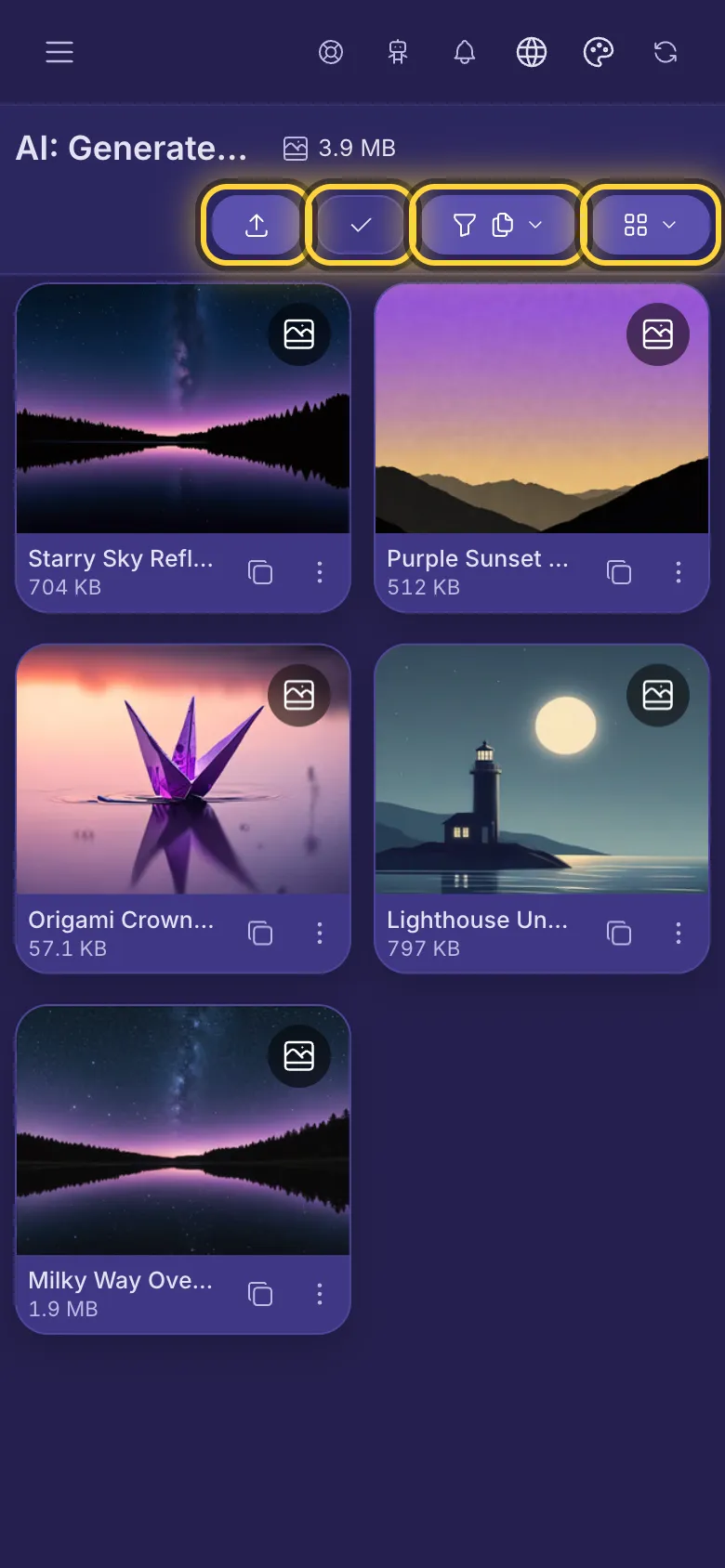
Your library opens when you sign in, and Account Main Page in the menu brings you back. At the top is the folder you are in and how much space its files take. Under it are four buttons:
- Upload (an arrow pointing up) opens the upload panel.
- Select (a tick) lets you pick several files at once.
- The funnel shows one kind of file only, such as pictures or videos.
- The four squares make the files look bigger or smaller.
Under each file are two small buttons: the two squares copy its link, and the three dots open its details. Tap the file itself to see it full size.
Upload files
- Open the folder the files should go into. New files always land in the folder you have open.
- Tap Upload.
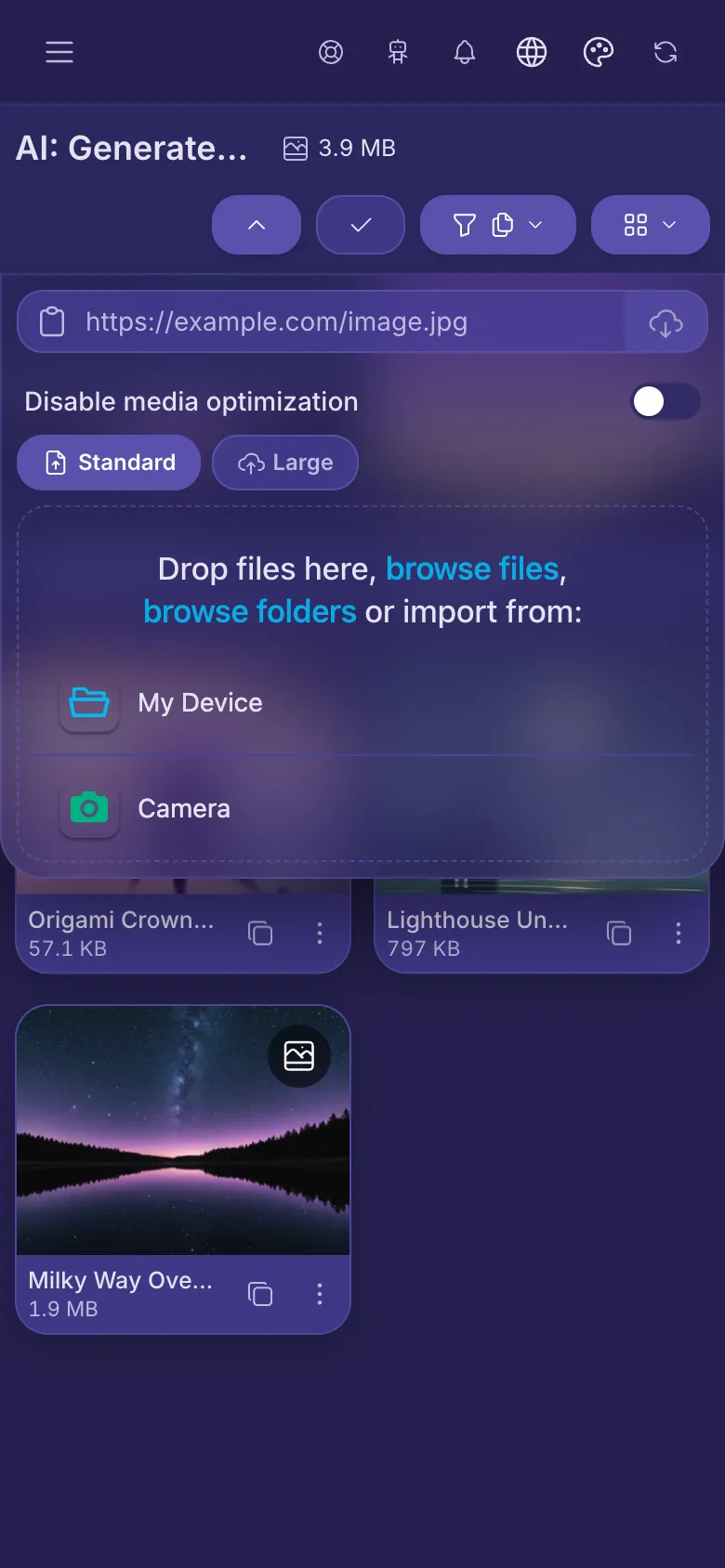
- Tap the middle of the panel to pick photos, videos or sound, or tap the camera to take a new one. You can pick many at once.
- The button counts up to 100% while the files go up. Tap it again to close the panel and keep using the app meanwhile.
- On a computer you can also drop files anywhere on the page.
- Big files (from 40 MB) go up in pieces and show under Large. They move there by themselves: you don't need to pick the tab.
- Have a link to a picture or video on another site? Paste it into the box at the top and tap the button at its end. nostr.build keeps its own copy.
- Disable media optimization: pictures and videos are normally made lighter so they load fast for everyone. Turn this on to keep a file exactly as it is.
- What you can upload depends on your plan. Every plan takes pictures, videos and sound.
Make a folder
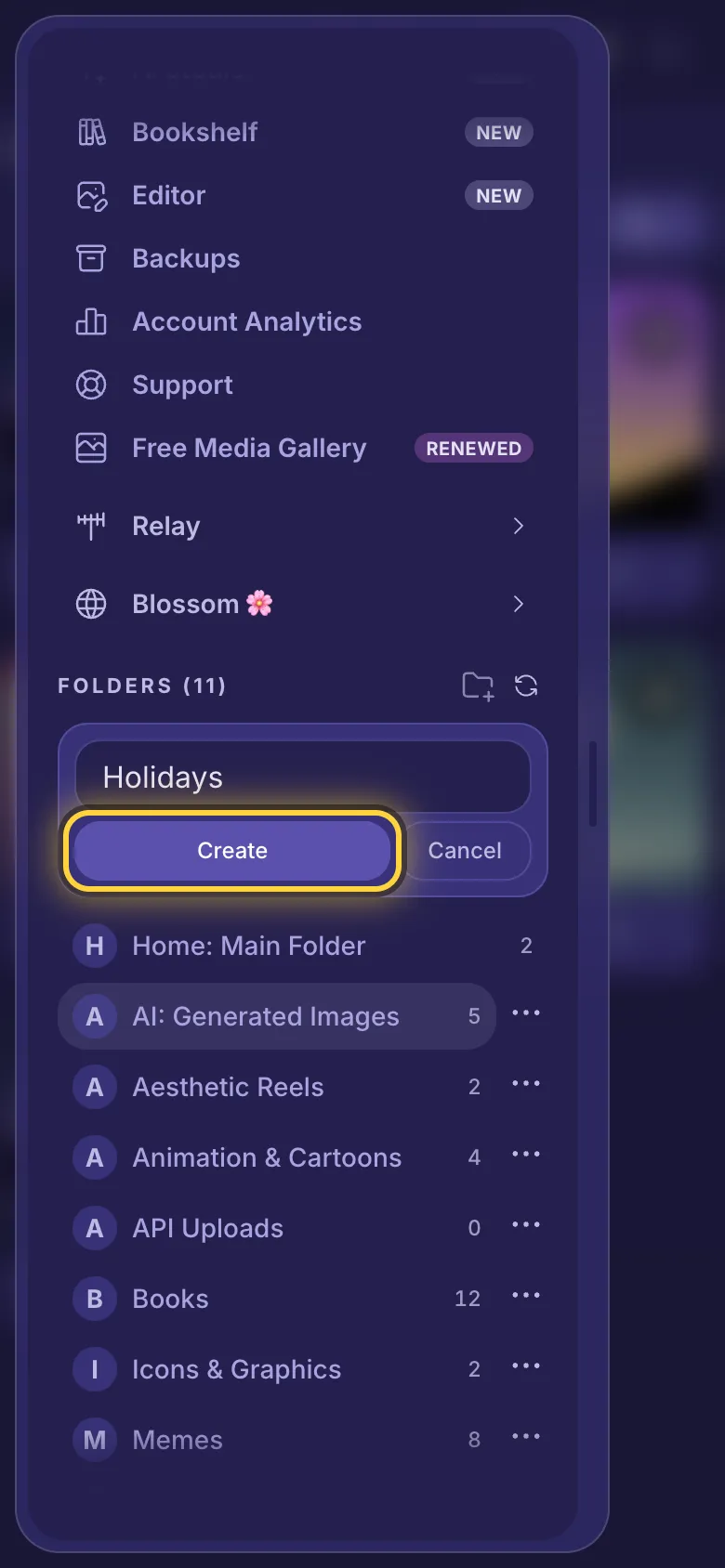
- Tap the menu (three lines, top left) and scroll down to the folders.
- Tap New folder (a folder with a plus).
- Type a name and tap Create.
- Tap a folder to open it. The number beside it says how many files it holds.
Rename a folder
- In the menu, tap the three dots beside the folder.
- Tap Rename.
- Type the new name and tap Save.
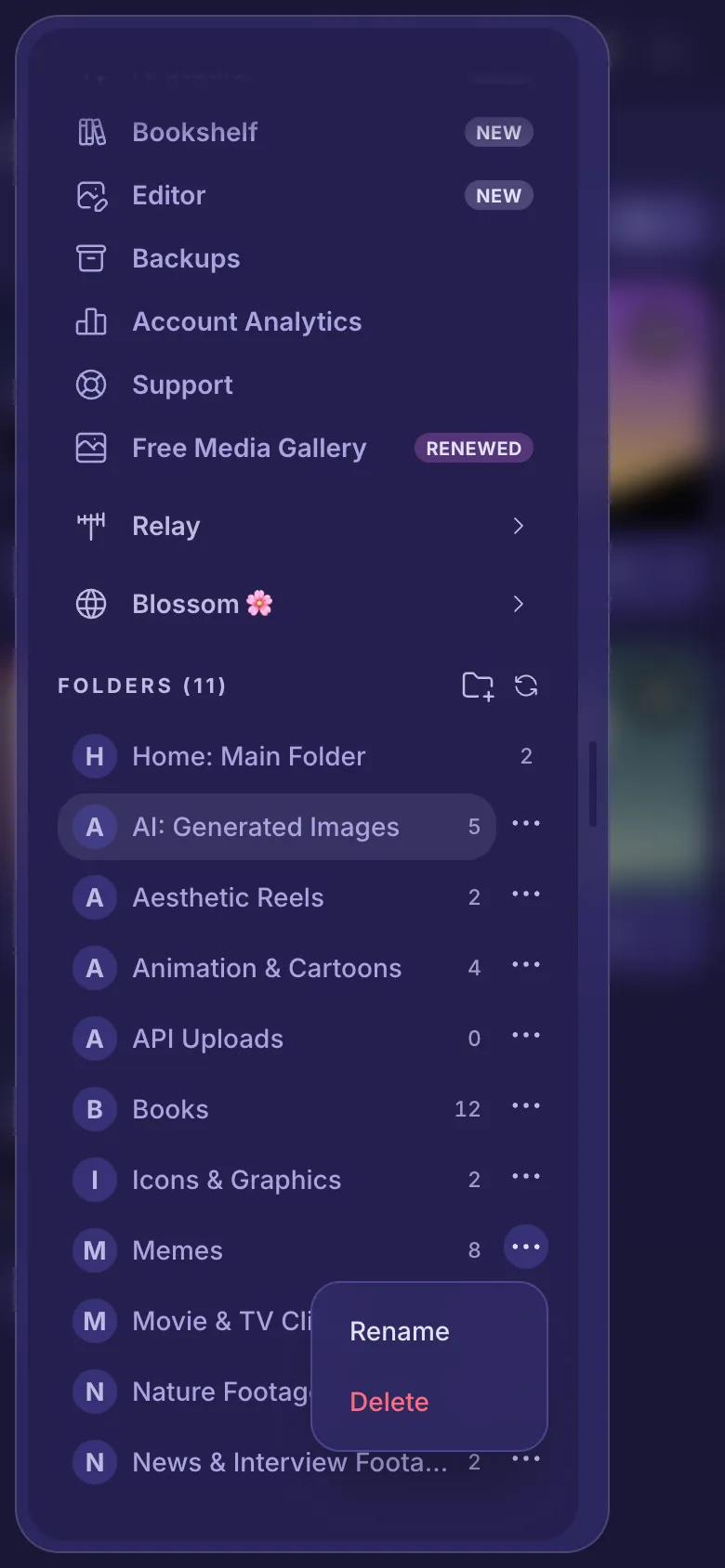
Delete a folder
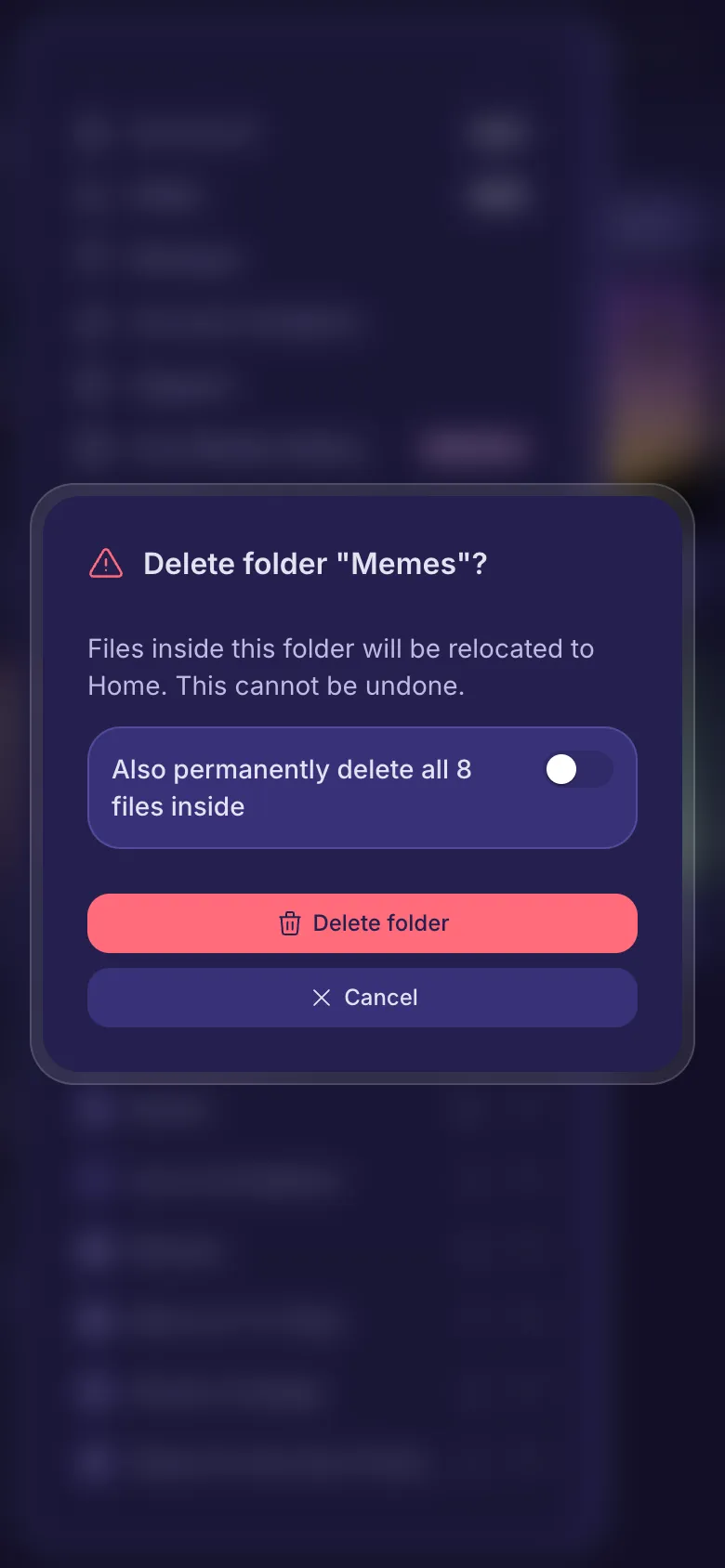
- Tap the three dots beside the folder, then Delete.
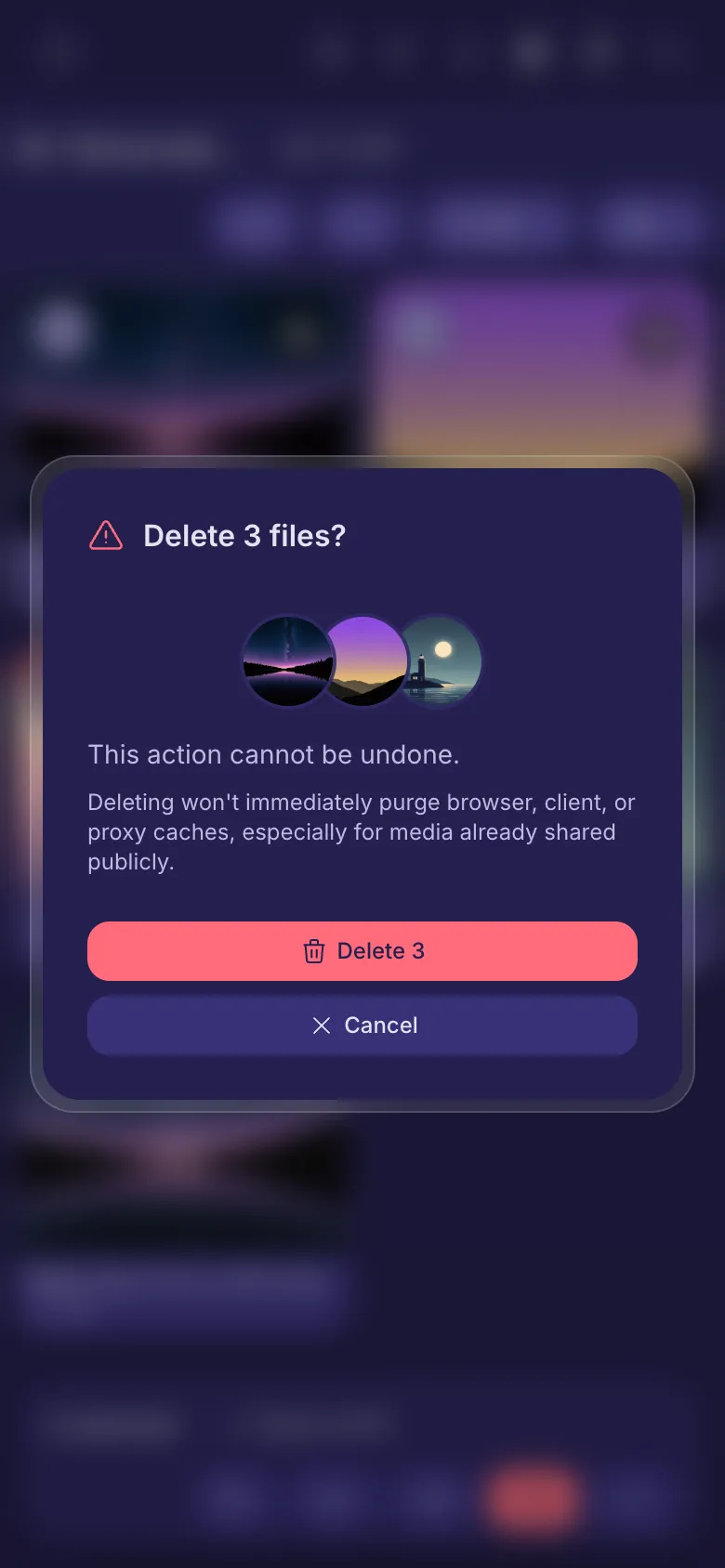
- Read the question, then tap the red button.
Find a file
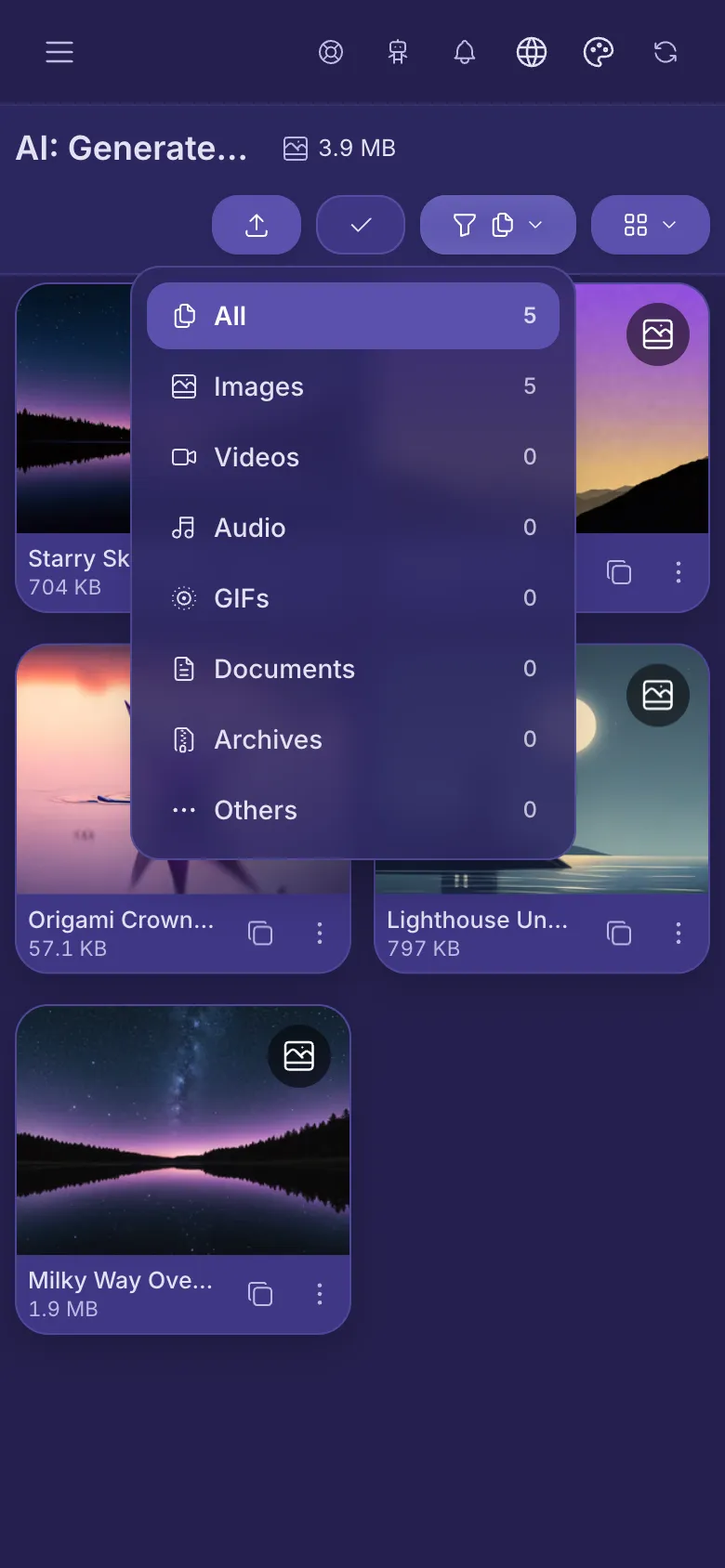
- Tap the funnel.
- Pick a kind, such as Images or Videos. The number beside each says how many the folder has.
- To see everything again, pick All.
The four squares next to it change the size of the files, so more or fewer fit on the screen.
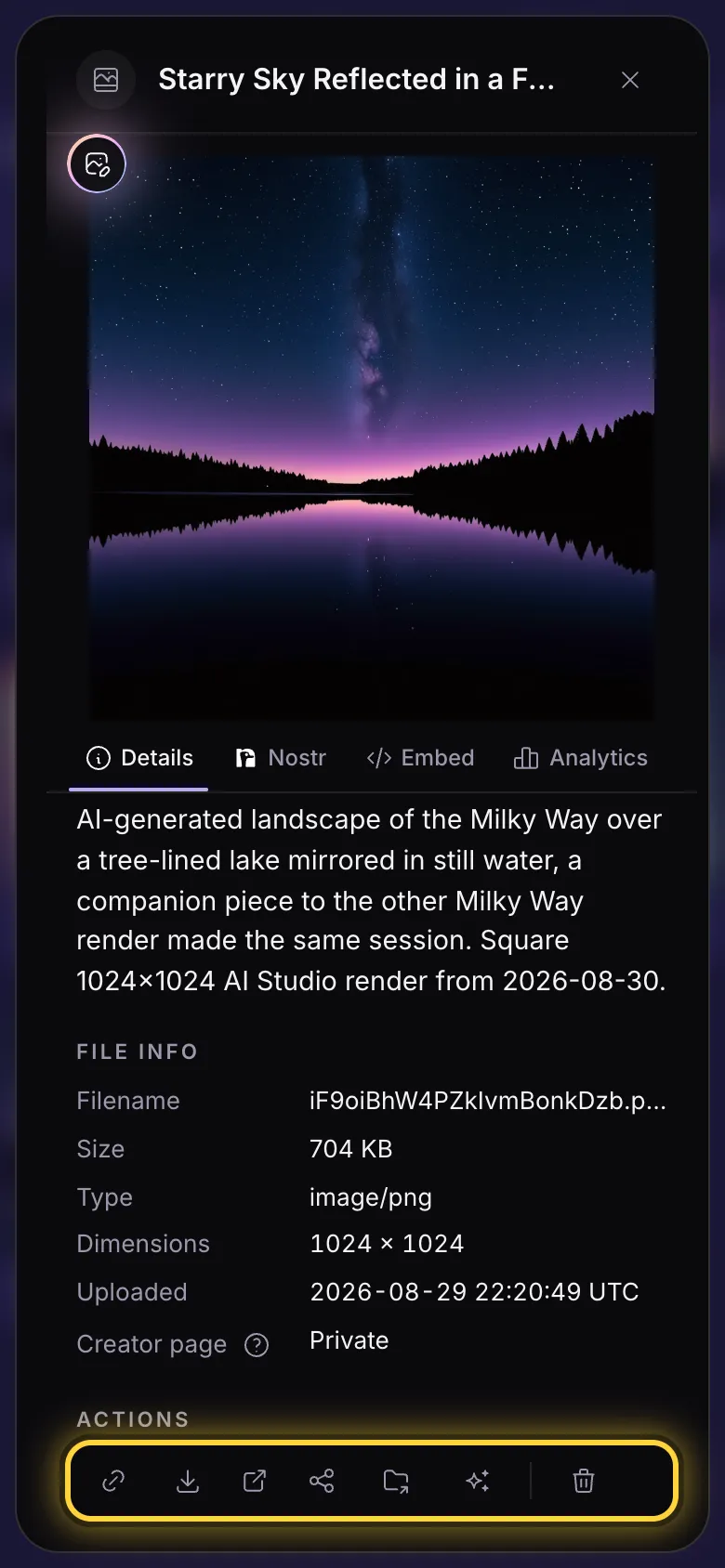
A file's details
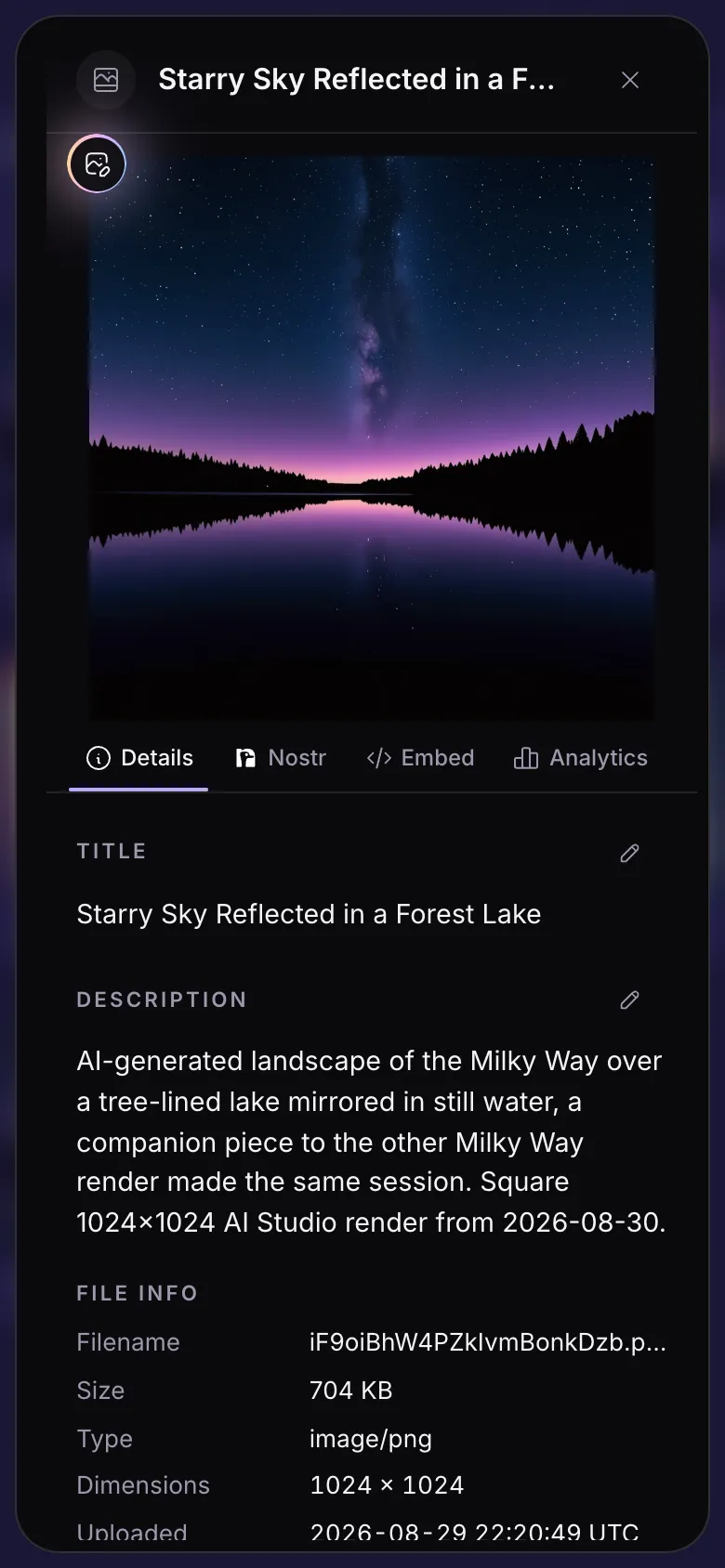
- Tap the three dots under a file.
- Tap the pencil beside Title or Description, write your own, and tap the tick to save it.
- Scroll down for its size, its type and the day it was uploaded.
The tabs above hold more: Nostr to post the file on Nostr (on accounts with a Nostr key), Embed for the code that puts it on a website.
The round button at the top left of the picture opens it in the editor: Image editor.
Copy a link, download, move
At the bottom of the details is a row of buttons:
- The chain copies the file's link, to paste into a post or a message.
- The arrow pointing down saves the original file to your device.
- The box with an arrow opens the original in a new tab.
- The three joined dots put it on your public Creators Page (Share to Creators Page), on the Creator and Advanced plans.
- The folder with an arrow moves it to another folder.
- The bin deletes it.
Work with several files
- Tap Select (the tick).
- Tap each file you want. A tick appears on it.
- Use the bar at the bottom: copy all their links, move them, share them or delete them.
- Select all picks every file you are looking at. The cross stops selecting.
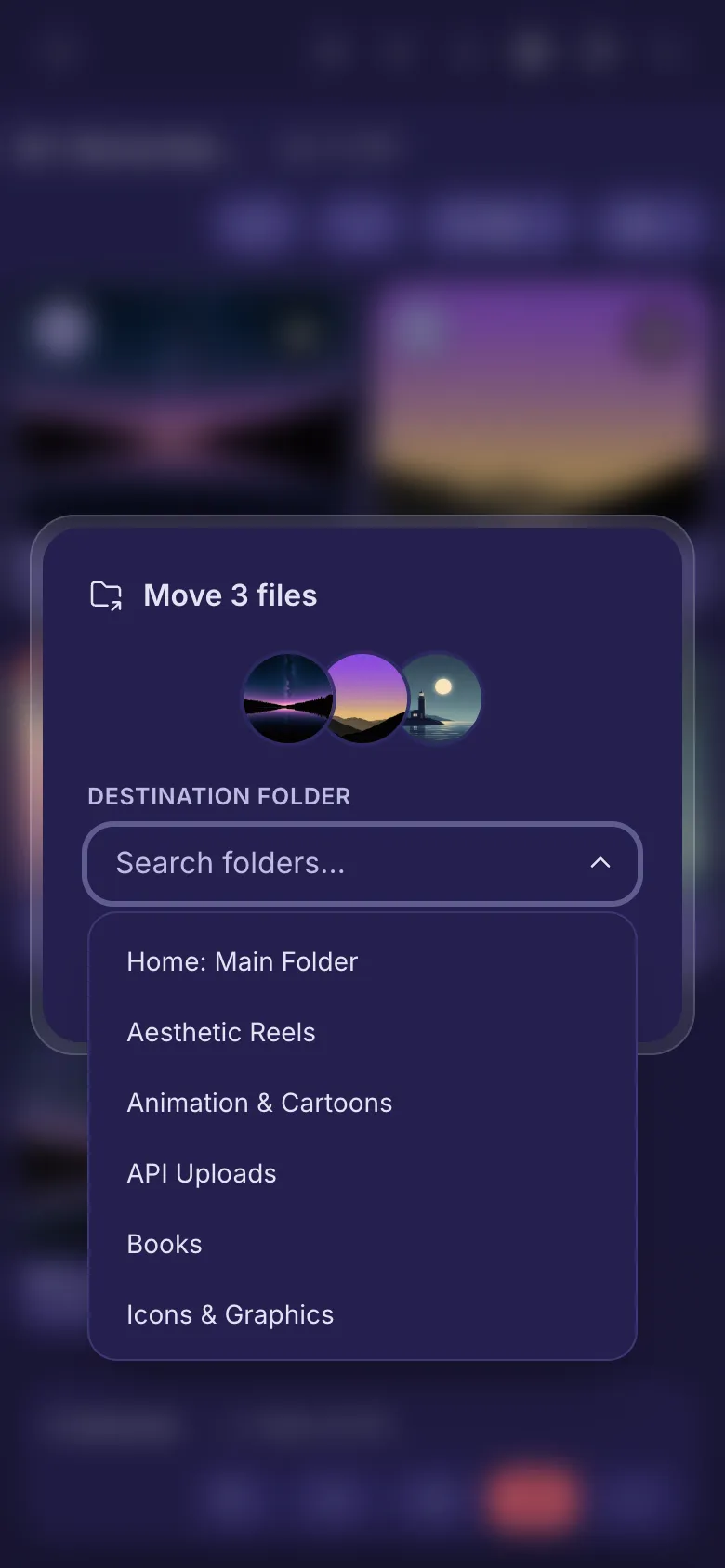
Move files to another folder
- Select the files, or open one file's details.
- Tap the folder with an arrow.
- Pick a folder from the list, or type to find it, then tap Move.
On a computer you can also drag files onto a folder in the list on the left.
Delete files
- Select the files, or open one file's details.
- Tap the bin.
- Check what the question says, then tap the red button.