Read books and PDFs
The Bookshelf shows every EPUB book and PDF you have uploaded, and opens them in a reader that remembers your place. This guide shows how to read, change how a book looks, and keep books for offline reading.
For Professional, Creator and Advanced plans.
The pictures show a phone. On a computer the pages look the same, only wider.
On this page
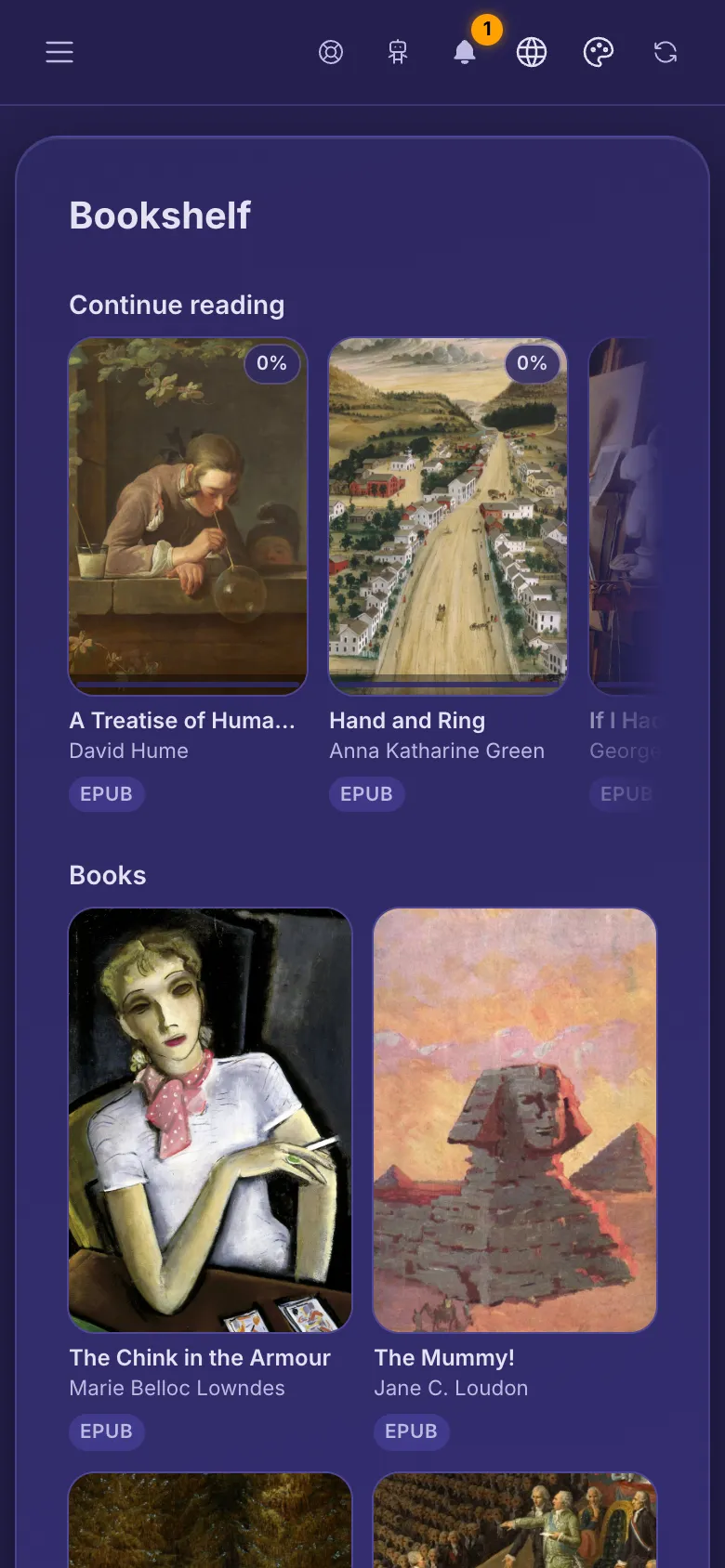
Your shelf
- Open the menu and tap Bookshelf.
- Your books are grouped by the folder they are in. Upload EPUB or PDF files as usual and they show up here.
- Continue reading at the top lists up to 10 books you have started, the one you read last first.
- Tap a cover to open the book. You can also open a book file in your library and tap Read.
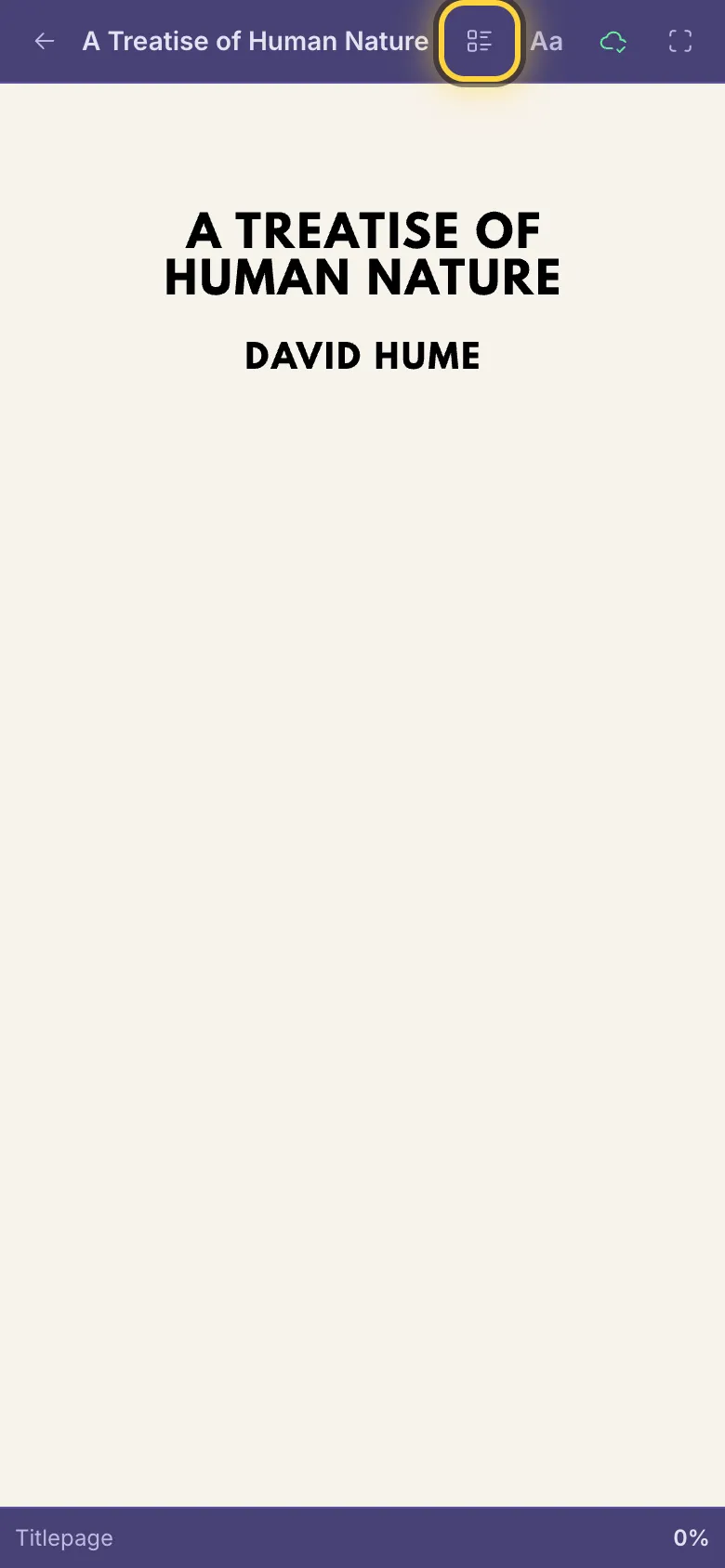
Turn pages
- On a phone or tablet, swipe left or right. In a book you can also tap near the left or right edge of the page.
- On a computer, use the arrow keys, or click the arrows at the page edges.
- Contents (the list button at the top) jumps to a chapter, if the book or PDF has a table of contents. The bottom of the screen shows how far you are.
- The arrow at the top left (Back to bookshelf) takes you back to your shelf.
Change how it looks
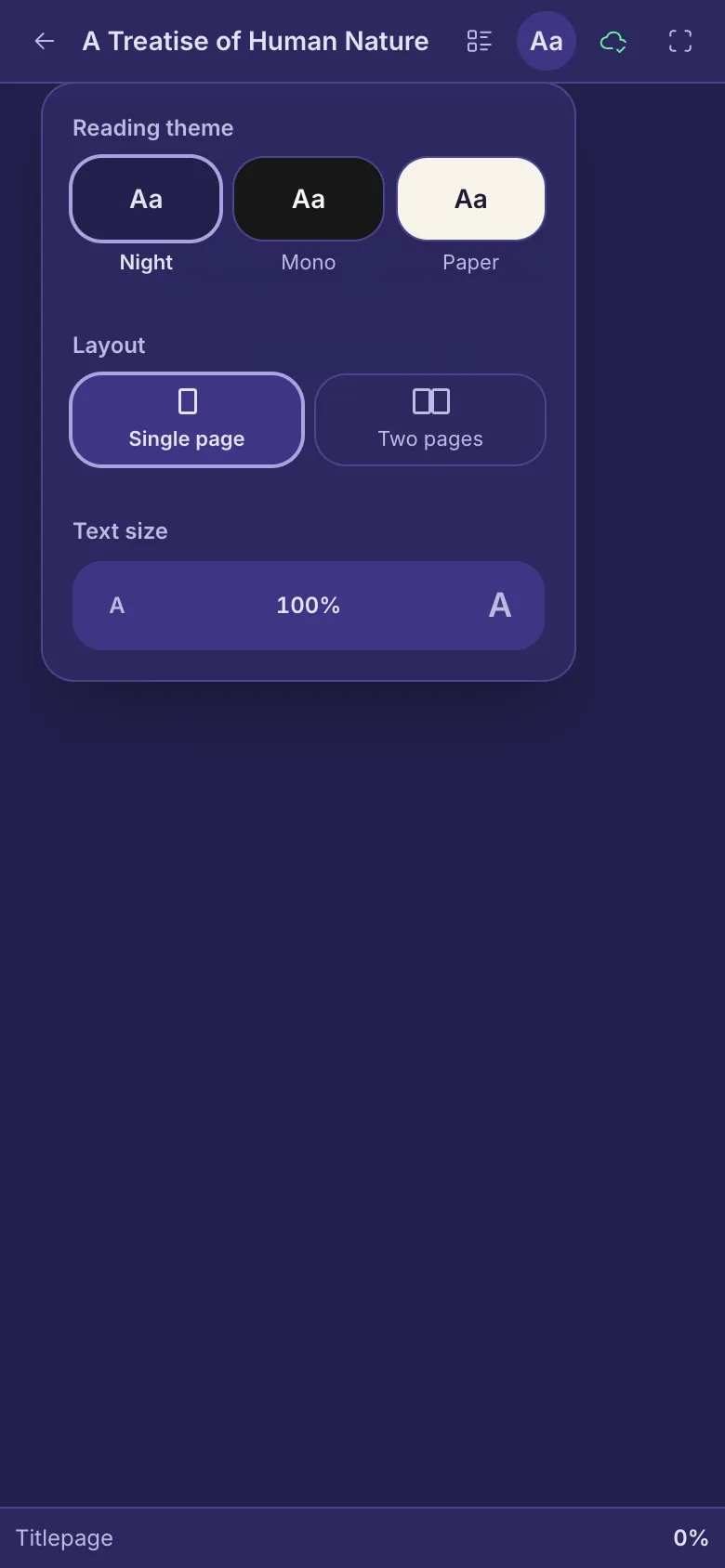
- Tap Display settings at the top (the Aa button in a book, the magnifying glass in a PDF).
- In a book, pick a Reading theme: Night, Mono or Paper. Under Text size, tap the big A or the small A.
- Layout switches between Single page and Two pages. Two pages only fit on a wider screen, like a tablet or computer.
- For a PDF, Display settings offers Layout and Zoom: Fit page, Fit width, or zoom in and out.
Pick up where you left off
- Your place is saved as you read, a few seconds after you turn a page, and a book opens where you stopped.
- If you read on another device while the book is still open here, a note says Further along on another device when you come back. Tap Jump to 64% to go there, or keep reading and the note goes away.
- Once the reader shows 100% (for a PDF, once you reach the last page), the book's cover on your shelf shows Read.
Read offline
- A book is saved on this device when you open it. For a PDF, tap the cloud button at the top (Save for offline reading). A saved book shows Available offline on your shelf. Tap the green cloud again to remove that copy.
- The copy is kept in this browser on this device. Clear downloads at the top of your shelf removes all offline copies from this device; your books stay in your account.
If a book won't open
- Still being scanned A new file is checked for viruses first. Try again in a few minutes.
- This book could not be opened The file is damaged or built in a way the reader can't handle. Tap Download original to open it in another app.
- A PDF with a password shows Something went wrong: the reader can't open it. Tap Download original and open it in another app.
Still stuck? When something goes wrong explains the common error messages, and Get help shows how to reach the team.