See how your media is viewed
Analytics counts how often your media is requested and where the traffic comes from: for your whole account, and for each file. This guide shows where to find it and what the numbers mean.
For every plan while it is active, with a Nostr key on your account.
The pictures show a phone. On a computer the folders sit down the left side and the buttons show their names, and the rest works the same way.
On this page
What the numbers mean
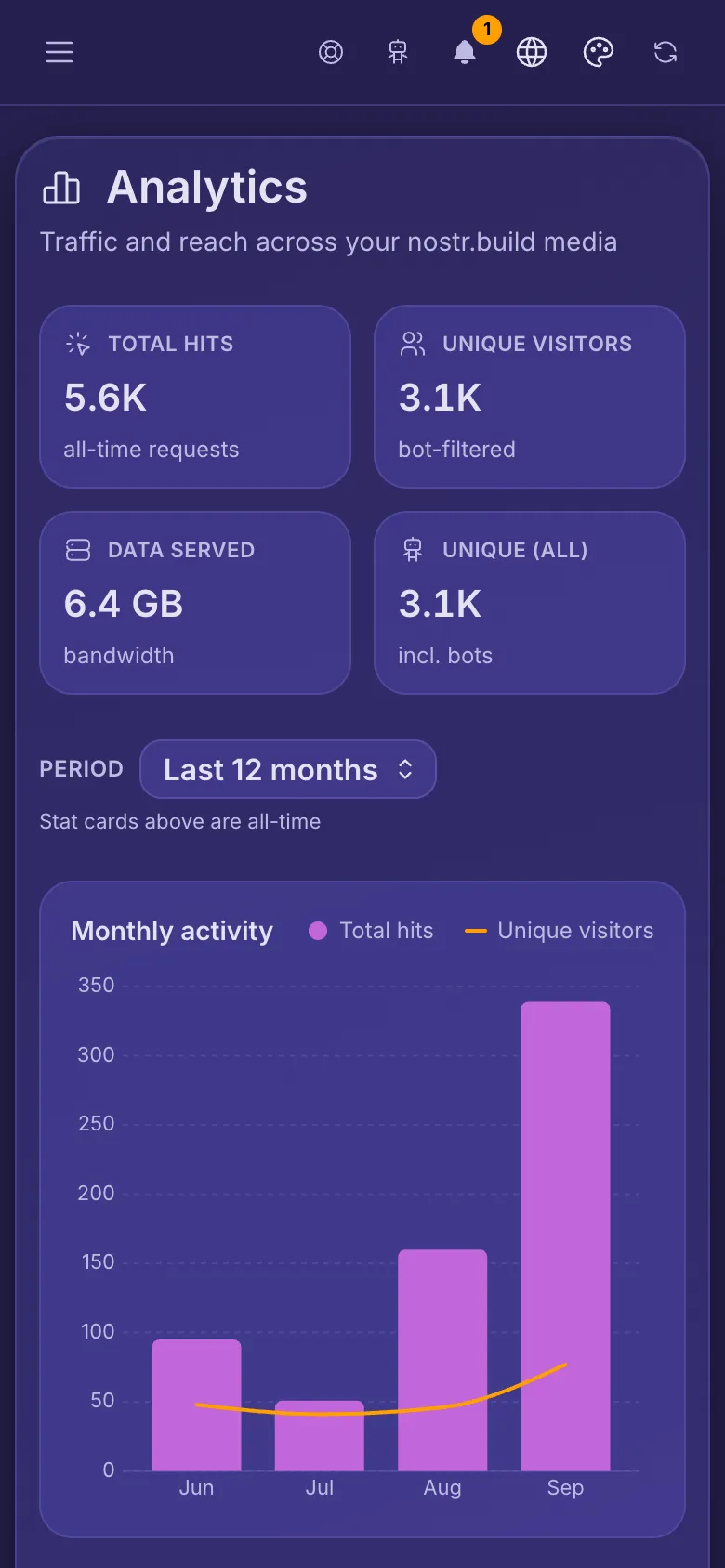
- Total hits: every time one of your files was requested, bots included.
- Unique visitors: different visitors, with bots left out. Unique (all) counts them with bots.
- Data served: how much data your files sent out.
Your whole account
- Open the menu and tap Account Analytics.
- Pick a Period for everything below the totals: 3, 6 or 12 months.
Monthly activity shows requests and unique visitors per month. Below it: Top referrers (the sites that link to your media, in order, without counts), then the countries, devices, browsers and systems your visitors use.
One file
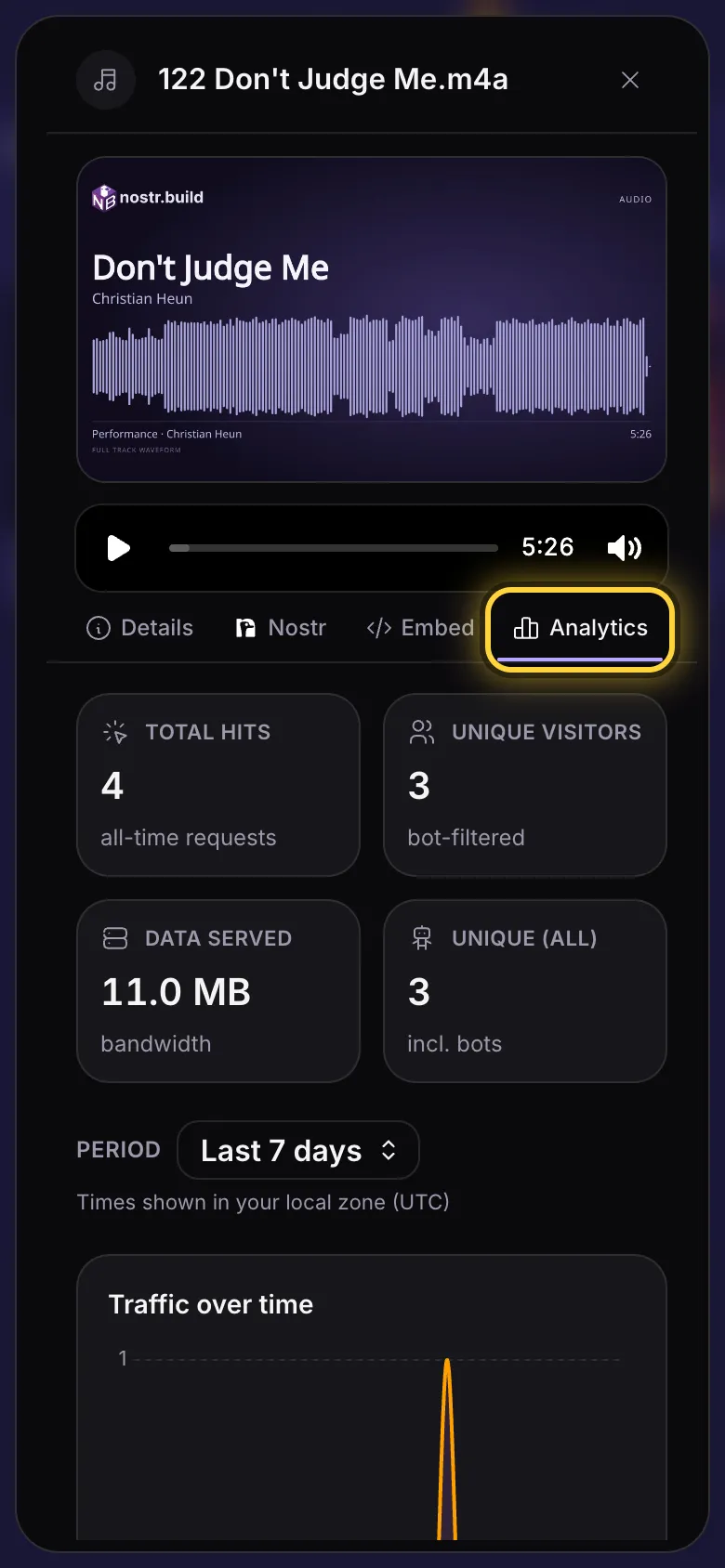
- In your library, tap the three dots on a file's card (File details). They are hidden while you are selecting files.
- Open the Analytics tab.
- The same four totals show for this file. Pick a Period, then scroll for its traffic over time and where it comes from.
Times are shown in your own time zone. A file that nobody has opened yet shows No views recorded yet.
What each plan shows for a file
The whole-account page is the same on every plan. For a single file, the periods and charts depend on your plan:
- Purist: up to 30 days, with countries and referring sites.
- Professional: up to 6 months, plus devices, browsers and systems.
- Creator: up to a year, plus the hour of day and, on periods of a week or more, the day of the week.
- Advanced: up to 5 years, plus weekdays against weekends on periods of a week or more.
Still stuck? When something goes wrong explains the common error messages, and Get help shows how to reach the team.